
Algodocs — Export Extracted Data, API & Zapier
Export manually, automate with Zapier, or integrate via API.
Overview
This page combines three help topics: exporting extracted data, using the API, and exporting via Zapier.
What you can export
- Manual files: Excel, JSON, XML
- Automations to Sheets/CRMs via Zapier
- Programmatic pulls via API
When to use which
- Manual: ad-hoc reports or small batches
- Zapier: continuous sync into tools (e.g., Google Sheets)
- API: full control & integration into apps/pipelines
Export options
Pick how you want your extracted data to flow out of Algodocs.
Steps (Export to file)
- Go to Extracted Data in Algodocs.
- Choose Extractor, Folder, and Date range.
- Click Export → select Excel, JSON, or XML.
The file downloads to your device in the chosen format.
Good for
- One-off reports
- Small/medium datasets
- Spreadsheet-centric workflows
What you can do
- Import documents from files or URLs
- Pull extracted data for single or multiple documents
Authenticate (e.g., OAuth 2.0) and call the endpoints documented below.
When to use the API
- You need real-time or bulk programmatic access
- Orchestration inside your app/ETL
- Custom export formats/destinations
Why Zapier
Create “Zaps” that move extracted data to apps like Google Sheets, CRMs, ERPs—no code.
- Connect Algodocs in Zapier → My Apps
- Create a Zap: Trigger = Algodocs “Extracted Data Available”
- Add an Action in the target app (e.g., “Create Spreadsheet Row”)
Popular flows
- Append extracted rows to Google Sheets
- Email results via Gmail
- Push to databases, CRMs, ERPs, or webhooks
Common questions
Can I export multiple formats?
Yes — export to Excel, JSON, or XML from the Extracted Data page. For scheduled/ongoing exports, use Zapier or the API.
How do I get API credentials?
Open the API Reference to review authentication and endpoint setup.
How do I start with Zapier?
In Zapier, go to My Apps → connect Algodocs → create a Zap with Algodocs as the trigger, then map fields to your target app (e.g., Google Sheets).
How to Export Extracted Data to a Custom Excel Template?
This feature allows you to export your extracted data into your own Excel template format. You can upload a custom Excel file and automatically map extracted data into your preferred layout.
Step 1: Go to the Extractors page and select the extractor you want to export data from.
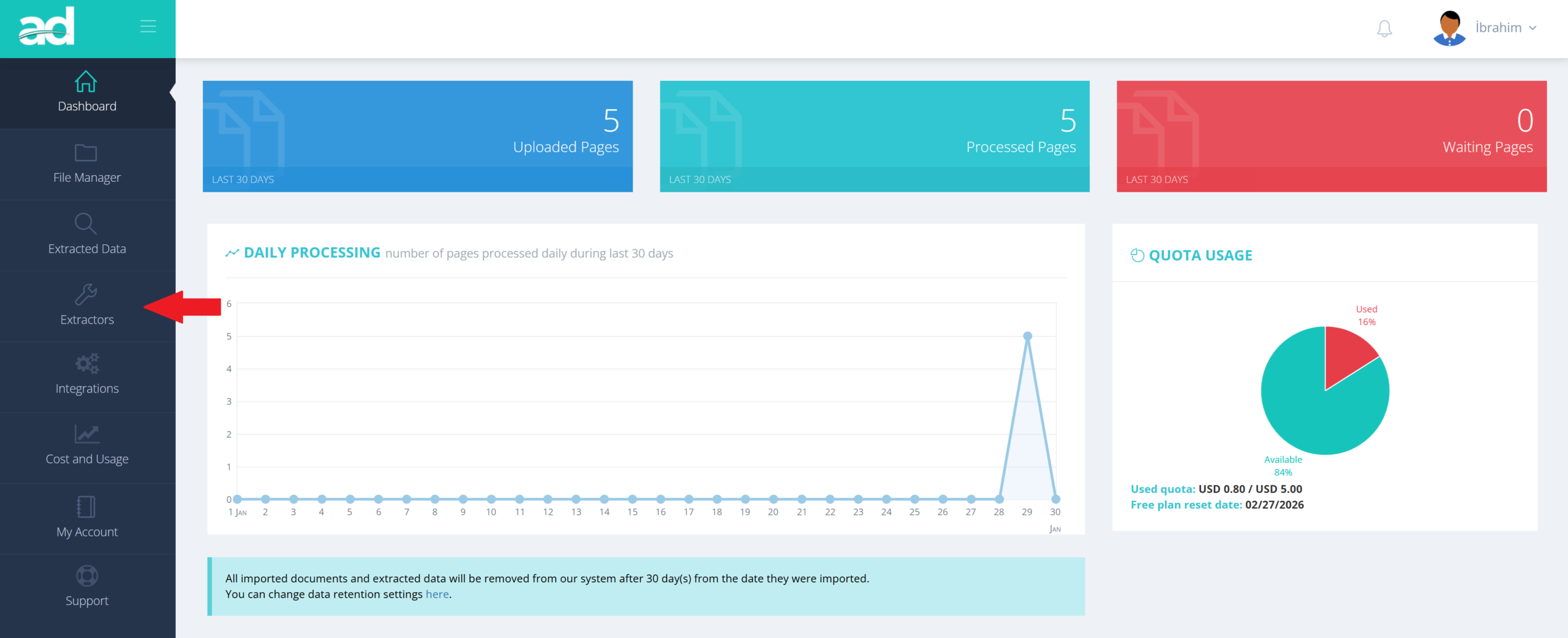
Step 2: Go to the Extractors page and select the extractor you want to export data from.
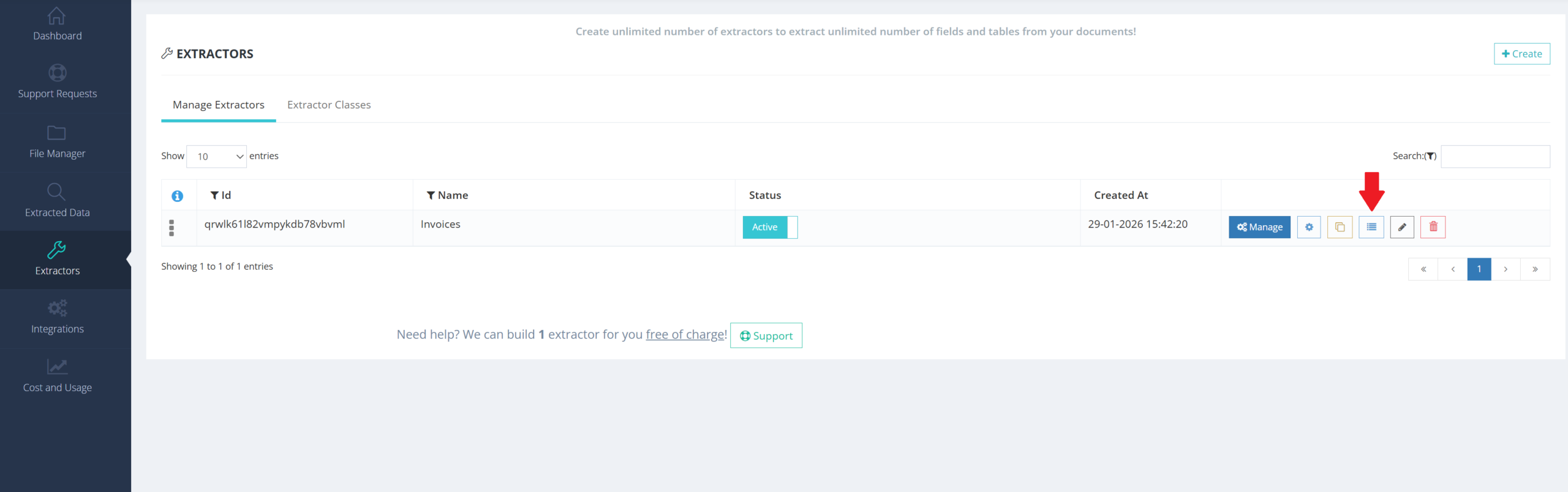
Step 3: Go to the Extractors page and select the extractor you want to export data from.

Step 4: Go to the Extractors page and select the extractor you want to export data from.
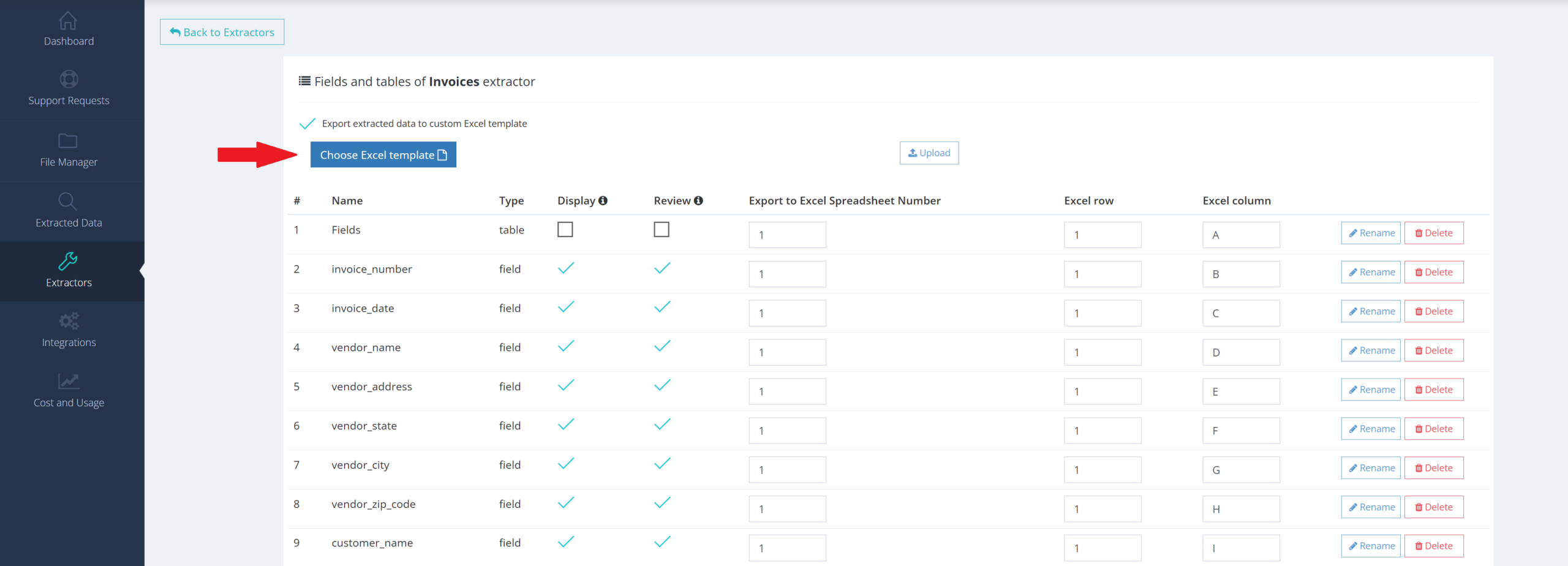
Step 5: Go to the Extractors page and select the extractor you want to export data from.
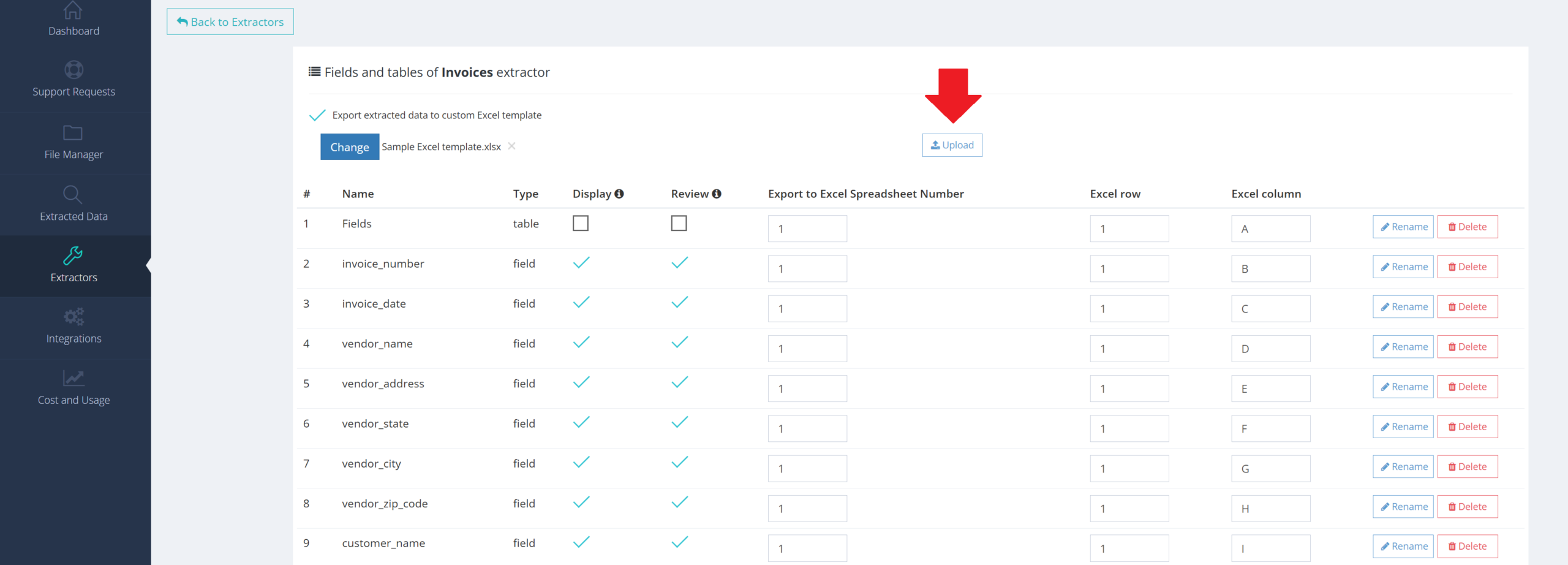
This feature allows you to export your extracted data into your own Excel template format. You can upload a custom Excel file and automatically map extracted data into your preferred layout.
