
This guide explains how to connect Algodocs with viaSocket and use viaSocket actions to automatically upload and process documents in Algodocs.
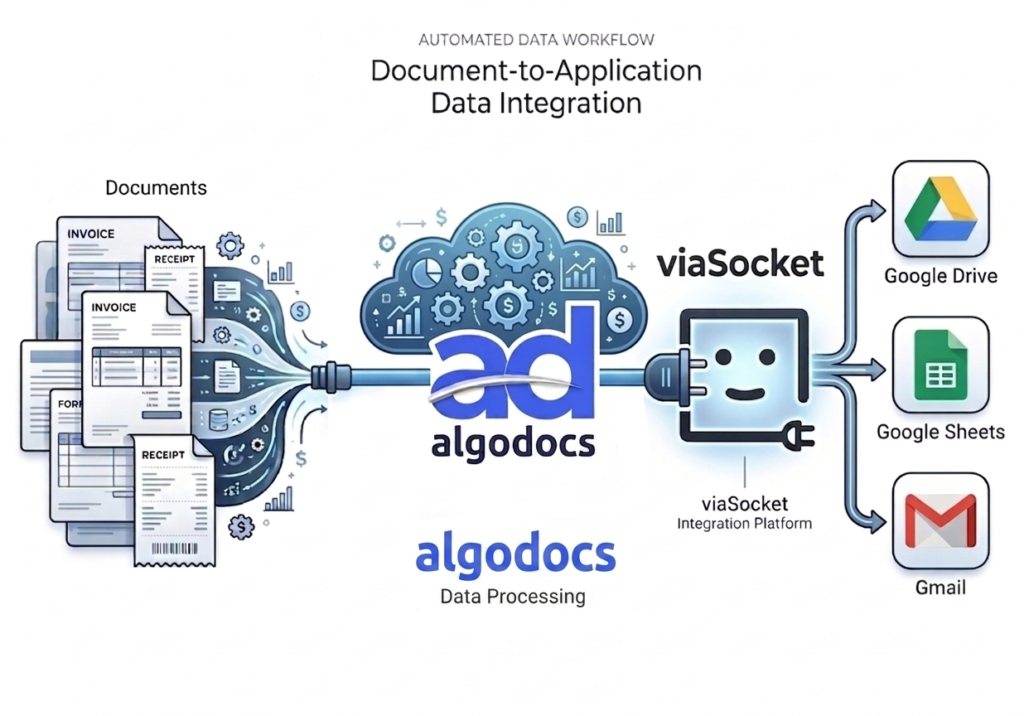
Algodocs allows you to extract structured data from documents such as invoices, receipts, forms, and contracts. Using viaSocket, you can automatically send documents from other apps to Algodocs for processing.
Prerequisites
Before connecting Algodocs with viaSocket, make sure you have:
- A viaSocket account
- An Algodocs account
- Algodocs Email Address
- Algodocs API Key
- Extractor ID
- Folder ID
Step 1 — Get Algodocs API Credentials
Follow these steps to get your Algodocs API credentials.
- Log in to your Algodocs account.
- Go to:
Integrations → Rest API
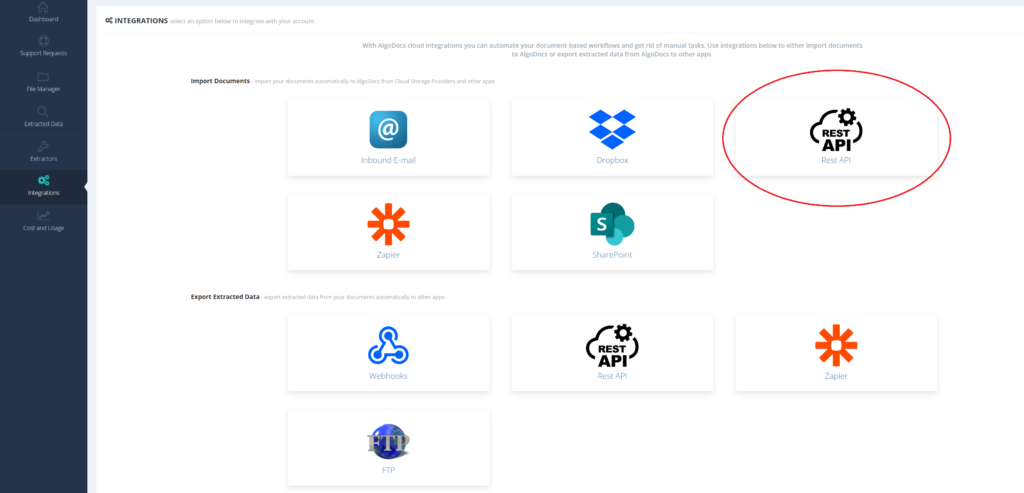
- Copy the following:
– Email Address
– API Key
You will need these credentials to connect Algodocs with viaSocket.
Step 2 — Create a Workflow in viaSocket
- Log in to your viaSocket account.
- Click: Create Workflow
- Select a trigger app.
Example triggers:
- Webhook
- Google Drive New File
- Email Attachment Received
- New Record in CRM
4. Configure the trigger.
5. Click: Continue
Step 3 — Add Algodocs Action
- Click: Add Action.
- Search for: Algodocs.
- Select Algodocs.
- Choose the available action: Upload Document.
Step 4 — Connect Algodocs Account
- Click: Connect Account
- Enter the following details: Email Address, API Key
- Click: Connect
Your Algodocs account will now be connected to viaSocket.
Step 5 — Configure Upload Document Action
After connecting your account, configure the action.
Fill in the required fields.
Required Fields:
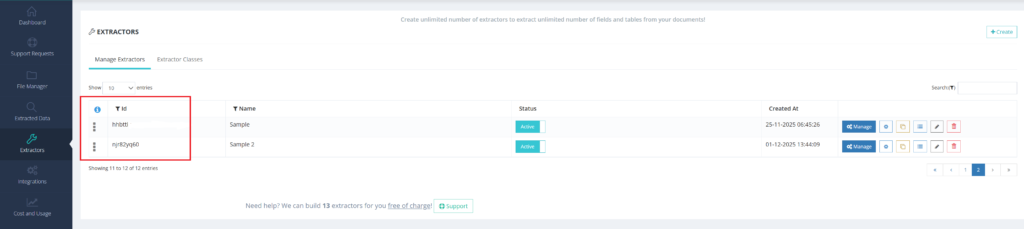
- Extractor ID
Select or enter the Extractor ID used for document processing.
- Go to the ‘Extractors’ page and copy the ID from the ‘ID’ field located to the left of the extractor name you need.
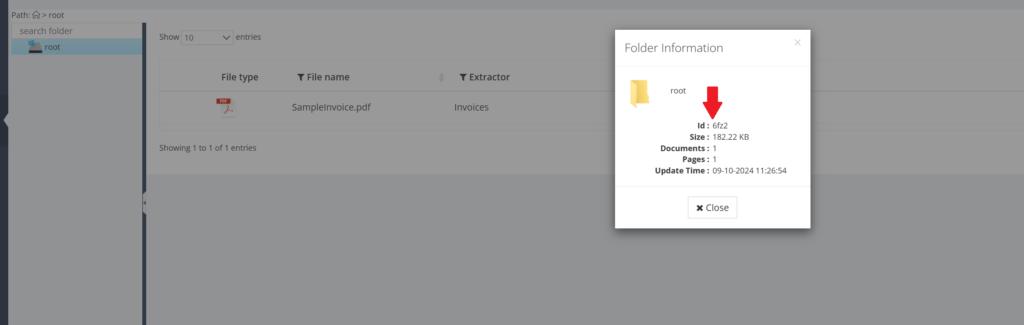
2. Folder ID
Enter the Folder ID where documents will be uploaded.
- How to find the Folder ID:
- Right-click on the folder you wish to get the ID for.
- Select “Folder Info” from the menu.
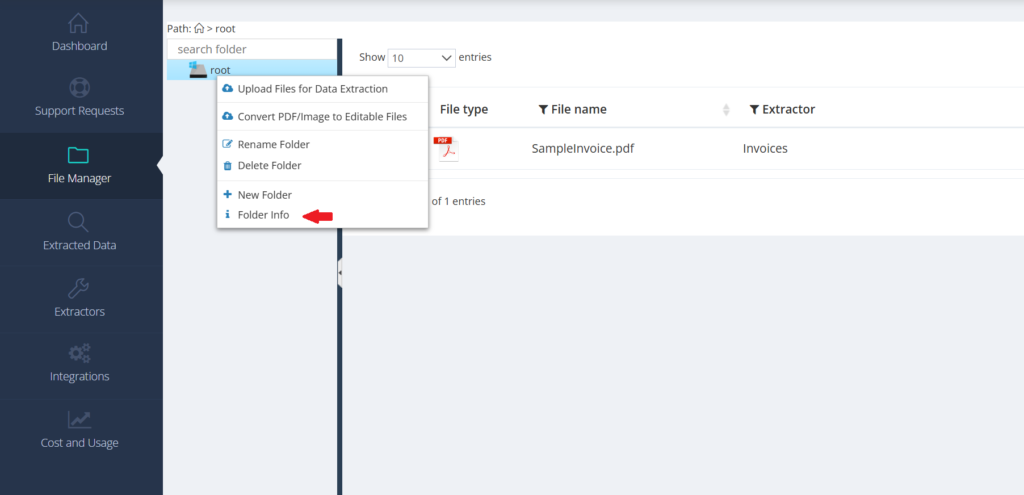
3. In the window that appears, the value shown next to “Id:” is the unique ID of that folder.
File URL
Provide the URL of the document you want to upload.
The file must be publicly accessible.
File Name (Optional)
Provide a custom file name for the uploaded document.
Example: Invoice_January.pdf
Step 6 — Test the Action
Click: Test Action
- viaSocket will upload the document to Algodocs.
- If the test is successful, the document will appear inside your Algodocs folder.
Step 7 — Publish Workflow
After testing successfully:
Click: Publish Workflow
Your workflow is now active.
Documents will automatically be uploaded to Algodocs whenever the trigger runs.
Algodocs Actions in viaSocket
Algodocs currently supports the following action:
Upload Document
This action uploads a document to Algodocs and starts the extraction process automatically.
Required Inputs
- Email Address
- API Key
- Extractor ID
- Folder ID
- File URL
Optional Inputs
- File Name
Example Workflow
Automatically Process Invoices
Trigger: New File in Google Drive
Action: Upload Document in Algodocs
Result:
- File automatically uploaded to Algodocs
- Data extraction starts automatically
Supported File Types
Algodocs supports common document formats such as:
- PNG
- JPG
- JPEG
- TIFF
Troubleshooting
Authentication Failed
Make sure:
- Email address is correct
- API key is correct
Document Not Uploading
Check:
- File URL is publicly accessible
- Extractor ID is correct
- Folder ID is correct
Notes
- Algodocs supports actions only in viaSocket.
- Algodocs workflows must be triggered by another application.
- Document extraction happens automatically after upload.
