Best Safe PDF Editor Software & Web Tools in 2026: Editing PDF Data Securely
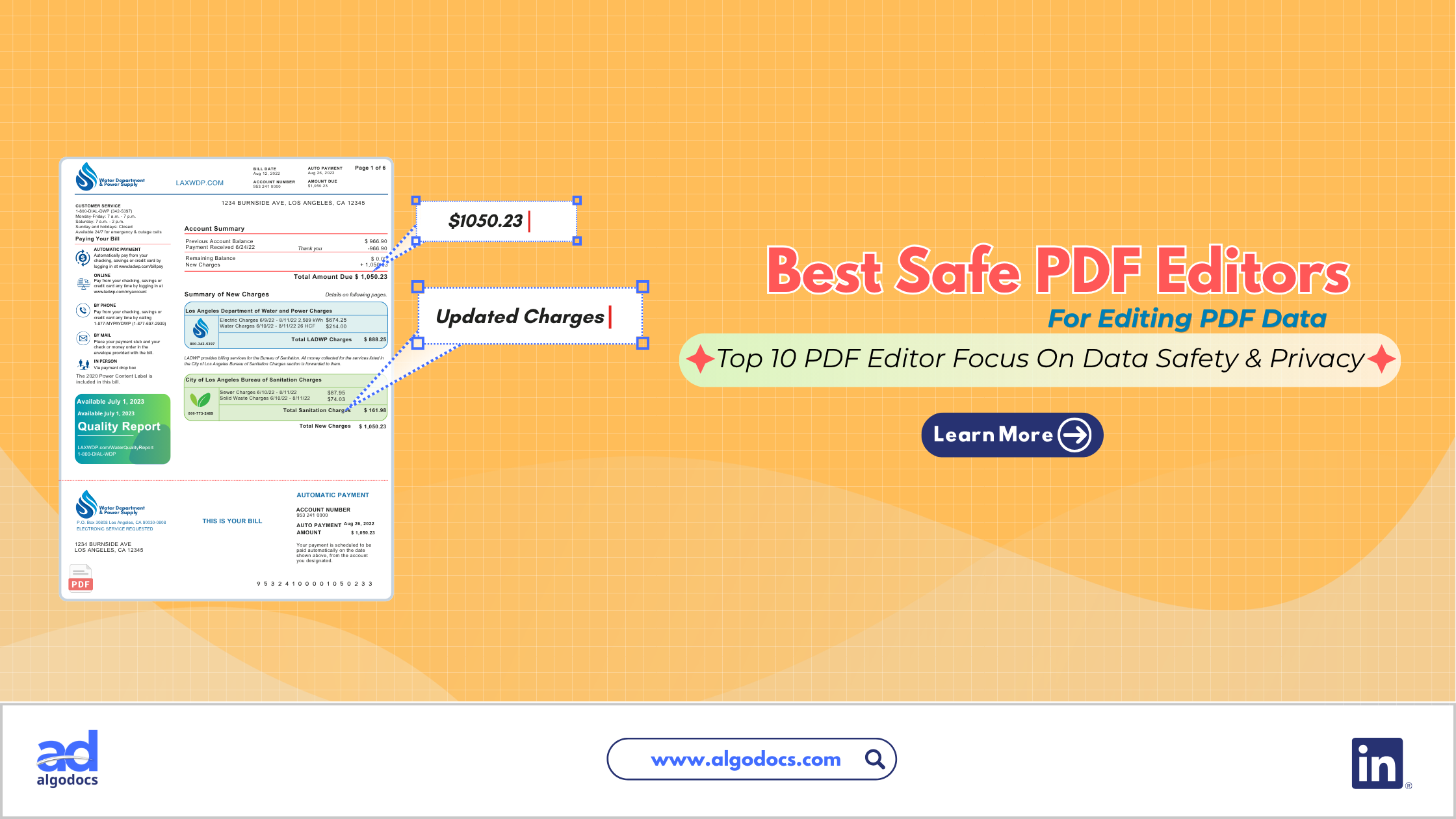
A PDF file is a widely used document file that is used by millions on a day-to-day basis in their offices, homes, colleges, or personal activities. But when it comes to editing a PDF file, a common question arises in our minds: What is the best safe PDF editor? Why do we always feel cautious about using a PDF editor? Because a PDF file can contain crucial information. If this information gets exposed to hackers, there could be some serious consequences. From financial statements and employment contracts to personal tax records and legal briefs, PDF files carry private data. Finding the best safe PDF editor is not just a matter of convenience; it is a critical line of defense for your personal privacy and corporate cybersecurity.
Today, every company claims that its PDF editor software is safe, but trusting anyone blindly can be costly. Recently, a fake, malware infected PDF editor app, which was distributed via a Google Search ad campaign and downloaded by millions on their computers, stole login credentials from users using the Tampered Chef method. This is a very common technique in which malware is distributed via a software package. When users install the app on their system, it sits on the computer silently for a period of time, and after some time, it starts stealing important information such as login details, passwords, etc.
Many people turn to free web PDF converters when they need to modify text or insert images into a document on the go. However, uploading unencrypted files to unknown web servers creates massive security risks as well. Web servers can store your files on remote systems, expose data to third-party trackers, or suffer catastrophic database leaks. Choosing a top-rated PDF editor or a secure cloud document platform that prioritizes local processing, robust encryption, and verified safety standards keeps your private information completely secure.
This comprehensive guide evaluates the market to reveal the best PDF editing software and web platforms available today. Whether you need a powerful PDF editor for Windows, specialized Mac software PDF editing tools, an affordable PDF editor, or an advanced web-based document automation platform, this deep dive provides everything you need to make an informed choice.
TL;DR Summary
Security First: Free web tools and unverified apps can expose private records or introduce malware. Prioritize local device file processing or verified encrypted cloud services.
Top Free Offline Tools: PDFgear and PDF24 Creator process documents entirely on your computer for maximum privacy at zero cost.
Best Native Pick for Mac: Apple Preview offers instant offline editing, signatures, and page management built directly into macOS.
Industry Standards: Adobe Acrobat Pro remains the gold standard for full text modification and legal compliance, while Foxit and Nitro provide strong enterprise alternatives.
Best AI Data Extraction: Algodocs securely automates PDF data extraction and spreadsheet conversion using structured cloud workflows.
Crucial Safety Tip: Never use simple black drawing boxes to cover sensitive data. Always use true redaction tools to erase hidden text layers permanently.
What Makes a PDF Editor Truly Safe?
There are factors and parameters that make an app truly safe. A company must invest heavily in data safety technologies and policies to safeguard customers’ personal data. You can consider a few of the following security measurements before you start using a PDF tool. A good PDF editor must have the following safety features:
1. Local Device File Processing & Document Editing
When you have control over your documents and how you want to process them, it makes a real difference. Editing a PDF file within your own local machine offers you freedom while restricting unauthorized access to the file. Your documents never pass through external servers, eliminating intercept risks, server logging, or remote data exposure.
2. End-to-End File Encryption Standards
If you are using cloud-based PDF editing software, online data encryption is a must. A recommended encryption standard for a file editor is AES-256, which is an encryption protocol with a 256-bit key length. These types of encryption layers permit safe file transfers over a network while safeguarding against online attacks.
3. Permanent Data Redaction
Sensitive data, such as a bank account number, credit card details, or financial statements, can make a file high-risk and lead to financial loss for an individual or an organization. Solutions such as permanent data redaction are the only way to ensure the safety of personal data. True security tools remove the underlying text vectors and hidden metadata permanently from the file structure, preventing unauthorized parties from copying or highlighting hidden text underneath.
4. Verified Software Cleanliness
Installing random PDF apps on your Windows or Mac, or using an unverified web-based PDF editor, is something everyone should avoid. The best PDF program or app should be trustworthy and free from adware. It should not bundle third-party installers, spyware, or tracking code. Legitimate software vendors sign their installation files with verified digital code certificates to confirm authenticity.
5. Compliance Certifications
A compliance certification is what makes a true difference at the forefront of data safety and privacy. Any app that follows international data privacy standards such as GDPR, HIPAA, ISO 27001, and CCPA can be considered a safe PDF editor app.
10+ Best Safe PDF Editor and Web Tools You Can Consider in 2026
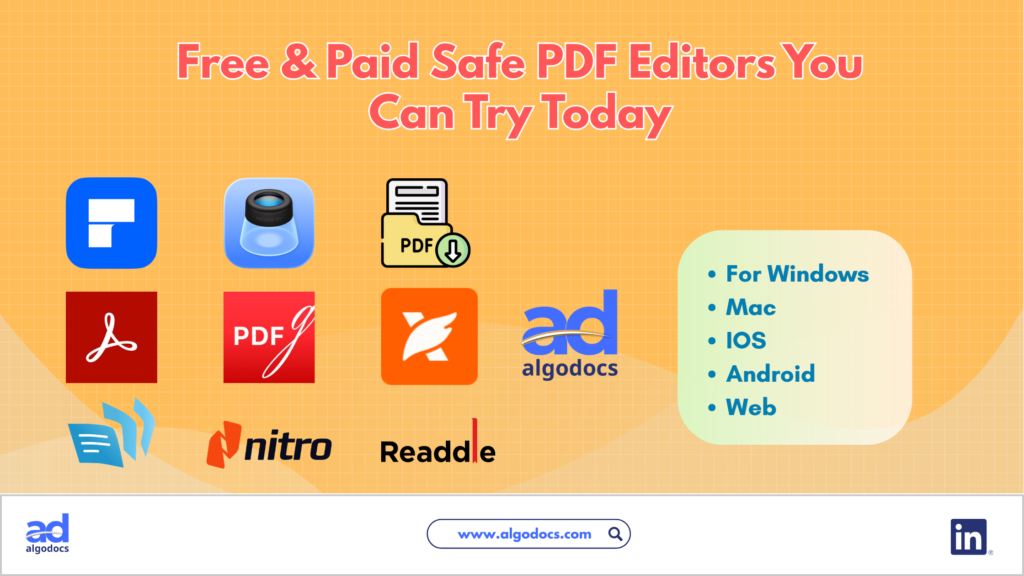
Finding the best safe PDF editors can be an overwhelming task, as there is a plethora of PDF editor apps available in the market. Finding an affordable PDF editor with strong safety and compliance features can be difficult. Based on our research, here are the recommended PDF editors that offer features, safety, security, and affordability.
1. Adobe Acrobat Pro: The Industry Gold Standard
Well, who doesn’t know about the Adobe Acrobat PDF editor? Many of us started reading and editing PDF files through Adobe Acrobat. While the free version is restricted to limited features, the paid version offers a versatile PDF editing experience.
- Key Security Features: Adobe Acrobat Pro runs on sandboxing technology known as Protected Mode, which isolates the core application environment and prevents malicious code and corrupted PDFs from touching your operating system. Adobe Acrobat Pro offers password encryption, digital certificate validation, custom permission settings, and permanent redaction tools, making it a highly secure PDF editing tool for business and personal use.
- Core Functionality: Acrobat Pro allows full modification of existing paragraph text, automatic font matching, image resizing, page reordering, form building, and optical character recognition. It can sync effortlessly across Web, Windows, macOS, Android, and iOS app environments. You can also integrate Adobe Acrobat with third-party tools, making it the Swiss Army knife of PDF editing tools.
- Pros:
- Unmatched document modification accuracy and typography control.
- Military-grade encryption and permanent data sanitization tools.
- Advanced digital signature verification and legal compliance.
- Cons:
- Requires an ongoing monthly or annual subscription.
- Resource-heavy installation compared to lightweight alternatives.
2. PDFgear: Is It the Best Free Offline Editor for Windows and Mac?
PDFgear has quickly risen to become a top PDF editor for budget-conscious users, as it offers tons of features without requiring extra dollars. With many other PDF apps, you need to make a monthly or one-time payment to access features.
- Key Security Features: Unlike traditional free online tools, PDFgear operates as a full desktop app. You can edit and process every file locally on Windows, Mac, Android, or iOS devices. You don’t need to create an account to use the app; just install it on your device to edit, process, and modify PDFs. PDFgear is a good PDF editor with all the essential features a paid app can offer.
- Core Functionality: PDFgear provides easy text editing features, allowing you to delete, insert, or rephrase original PDF text directly on the page instantly. It includes a highly reliable PDF insert tool for adding images, watermarks, shapes, and signature fields. It also features built-in artificial intelligence tools to summarize and extract insights from long documents safely.
- Pros:
- Completely free without hidden paywalls, watermark limitations, or ad banners.
- Full-text and object editing directly within local computer memory.
- Outstanding performance on both Windows 11 and macOS systems.
- Cons:
- Advanced enterprise workflow management features are still expanding.
- Cloud collaboration tools are limited compared to subscription platforms.
3. Foxit PDF Editor: Powerful Enterprise Security at an Affordable Price
Foxit PDF Editor claims to be the best alternative to Adobe Acrobat Pro, making it a highly recommended PDF editor for business teams seeking high performance and lower licensing costs.
- Key Security Features: Foxit includes deep integration with Microsoft security policies, robust access control management, digital signature authentication, and dynamic redaction capabilities. It fully complies with GDPR and SOC data protection mandates.
- Core Functionality: The application features a familiar office-style ribbon layout, making navigation effortless. Users can modify text blocks, reflow paragraphs, edit vector graphics, convert documents to Office formats, and build interactive fillable forms.
- Pros:
- Exceptional speed and fast document loading times.
- Flexible licensing including both annual subscription and perpetual one-time purchase options.
- Deep integration with corporate security environments.
- Cons:
- The user interface can feel crowded due to extensive toolbar options.
- Advanced artificial intelligence tools require higher-tier plans.
4. PDF-XChange Editor: The Best Feature-Rich Editor for Power Users
PDF-XChange Editor by Tracker Software is one of the best PDF editors for Windows, known for its astonishing depth of features, lightning-fast performance, and precise security customization.
- Key Security Features: PDF-XChange Editor gives users complete control over security policy definitions, digital certificate signing, password protection with strong encryption standards, and deep sanitization controls to strip hidden metadata, comments, and attachments prior to distribution.
- Core Functionality: It includes over one hundred features out of the box, including custom stamps, advanced document measurement tools, powerful character recognition capabilities, page extraction, and comprehensive text editing. It stands out as a highly reliable PDF insert tool for adding geometric shapes, annotations, images, and external reference links into complex engineering or legal files.
- Pros:
- Extremely fast execution speeds with low CPU and RAM consumption.
- Very cost-effective one-time license option.
- Unmatched depth of technical customization controls.
- Cons:
- User interface appears technical and dated for modern casual users.
- Available exclusively as native Windows software.
5. Apple Preview: Native, Instant, and 100% Safe for Mac Users
For Apple hardware owners seeking basic document editing, the best Mac PDF editing tool comes preinstalled on every Mac computer at zero extra cost.
- Key Security Features: Apple Preview works entirely offline on your Mac’s local disk. Because it is an integrated part of macOS, your files are protected by system-level security controls, disk encryption, and zero third-party server contact.
- Core Functionality: While Preview is not a full reflow text editor, it excels at core document management tasks. You can add text boxes, draw signatures using your trackpad, highlight passages, merge multiple PDFs together, delete or reorder pages, and export documents with custom password protection.
- Pros:
- Preinstalled on macOS with no downloads or fees required.
- Zero privacy risks because processing remains completely on-device.
- Seamless integration with Apple ecosystem tools and trackpad signing.
- Cons:
- Cannot edit pre-existing native text paragraphs inside a PDF.
- Lacks advanced features such as automatic form creation or complex optical character recognition.
6. PDF24 Creator: Free Open Desktop Suite with Zero Privacy Compromise
PDF24 Creator is an exceptionally reliable desktop software suite developed by Geek Software in Germany, designed specifically around strict European data protection principles.
- Key Security Features: Although PDF24 offers web-based utilities, its offline desktop suite installs all file processing modules directly onto your local system. Files never leave your computer hardware, guaranteeing complete data privacy and full GDPR compliance.
- Core Functionality: PDF24 Creator acts as a versatile toolbox. It lets you combine documents, split large files, compress PDF file size, convert various document types, extract individual pages, protect files with passwords, and apply watermarks or digital signatures effortlessly.
- Pros:
- Completely free for both personal and commercial business use.
- Guaranteed local offline file processing for complete privacy.
- Lightweight installation with zero adware or invasive telemetry.
- Cons:
- Layout relies on individual tool modules rather than a unified single-document canvas.
- Direct paragraph text reflowing is basic compared to dedicated text editors.
7. Readdle PDF Expert: Sleek, Secure, and Native for macOS and iOS
If you are looking for the best PDF editor for Mac that balances beautiful modern design with professional security, PDF Expert by Readdle is a standout choice.
- Key Security Features: PDF Expert handles files locally on your Mac, iPad, or iPhone. It provides hardware-backed security, password protection, and automated redaction tools to wipe out confidential text or image areas instantly.
- Core Functionality: PDF Expert enables fast editing of text, images, and embedded hyperlinks. It automatically detects original document fonts, text size, and line spacing for seamless modifications. It also provides exceptional pencil support on tablet devices for smooth document signing and sketching.
- Pros:
- Polished, user-friendly interface designed specifically for Apple hardware.
- Fast sync across Mac, iPad, and iPhone via secure cloud storage of your choice.
- Excellent text editing accuracy and smooth drawing performance.
- Cons:
- Requires a recurring annual subscription for full multi-device access.
- No native desktop version available for Windows users.
Wondershare PDFelement is a popular, feature-packed choice for users seeking an affordable PDF editor equipped with modern artificial intelligence capabilities and robust cross-platform support.
- Key Security Features: PDFelement offers password security, user access permission controls, strong encryption standards, and reliable redaction tools. Local offline installations ensure that sensitive documents remain stored safely on your machine during editing sessions.
- Core Functionality: PDFelement offers a user experience similar to modern word processors. You can modify text fonts, swap out high-resolution photos, translate documents into multiple languages, create fillable forms with custom fields, and execute fast batch conversions.
- Pros:
- Feature-rich environment at a substantially lower price than Adobe.
- Easy to use for beginners with zero technical learning curve.
- Integrated artificial intelligence tools for summarizing, translating, and proofreading content.
- Cons:
- Free trial version applies a watermark to exported documents.
- Token usage limits may require additional add-on purchases.
9. Nitro PDF Pro: Enterprise-Grade Scalability and Privacy Controls
Nitro PDF Pro is heavyweight PDF editing software built specifically to serve corporate teams, government agencies, and legal departments.
- Key Security Features: Nitro PDF Pro provides centralized management console controls for IT administrators, allowing organizations to enforce strict document security policies. It fully supports digital certificates, legally binding electronic signatures, and automated redaction scripts.
- Core Functionality: Nitro delivers full-scale editing, conversion, page reorganization, and interactive form generation. It bridges document workflows across Windows, macOS, and iOS environments while integrating seamlessly with major cloud storage platforms.
- Pros:
- Enterprise administrative controls and simple multi-user deployment.
- Comprehensive redaction and document sanitization toolkit.
- Flexible business pricing structures without unpredictable licensing hikes.
- Cons:
- High initial license investment for individual retail buyers.
- User interface can feel complex for simple everyday tasks.
10. Sejda PDF Desktop: Convenient Editing with Private Local Sessions
Sejda PDF Desktop is a versatile tool designed for users who want quick, intuitive modifications without dealing with overly complex software menus.
- Key Security Features: While Sejda operates a popular web service, its desktop application runs locally on Windows, macOS, and Linux systems. Local files are processed entirely on-device, ensuring that sensitive documents never upload to cloud storage.
- Core Functionality: Sejda makes quick text edits, link updates, signatures, and page splitting simple. It includes an intuitive visual layout for adding text directly onto existing documents, making it a good PDF editor for casual administrative tasks.
- Pros:
- Simple interface that lets you complete quick edits within seconds.
- Cross-platform support across Windows, Mac, and Linux environments.
- Free daily allowance for basic task requirements on desktop.
- Cons:
- Limits file size and total task processing under the free-tier plan.
- Reflowing complex multi-column typography layouts can sometimes shift alignment.
11. Algodocs: The Best Safe Web Platform to Extract, Edit, and Convert PDF Data Using Artificial Intelligence and Intelligent Document Processing
While Algodocs offers more than PDF editing, it is an advanced cloud platform that leverages AI to extract data from PDF files. You can extract or edit data such as text, tables, and other important information from a PDF file. Unlike other PDF editor apps that are limited to editing and file conversion, Algodocs can extract, edit, automate, and analyze data from PDFs, making it a great fit for business and personal needs.
- Key Security Features: Algodocs prioritizes data protection and privacy. The platform follows GDPR and HIPAA-compliant data privacy regulations, making Algodocs a great choice for small, medium, and large enterprises.
- Core Functionality: Algodocs excels at extracting fields, tables, and line items from native PDFs, scanned images, and multi-page documents using AI and intelligent document processing technologies, making Algodocs an all-in-one PDF editor and management tool. It automates data conversion, allowing users to export structured information seamlessly into Excel, CSV, or JSON formats, or integrate directly with accounting software.
- Pros:
- Advanced artificial-intelligence-powered data extraction and table parsing with high accuracy.
- Robust security measures including tenant isolation and GDPR compliance.
- Seamless export options to spreadsheets and external business systems.
- Cons:
- Requires a subscription plan for heavy enterprise usage volumes.
- No native Windows, Mac, or iOS apps available.
- Can be difficult to use due to an overwhelming number of features and steps for editing or converting a file.
Technical Comparison Table Of Best Safe PDF Editor
| PDF Tool or Software | Best Operating System | Processing Type | Free Plan Available | Enterprise Security Standards | Primary Ideal Use Case |
| Adobe Acrobat Pro | Windows, Mac, Mobile | Hybrid (Local/Cloud) | Free Trial | AES 256, SOC, HIPAA | Complete corporate editing and legal compliance |
| PDFgear | Windows, Mac, iOS | 100% Local Device | 100% Free | Local Storage Security | Completely free offline text editing and conversion |
| Foxit PDF Editor | Windows, Mac, Web | Hybrid (Local/Cloud) | Free Trial | AES 256, MIP, GDPR | Cost-effective enterprise security and form management |
| PDF-XChange Editor | Windows | 100% Local Device | Free Version | Custom Security Policies | Technical precision, annotations, and metadata stripping |
| Apple Preview | macOS, iOS | 100% Local Device | 100% Built-in | macOS FileVault Local | Instant free markup, signatures, and page merging |
| PDF24 Creator | Windows | 100% Local Device | 100% Free | GDPR Compliant Local | Unlimited free local PDF utilities and conversions |
| PDF Expert | macOS, iOS | Local Device | Free Version | Hardware Encrypted Local | Sleek, fast editing native to Apple ecosystem |
| PDFelement | Windows, Mac, Mobile | Hybrid (Local/Cloud) | Free Trial | AES 256 Encryption | Beginner-friendly text editing with built-in artificial intelligence |
| Nitro PDF Pro | Windows, Mac, iOS | Hybrid (Local/Cloud) | Free Trial | Enterprise Governance | Large-scale team deployment and secure redaction |
| Sejda PDF Desktop | Windows, Mac, Linux | 100% Local Device | Free Daily Limit | Local Storage Security | Quick casual text edits and page reorganizations |
| AlgoDocs | Web Browser | Secure Cloud Tenant | Free Subscription | ISO 27001, GDPR, HIPAA | AI-powered secure web PDF data extraction and conversion |
Best Practices for Maintaining PDF Security
- Prioritize Local Processing: Keeping control over the file and data within your own device ensures the safety of your personal data. That is why processing data using an app installed on your local device is always recommended. Any PDF file uploaded to cloud-based services or apps can increase the risk of data theft.
- Verify Website Certificate Security: If you choose to opt for an online or web-based app for PDF data editing or processing, make sure to check if the website uses the secure HTTPS protocol to access the site safely. A valid SSL certificate and data encryption protocol can protect against data theft. Also, check the app’s data retention policies for safety reasons.
- Strip Invisible Document Metadata: PDF files often contain hidden information, including author names, device details, bank account details, financial statements, creation timestamps, and edit history, etc. Use a document sanitization tool to strip hidden metadata before publishing files publicly.
- Keep Software Consistently Updated: If you are using a desktop-based PDF editing tool, make sure the publisher constantly provides security and app vulnerability patch updates. By enabling automatic software updates for your PDF editor, you can protect yourself against cyber threats.
- Avoid Unknown Software Bundles: Download software exclusively from official developer domains or verified app stores to avoid malicious software installers or browser hijackers.
Common Mistakes That Expose Private Data
- Using Drawing Tools to Cover Text: Drawing a black box over text using basic image editors does not remove the underlying text. Anyone can open the document, highlight the area beneath the box, and copy the sensitive text directly.
- Uploading Medical or Legal Files to Unverified Converters: Free web tools may retain document copies on remote servers for data analysis or storage, violating confidentiality standards like HIPAA or GDPR.
- Ignoring Document Security Permissions: Sending editable PDF forms containing financial formulas or signature fields allows unauthorized parties to modify document terms without leaving a visual trace.
- Reusing Universal Passwords: Protecting sensitive PDF documents with weak or recycled passwords makes them vulnerable to basic automated decryption tools.
Expert Tips for Document Safety and Productivity
- Tip 1: Create a Secure Signature Workflow: Avoid saving digital copies of your official signature as unencrypted image files on your desktop. Use a secure editor like Apple Preview, Readdle PDF Expert, or Adobe Acrobat to store your signature behind hardware biometric authentication like Touch ID or Face ID.
- Tip 2: Use Virtual PDF Printers for Fast Sanitization: If you receive a complex PDF file containing embedded scripts, form fields, or active links that you want to neutralize, print the document using a built-in local system PDF virtual printer. This flattens the file into a static visual document, stripping away macro scripts and active web links safely.
- Tip 3: Leverage Optical Character Recognition to Convert Scanned Documents: Scanned paper documents saved as PDF images cannot be searched, verified, or protected easily. Use a top-rated editor or a secure web extraction platform like AlgoDocs equipped with optical character recognition to convert scanned images into real, searchable text layers, enabling automated data capture.
Key Takeaways From Best Safe PDF Editor Guide
- Local Processing Over Unverified Uploads: The safest way to modify confidential documents is using desktop applications that process files locally in your computer memory or verified secure web platforms with strict privacy policies.
- True Redaction is Mandatory: Never use drawing pens or highlight boxes to obscure sensitive information. Always use dedicated redaction tools to erase underlying text and metadata layers permanently.
- Strong Encryption Standards: Protect sensitive shared files with robust password encryption to ensure data remains secure during transit.
- Exceptional Free and Cloud Options Exist: Powerful offline tools like PDFgear and secure web automation platforms like AlgoDocs offer complete security without charging expensive enterprise fees.
- Keep Software Updated: Regularly updating your PDF editing tools shields your system from software vulnerabilities and emerging security risks.
Is it safe to use free online PDF editors?
It depends entirely on the provider and the sensitivity of your document. Online tools can store file uploads on remote cloud servers temporarily or permanently. For public documents or non-sensitive forms, reputable online tools are generally fine. However, for personal tax files, financial records, medical documents, or legal contracts, you should always use a local desktop software tool or a certified secure cloud platform like Algodocs that ensures tenant isolation.
What is the safest free PDF editor for Windows 11?
PDFgear and PDF24 Creator are widely considered two of the safest free software choices for Windows 11. Both applications install directly onto your PC hardware, run offline without cloud file uploads, require no account registration, and contain zero adware or third-party tracking software.
Can someone extract text hidden under a black box in a PDF?
Yes, if the black box was drawn using a simple shape or highlight tool without applying true software redaction. Basic shapes simply rest on top of the text as a visual layer, leaving the underlying text vector layer fully intact and copyable. To prevent data leaks, you must use a dedicated redaction tool that purges the underlying data permanently.
What is the difference between a PDF reader and a PDF editor?
A PDF reader allows you to view, scroll, print, and occasionally annotate or sign documents. A true PDF editor allows you to modify pre-existing document text, reflow paragraphs, replace embedded images, update links, edit vector graphics, build interactive forms, and manage file encryption settings.