How to Create a Fillable PDF: The Complete Guide (Free and Paid Methods)
A PDF file is an important digital document file format loved and used by billions of personal and business users all around the world. It’s a $4.8 billion global industry, and 3 trillion PDF files are circulated globally every year according to research. A fillable PDF document is a versatile document format that can be used to fill in information digitally. You don’t need to manually fill fields such as names, addresses, dates, etc., on paper and then scan the document to convert it into a PDF file. The digital fillable PDF file format lets you do all these activities within your computer system and save, protect, and share it via email attachment or file-sharing services.
So how do you create a fillable PDF file for business and personal use? This comprehensive guide covers step-by-step how to create a fillable PDF file. We will discuss more about free and paid fillable PDF creation using online, offline, and mobile tools, as well as converting an existing flat PDF into an editable form. But before we start, what is a PDF file?
TL;DR Summary
- Fastest free method: Upload your PDF to a browser-based tool (PDF24, PDFgear, or Sejda), auto-detect or manually place fields, then download. You dont need an account.
- Most powerful method: Adobe Acrobat’s “Prepare a Form” tool auto-scans your document, adds fields, and supports calculations, validation, and e-signatures, but it’s paid.
- Best for building from scratch: Start in Microsoft Word or Google Docs, format your layout with underscores or tables, export to PDF, then add form fields.
- On mobile: Apps like Adobe Acrobat Reader or PDFgear’s mobile tools let you add fillable fields directly from your phone.
- Fillable vs. Standard PDF: Fillable PDFs use an interactive overlay layer so users can enter data without shifting layout alignment; standard PDFs alter the underlying text and graphics directly.
- Key best practices: Name fields descriptively (e.g., email_address instead of text_1), mark essential inputs as required, test field tab order, and avoid uploading sensitive personal documents to unverified web tools.
- Core workflow: Create or open the base document > add interactive fields > name and format each field > test navigation > save as an interactive PDF form.
So, What Is a PDF File?
A PDF, also known as Portable Document Format, is a file format developed by Adobe in 1993 and is a very popular file format to carry text, data, images, tables, and other types of data easily. A PDF file can be opened, viewed, and edited by special software known as a PDF viewer and PDF editor. Popular PDF viewer and editor software includes Adobe Acrobat Reader and Adobe Acrobat Pro. While Adobe Acrobat Reader is a free version, Adobe Acrobat Pro offers premium features that aren’t available in the free version. Apart from these, there are other online and offline PDF viewers and editors available such as Nitro PDF, PDFgear, Foxit, etc. These apps can be used on your local machine running Windows, Mac, or Linux, your mobile device running Android or iOS, or you can use them online as well. You can open and read a PDF file in Microsoft Word as well.
What Is a Fillable PDF, Exactly?
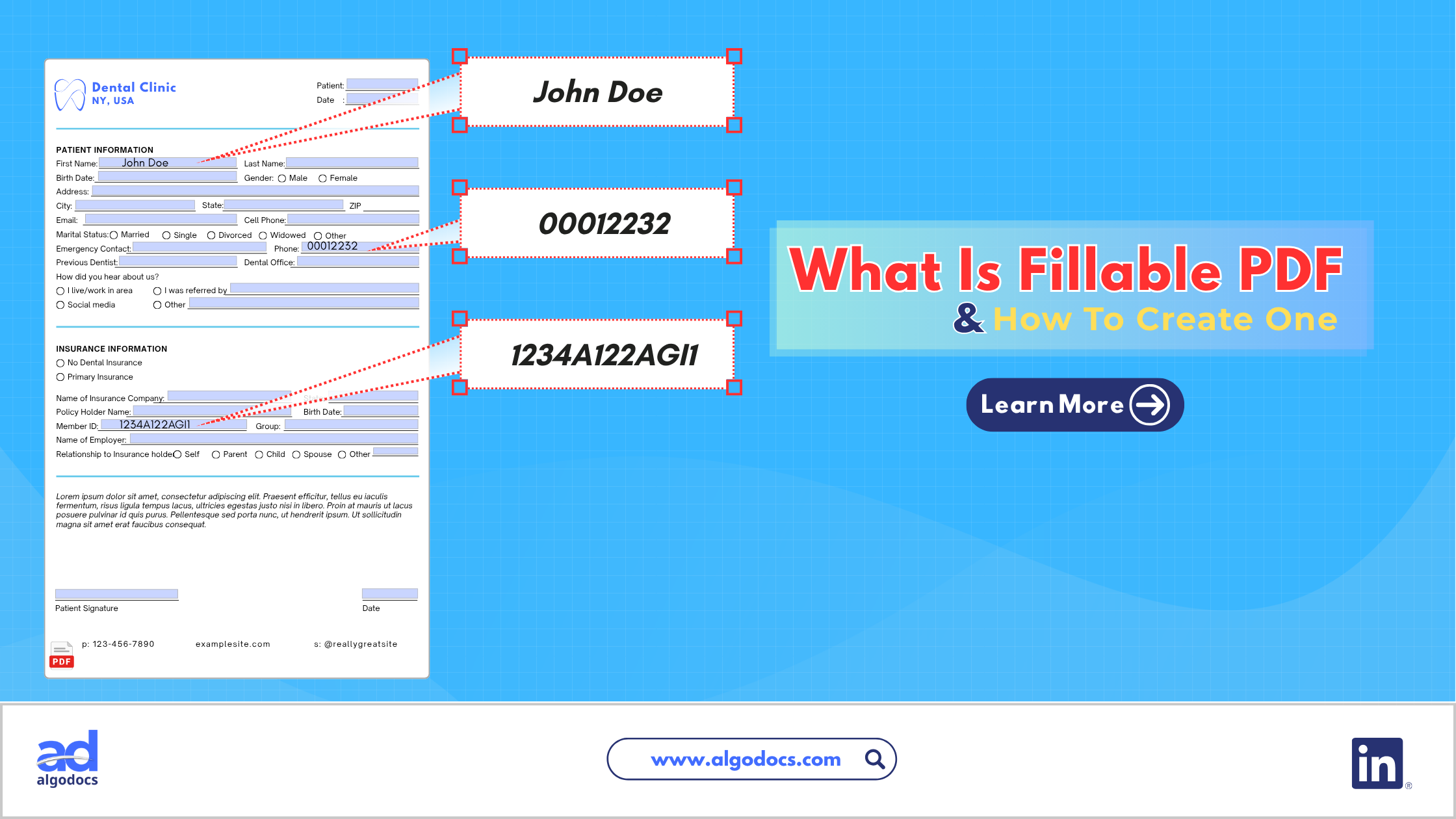
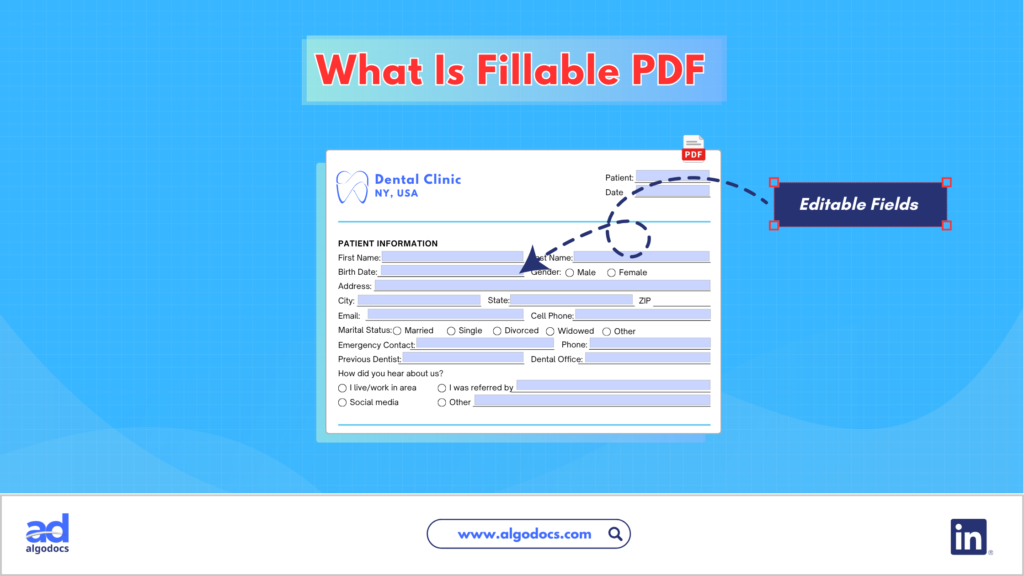
A fillable PDF is a PDF file with editable fields and elements. Unlike a standard PDF file, you have fields in a column where you can insert text values, numerical values, etc. In some fillable PDF files, you will find checkboxes and other clickable items to set or select a value in the PDF file. A fillable PDF file has an underlying data layer that allows users to interact with the file and lets them insert these types of data into a fillable PDF file.
Looking For An AI Data Extraction Tool To Extract Data From PDF, Handwritten PDF Notes & Other PDF Documents? Try Our AI Powered Intelligent Document Processing Tool To Automate Entire Process Smoothly. Sign Up For A Free Trial Account Today!
There is a difference between a general editable PDF file vs. a fillable PDF file. A fillable PDF uses AcroForms or XML-based XFA standards to add interactive overlay layers on top of content, whereas an editable PDF uses parsing to alter the low-level graphics and text rendering streams underneath. A fillable PDF is specifically about structured input fields designed for someone else to complete.
Major Differences Between a Fillable PDF vs. a Standard PDF
Both PDF file types, fillable and standard, are used to store, carry, and share business and personal data. But here is the detailed comparison between the two versions:
| Comparison Feature | Fillable PDF | Standard Editable PDF |
| Primary Purpose | Data collection (filling out applications, surveys, or forms) while keeping the original document locked. | Content modification (fixing typos, rewriting paragraphs, replacing images, or updating layouts). |
| Required Software | Universal & Free. Works in any web browser (Chrome, Safari, Edge) or basic free PDF reader. | Specialized. Requires dedicated, usually paid, PDF editing tools (e.g., Adobe Acrobat Pro, Nitro PDF). |
| Layout Stability | 100% Locked. Typing inside fields will never push text down, alter margins, or mess up page alignment. | High Risk. Adding or deleting text forces the editor to recalculate spacing, which can cause overlaps or broken layouts. |
| Technical Structure | Adds an interactive overlay layer (AcroForms/Annotations) on top of a read-only background. | Directly alters the base content stream (the low-level drawing coordinates of text and graphics). |
| Font Handling | Uses standard system fonts for input fields—no source fonts required. | Requires the original embedded font family; missing characters force mismatched font substitutions. |
Why Businesses or Individuals Need to Create Fillable PDFs
One of the reasons why a PDF file is so popular among personal and business users is the reliability, security, and accessibility of the data that comes with a PDF document. Over the years, PDF files have become the epitome of safe data file sharing. But there are other reasons why a PDF and a fillable PDF file are used for business and personal reasons. Here are some important reasons:
- Faster data collection: As you know, the main purpose of a fillable PDF file is to store data in the file. In the traditional way, data is printed or handwritten on paper, then the paper is scanned and turned into a PDF file. But a fillable PDF file lets you add data instantly within the PDF file fields themselves. This makes data collection swift, and you do not need to go through multiple steps such as printing, scanning, converting, and mailing a file.
- Fewer errors: Standard PDFs can have higher error rates due to manual data entry and 3rd-party data sources. But in a fillable PDF file, the data is added directly within the file itself. This reduces data errors. For example, a scanned document with blurry and skewed fonts can cause data errors. The data can’t be visible to the receiver, and wrong data can lead to many business issues. Whereas data inserted in a fillable PDF file is clear and easily visible. This leads to fewer data errors. Also, dropdowns, checkboxes, and validation rules reduce incomplete or unreadable submissions.
- Professional presentation: One of the main reasons why fillable PDF files are best for a business setting is that presenting data to stakeholders and employees in a meeting or discussion looks professional. But a standard scanned manual PDF layout can be messy and hard to understand. This can create confusion among the users with whom that file is shared. Forms look consistent across every device, which makes data readability and accessibility much more professional.
- Universal compatibility: Everyone who uses a computer or mobile device knows what a PDF file is, and that is what makes the real difference. People who have been sharing document files over email attachments or file-sharing methods know how to use a PDF file to store information. Every computer or mobile device probably has a built-in PDF viewer and editor. This universal compatibility makes fillable PDFs a great choice for business and personal needs.
How to Create a Fillable PDF: Step-by-Step Methods
There are many methods you can choose to create or convert a PDF to a fillable form for free or by paying for an app. How you create it is what matters. You can use an offline fillable PDF creator or converter app, an online web-based tool, or your mobile device to make a PDF file fillable. You should consider your budget for paid tools, your technical skills for creating or converting the PDF file, and convenience regarding devices and platforms.
Here are some methods you can try to generate an editable PDF or convert a standard PDF file to a fillable PDF file:
Method 1: Free Online Tools (No Software Required)
There are plenty of free online fillable PDF apps available. You can use apps like Sejda, PDF24, PDFgear, and other online tools. These tools don’t even require accounts or signups to use. I am using Sejda to demonstrate how to create an editable PDF document:
Open a browser and go to https://www.sejda.com/pdf-forms
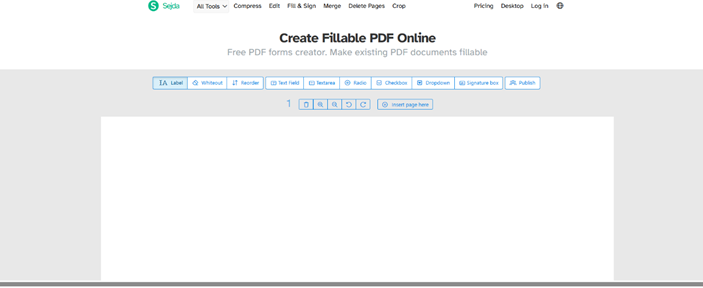
Now you will see two options: upload a PDF file or start with a blank document. You can go with “Start with a blank document” if you don’t have an existing PDF file.
Now you will see a plain sheet with some options on top. From there, you can choose which fields you want to add to your fillable PDF document.
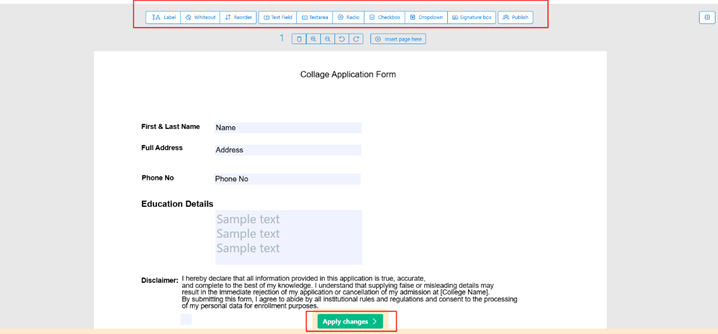
After adding all the fields to the PDF form, you can click on “Apply changes.”
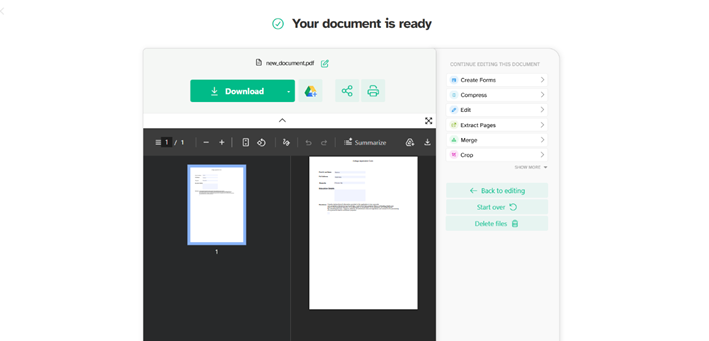
Now your fillable PDF file is ready to use, and you can share it as well as save it for later use.
Note: Most free tools cap file size or the number of tasks per hour, and some route files through their server, so avoid uploading anything highly sensitive (like ID documents) to a free web tool without checking its privacy policy first.
Method 2: Adobe Acrobat (Most Complete Feature Set)
Acrobat remains the industry standard because it auto-detects form fields, supports calculations and validation, and integrates e-signature requests.
- Open your document (PDF, Word file, Excel sheet, or a scan) in Adobe Acrobat.
- Go to Tools > Prepare a Form.
- Acrobat automatically scans the layout and suggests form fields based on lines, boxes, and blank spaces.
- Review the auto-detected fields, then add, delete, or reposition any that were missed using the top toolbar.
- Double-click any field to rename it, mark it required, or add formatting rules (numbers only, email format, character limit).
- Add a signature field if you need the form signed electronically.
- Save the file, then distribute it by email or shareable link directly from Acrobat, which also lets you track who has responded.
Method 3: Build the Form in Word, Then Convert
This route is useful if you’re designing a form from a blank page rather than starting with an existing PDF.
- Open Microsoft Word and lay out your form’s text, labels, and questions.
- Where you want a fillable blank, type underscores (___________) so form-detection software knows where to place a field later — or, for more control, enable the Developer tab (File > Options > Customize Ribbon > check Developer) and insert content controls like text boxes, checkboxes, and dropdown lists directly.
- Once the layout is finished, go to File > Save As and choose PDF as the format.
- Open the exported PDF in Adobe Acrobat, or a free alternative, and run Prepare a Form to convert those underscores or content controls into functional fillable fields.
- Adjust field names and formatting, then save the final fillable PDF.
Method 4: Mobile Apps
If you need to build or edit a form away from a desktop, mobile PDF apps (Adobe Acrobat Reader, PDFgear, and similar apps) let you open a PDF, tap to insert text fields, checkboxes, or a signature, and export the finished form easily. However a detailed field formatting is easier on desktop platform.
Best Practices for Creating Fillable PDFs
- Name every field descriptively. “text_1” is meaningless later; “email_address” isn’t.
- Group related choices with radio buttons (only one answer allowed) instead of separate checkboxes when only one response makes sense.
- Set required fields so submissions can’t be left incomplete.
- Use consistent field sizing so the form looks clean across desktop and mobile viewers.
- Test the tab order by pressing Tab through every field before sending the form out.
- Add instructional text above complex fields (like a date format example) so users fill them out correctly the first time.
- Keep a flat, non-fillable backup copy in case you need to print or archive a static version.
Common Mistakes to Avoid While Creating A Fillable PDF File
- Forgetting to flatten sensitive forms before sharing publicly, which can expose editable fields to unintended changes.
- Skipping field validation, leading to malformed dates, emails, or numbers in responses.
- Overcrowding the page with too many fields, which hurts readability on smaller screens.
- Not testing on a different device — a form that looks fine on desktop can misalign on mobile.
- Uploading sensitive documents to unverified free tools without checking how long files are stored or whether they’re encrypted.
- Leaving default placeholder field names, making exported response data hard to organize.
Expert Tips ( You Should Consider )
- If you’re collecting many responses, use a tool that lets you export submitted data directly to a spreadsheet instead of opening each PDF manually.
- For forms used repeatedly (like intake forms), save a template version so you’re not rebuilding fields every time.
- Use calculated fields (supported in Acrobat and some online tools) for anything involving totals, like invoices or order forms, to reduce manual math errors.
- If accessibility matters — for example, a public-facing government or nonprofit form — check that field labels are properly tagged, since screen readers rely on this structure to describe each field correctly.
Conclusion
A fillable PDF file can come in handy when sharing sensitive information securely. While PDF remains the gold standard in sharing documents online digitally, fillable PDF file formats add extra features that take data sharing to an extended level. One should always avoid sharing personal information such as bank account details, account numbers, financial transactions, and passwords publicly via a PDF. Always verify the sender’s details before opening a PDF file, as PDF files can be used to carry out data theft activities by hackers.
Before choosing a fillable PDF tool, always check for the app developer’s authenticity, safety and data privacy policies, and other important factors.
Frequently Asked Questions
How do I create a fillable PDF for free?
You can use platforms such as Sejda, PDFgear, or PDF24 to create a fillable PDF for free online. You don’t even need to create an account to use these platforms.
How do I turn an existing PDF into a fillable form?
Open the PDF in a form-creation tool (Adobe Acrobat’s “Prepare a Form,” or a free alternative), let it auto-detect fields where possible, then manually add or adjust any fields it missed before saving.
Can I make a PDF fillable without Adobe Acrobat?
Yes. Free tools such as PDF24, PDFgear, and Sejda let you add fillable fields directly in a browser, and Microsoft Word can be used to design a form layout before exporting it to PDF.
Key Takeaways
- A fillable PDF contains interactive fields (text boxes, checkboxes, dropdowns, signatures) that anyone can complete on-screen.
- Free tools like PDF24, PDFgear, and Sejda are the fastest route for occasional forms; Adobe Acrobat suits frequent or complex form needs.
- You can design a form in Word first, then convert it to a fillable PDF.
- Clear field names, required-field settings, and cross-device testing prevent the most common form-building mistakes.
- Always check a free tool’s privacy policy before uploading sensitive documents.