Algodocs

PDF

Everything you need to know about working with PDF files, from creating fillable forms and editing documents safely to pulling out text, tables and images. These guides compare free and paid tools and show how AI turns static PDFs into structured data you can actually use.
Data Extraction, PDF

PDF Data Extraction: The Best Tool and Techniques

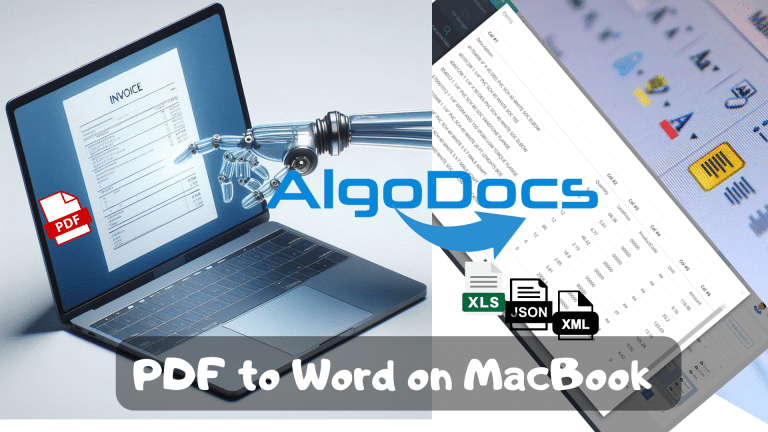
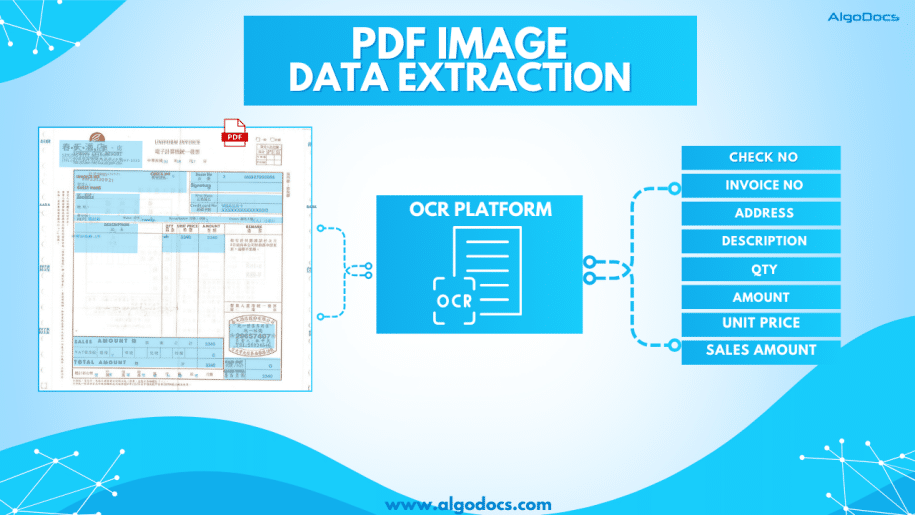
Back to Blog Table of contents On this page PDF Data Extraction: The Best Tool and Techniques Home › Blog › Data Extraction › PDF Data Extraction: The Best Tool and Techniques Categories Data Extraction PDF Tags ai powered tools algodocs convert handwritten to text data extraction digital transformation free online tools handwriting recognition handwritten pdf machine learning ocr technology pdf to text converter text recognition accuracy By Shubhankar Biswas Published October 13, 2025, 12:09 Updated July 21, 2026, 04:09 PDFs are ubiquitous in every organization, serving as the go-to format for sharing and exchanging business data. However, extracting, editing, or parsing data from these files can be a lot of work to do. In today’s data-driven world, efficiently extracting information from PDF documents is essential. This article talks about the problems with getting data from PDFs and shows how to extract data from PDFs to Excel online. Whether you need to get text, and tables, or make PDFs searchable, we’ll cover solutions that are fast, accurate, and easy to use. Challenges in PDF Data Extraction: Let’s explore some of the key challenges encountered in PDF data extraction, shedding light on why what may seem like a simple task can often become quite complex. Manual PDF text extraction requires meticulous attention to detail, making it a time-consuming endeavor. A slight error can lead to inefficiencies and potential errors. Human errors are common in manual extraction, potentially impacting the accuracy of the extracted data. Unlike other document formats like DOC, XLS, or CSV, editing PDF data is not straightforward, hindering customization according to specific requirements. Extracting data from tables in PDFs often results in the loss of original formatting, making it challenging to maintain data integrity. How to Extract Data from PDF Files in 2024: Extracting data from PDFs used to be a lot of work when the technology hadn’t advanced back in the days. However, now, with the advent of AI, OCR, and NLP, you don’t have to spend hours on manually extracting the data. All you need is an efficient tool like Algodocs that does the job for you accurately and easily. Let’s look at different PDF data extraction methods in 2024: Do it Manually While not the preferred method in 2024, manual data extraction remains a necessity for startups or beginners who are not ready to invest in good PDF data extraction software or are new to technology. Whether handling school documents, business reports, medical records, or any other file type, manual extraction is still widely utilized, although it is considered a less refined approach. Use Adobe Acrobat For more professional-grade PDF page extraction, Adobe Acrobat is a solid option. Although it’s not free, you can try it out with a 7-day free trial. Adobe Acrobat offers various plans, with Acrobat Pro starting at $19.99/month. This plan includes a range of features to streamline your document management process. Adobe Acrobat retains all interactive components of the PDF, including hyperlinks, comments, and forms. It allows you to extract any number of pages and save them as separate files or split the PDF into multiple PDFs, but all at a cost. You wouldn’t think it’s free, right? While Adobe Acrobat is a well-established tool for working with PDFs, it lacks the advanced data extraction capabilities of automated data extraction tools like Algodocs. Such a tool utilizes the latest technology to extract a wide range of information from PDFs and images, including handwriting, tables, and key-value pairs. This extracted data can then be exported into usable formats like CSV or Excel, making it ideal for integrating with accounting software or further analysis. In contrast, Adobe Acrobat offers limited data extraction functionalities. Automate Data Extraction with AI-powered OCR Technology What if you need to extract pages based on their content? Consider a scenario where you need to extract and analyze all invoices or pages containing specific key values such as names, dates, emails, total, address, etc. In such cases, an AI-powered OCR (Optical Character Recognition) tool can be invaluable. One important and powerful tool is Algodocs which we’re going to discuss in detail later in the article. It is the easiest way to get data from PDFs to Excel. Automated PDF Data Extraction: Algodocs Experience the power of Algodocs, an innovative AI data extraction platform designed to streamline your document processing workflow. With Algodocs, you can effortlessly extract valuable information from scanned files, including images, PDFs, Word, and Excel files. Whether these are HR forms, bank statements, purchase lists, or sales invoices, Algodocs handles them all with high accuracy. Gone are the days of manual data extraction. Algodocs empowers you to access and extract editable data effortlessly. Now get rid of the tedious tasks and say hello to editable formats like Excel, JSON, and XML, and seamless integrations with other software such as accounting or databases. Best of all, Algodocs offers a forever free subscription plan, allowing you to process up to 50 pages per month without any cost, so you can extract data from PDFs for free! Key Features of Algodocs PDF Extraction: Algodocs automates the extraction of tables from scanned files, including handwritten tables and those spanning multiple pages. The advanced AI-powered OCR engine can handle low-quality scanned PDFs and images at as low as 75 dpi. Using Intelligent Character Recognition (ICR) functions, Algodocs can extract handwritten text and convert it into machine-printed text. Algodocs can extract data, fields, and tables from native and scanned documents and save them as Excel, JSON, or XML files. Get Started in Minutes: The screencast video below shows how to quickly convert PDF files and photos into editable formats like Microsoft Word, Excel, PowerPoint, Text, or RTF. Moreover, a summary of the steps required for transforming a PDF into an editable Excel file is provided below. Convert PDF files and images into editable files in less than a minute. Step 1: Log in to your Algodocs account. Step 2: From the Dashboard, click on the File Manager tab  Step 3: Right-click on the root , and a drop-down menu will pop up showing available options

Data Extraction, PDF

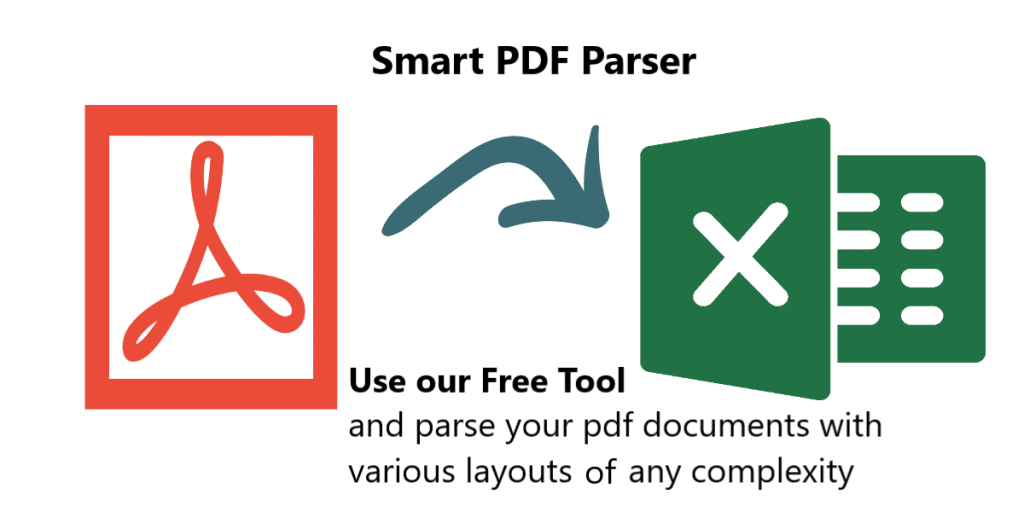
What is a PDF Parser?

Back to Blog Table of contents On this page What is a PDF Parser? Home › Blog › Data Extraction › What is a PDF Parser? Categories Data Extraction PDF Tags ai platform for data extraction algodocs character recognition data extraction from images deep learning export extracted data to excel invoice process machine learning ocr api web-based ai platform for data extraction By Shubhankar Biswas Published October 13, 2025, 12:03 Updated July 29, 2026, 02:32 A PDF Parser is a program or a library that enables end-users and organizations to parse data from native PDF documents. Often, organizations need to parse PDF documents for specific fields such as Account Number, Date, Address, Bill to/from information, or parse tabular data. PDF Parsers are usually needed and used for processing and parsing data from large amounts of documents. On the other hand, when you have a handful of documents you simply go and copy the data you need from PDF documents manually and paste it to Excel or anywhere you need it to be. PDF Parsers enable end-users to get data from hundreds and thousands of PDF documents in real time by saving huge amounts of time and, thus, money. Parsing pdf documents isn’t an easy task. There are various ways native pdf documents are generated and parsing data from such pdf documents requires smart approaches. Parsed data from PDF documents greatly varies depending on the industry, which means the data parsed might also greatly change, which complicates the task. Parsing PDF medical forms, which contain specific fields such as First, Middle, and Last names, Sex, Date of Birth, etc. are very different from PDF purchase orders that contain mainly the items in the tabular form with such columns as Item No, Code, Quantity, Item Price, Amount, etc. Therefore, if PDF Parser produces just a bunch of text from a PDF document it does not make much sense for the end-user. What end-users or organizations require is the structured data parsed from PDF documents. In other words, PDF Parser should extract from PDF documents only the data the end-user needs and in the right structured format. For this, the PDF Parser must be smart and flexible enough to parse PDF documents with various layouts and data types. How to parse PDF documents with various layouts? Algodocs allows you to parse PDF documents of any complexity in their layouts and type of data. With the flexible extracting rules of Algodocs, you can parse data from PDFs with different layouts. It is very easy and quick to set up extractors in Algodocs for your PDF documents. We provide 100% free technical support and are ready to set up extractors for you. While we provide free support for creating extracting rules, you may check our help and support section if you wish to learn how to create extracting rules in Algodocs. Watch the following introductory video to get an idea of how it works in Algodocs. Feel free to start a free subscription right now and parse your pdf documents. You can use Algodocs free forever with 50 pages per month. If you need to process a higher number of pages, then please see our affordable pricing plans. If you have specific requirements and need a custom solution, please contact us. You Might Also Like PDF Data Extraction: The Best Tool and Techniques PDFs are ubiquitous in every organization, serving as the go-to format for sharing and exchanging business data. However, extracting, editing, or… Shubhankar Biswas October 13, 2025 PDF Image Extraction: A Comprehensive Guide To Extracting Image Data From Scanned Pdf Files In 2025 PDF image extraction is a challenging process. Without proper tools and technology, this process can be tedious and prone to errors, which can… Shubhankar Biswas September 1, 2025 Convert PDF to JSON – Convert PDF Documents to Structured JSON Objects Table of Contents Introduction Organizations in various industries widely use PDF documents, since no doubt PDF is a common document format for… Shubhankar Biswas October 13, 2025 Start extracting your data today No credit card required. Process up to 50 pages per month on the Forever Free plan. Book a Demo Get Started for Free

PDF

Convert PDF to JSON – Convert PDF Documents to Structured JSON Objects

Back to Blog Table of contents On this page Convert PDF to JSON – Convert PDF Documents to Structured JSON Objects Home › Blog › PDF › Convert PDF to JSON – Convert PDF Documents to Structured JSON Objects Categories PDF Tags ai platform for data extraction algodocs character recognition data extraction from images deep learning export extracted data to excel invoice process machine learning ocr api web-based ai platform for data extraction By Shubhankar Biswas Published October 13, 2025, 11:59 Updated July 21, 2026, 05:15 Introduction Organizations in various industries widely use PDF documents, since no doubt PDF is a common document format for businesses to transfer data. Purchase orders, Invoices, Agreements, and many more document types are interchanged in PDF formats. On the other hand, JSON is another format that represents data in a structured format, which is widely used in transferring data between web applications. As a result, Working with JSON is much easier than with PDF. Therefore, in this article, we will talk about PDF and JSON formats and how you can convert your PDF documents to JSON format. What is a PDF? PDF (Portable Document Format) was initially developed by Adobe® Systems in 1992 and is standardized as ISO 32000. What makes PDF so popular is it is independent of the application software, hardware, and operating system. Other than text and images PDF files may contain a variety of content such as annotations, form fields, layers, etc. There are many advantages of PDF format such as multi-dimensionality, which we have already mentioned – being able to contain various types of content, text, images, videos, vector graphics, interactive fields, hyperlinks, and buttons. Moreover, PDF documents are easily created and viewed on different devices.  Security in PDF was one of the primary concerns of Adobe® Systems. Therefore, PDFs have different access levels to protect the content and the whole document, such as passwords, digital signatures, and watermarks. However, some of the downsides of a PDF are the complexity of editing and especially extracting data from it. Moreover, PDFs are not generated in the same way, so different PDF files can be created in various ways, which complicates the task of extracting data from PDF documents. What is a JSON? JSON (JavaScript Object Notation) is a very popular data format, which appeared in the early 2000s. JSON is a language-independent data format and is used to transfer data between software applications, particularly web applications, usually between server and client.  Most of the API integrations are realized using JSON format for data transfer since it is very easy to work with JSON. Consider a JSON object called person, which contains the following information:{   “name”: “John”,   “surname”: “Doe”,   “age”: 25} Accessing fields of a JSON object is as simple as using the name of the object and the field name you want to access by separating them with a dot as follows: To access a person’s name we use person.name, which will give us “John” as a result. Similarly, we do for surname and age fields: person.surname, person.age Note how easy it is to access any field of a JSON object, which is definitely not compared to accessing specific information in the PDF document. How does JSON differ from PDF? Although PDF and JSON are both widely spread and used, there is a huge difference between PDF and JSON. The difference between them is simply in the purpose of their usage. PDF is mainly used for exchanging information between humans, since it contains text, graphics, illustrations such as images and videos, etc. On the other hand, JSON is mainly used between computer programs and different applications for communicating and exchanging data between each other. It is not an easy task for a human to read information from a JSON file, especially if it is a compressed one, but it is a perfect way to access information from JSON for a software application. The opposite goes for the PDF. Therefore, PDF and JSON become important, useful, and helpful only when they are used in the right place and for the right purpose. How to Convert PDF to JSON? Often, organizations need to transfer data to other programs for further processing. This data is often stored in PDF documents since businesses often speak to each other in a “PDF language”. However, extracting information from PDF documents can be challenging.  The simplest solution is that you can always copy and paste text from a PDF and send it to where it belongs. However, this simple approach has many problems, since first of all this will work only with native PDF files (not scans) for which you can even use some free PDF Parsers. Another problem even if your PDF documents are all native, it is not easy to copy the entire table from a PDF by maintaining its format, especially if the table spans over multiple pages, for example, 100 or 1000 pages. Additionally, often organizations need to extract specific data from PDFs, for example not the entire table, but instead specific rows or columns based on some conditions. Last, but not least, it is not worth spending your valuable time on menial data entry! Convert PDF documents to JSON with Algodocs Algodocs offers a perfect solution to extract any type of data from PDF documents and transfer it to other programs in real-time. Algodocs can extract fields and tables of any complexity from native as well as scanned PDF documents. You can convert your PDF documents to JSON in three steps with Algodocs. First, start by creating an extractor in Algodocs. Algodocs has some preprocessing operations that take some time depending on the number of pages your PDF document contains; usually, it is around 15-20 seconds. Then, go to the ‘Extracting Rules’ editor to create your extracting rules for every field you need to extract from your PDF documents. Similarly, if you need to extract tables from your PDF documents you can create extracting rules for tables by selecting ‘Table’ as the data type. After you are done with creating and extracting rules,

PDF

Extract Tables From PDF and Scanned Documents

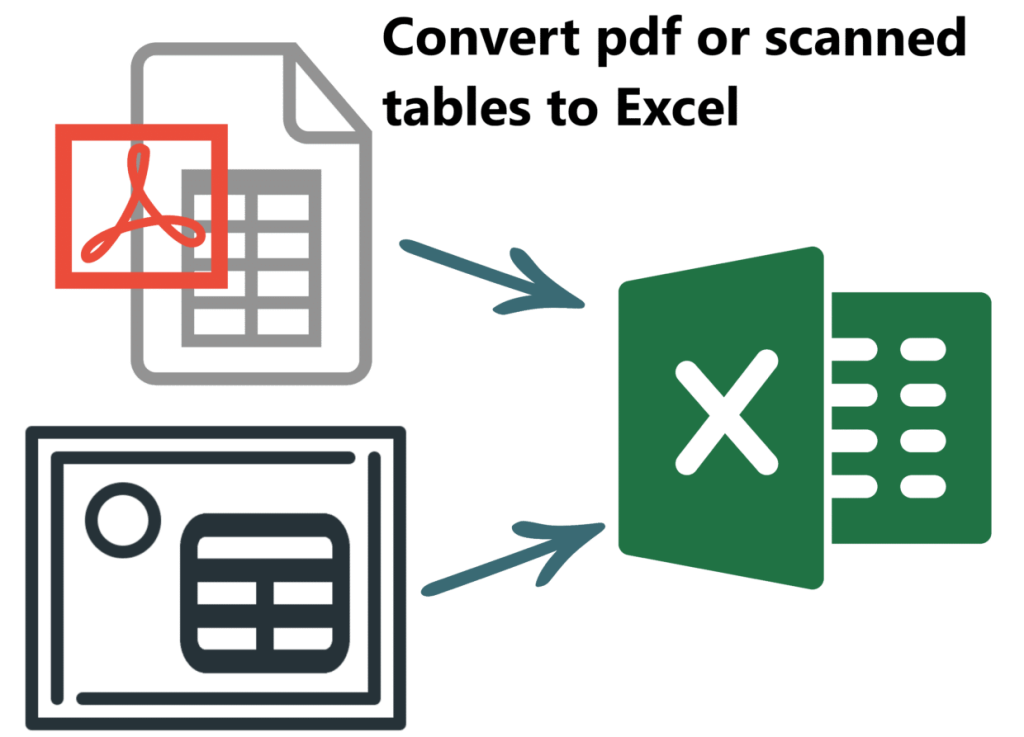
Back to Blog Table of contents On this page Extract Tables From PDF and Scanned Documents Home › Blog › PDF › Extract Tables From PDF and Scanned Documents Categories PDF Tags ocr api pdf table extraction table extraction from pdf By Shubhankar Biswas Published October 13, 2025, 11:34 Updated July 20, 2026, 07:49 Extracting tables from PDF documents is always a tedious task, especially when the documents are scanned PDFs. Even when the documents are computer-generated PDFs, it can still be a complex and annoying task, since copying a tabular text from a PDF and pasting it to an Excel spreadsheet is not always as simple as it may look. Moreover, manual data entry with human interaction involves errors in addition to wasting time. How to convert PDF or scanned tables to Excel spreadsheets? There are free online tools that you can use to convert PDF tables to Excel spreadsheets if the PDF document is a text document (not scanned). Even for system-generated PDF documents, those tools just convert a table to Excel as is, without letting you filter a table and convert it into the format you need. Especially when tables span over multiple pages of a PDF, you definitely need to trim out all unnecessary text that occurs between pages, like footer and header information. Moreover, sometimes you might need to filter out either some rows or even columns of a table itself. Imagine table extraction from scanned documents! What if those scanned documents are of low quality? Alternatively, even worse, what if those documents are images taken by a mobile device… Yes, then the task of extracting a table from such documents gets even harder… Algodocs comes to the rescue! Extract tables from PDF and scanned documents with Algodocs Algodocs allows you to extract tables from PDF or scanned documents of any complexity thanks to its flexible extracting rules. Additionally, you can convert the table into the format you need with no coding at all. With Algodocs, you can extract invoice line items, purchase order product lists, bank statement transactions, and any other financial or custom documents that contain tables. Algodocs offers a free subscription plan forever with 50 pages per month. You may check our pricing for paid subscriptions based on your document processing requirements. Algodocs has a user-friendly interface and an easy-to-use extracting rules editor. You can set up extracting rules in minutes for extracting tables from your documents. The following are the steps to follow when extracting tables from documents in Algodocs: Create an extractor by uploading a sample document In the extracting rules editor, add a rule by selecting ‘Table’ as the data type Place column separators on the table Click on the ‘Extract’ button to extract the table and apply various filters to refine and convert the extracted table into the format you need Finally, export extracted tables to Excel or JSON You may watch the screencast video tutorials below on table extraction from documents. You can check out our Video Tutorials section for more videos. In the following screencast video, we demonstrate how you can extract tables, which are in fixed or variable positions, from PDF or scanned documents. In the following screencast video, we demonstrate how you can extract tables that span over multiple pages in a PDF. In the following screencast video, we demonstrate how you can use the ‘Merge Rows’ filter to extract tables that contain rows with multiple lines. Moreover, you can benefit from integrations in Algodocs such as Google Drive, Dropbox, or Zapier, and automate your document data extraction workflow with Algodocs in minutes. Please contact us if you need any assistance. You Might Also Like Convert PDF to JSON – Convert PDF Documents to Structured JSON Objects Table of Contents Introduction Organizations in various industries widely use PDF documents, since no doubt PDF is a common document format for… Shubhankar Biswas October 13, 2025 What is a PDF Parser? A PDF Parser is a program or a library that enables end-users and organizations to parse data from native PDF documents. Often, organizations need to… Shubhankar Biswas October 13, 2025 PDF Data Extraction: The Best Tool and Techniques PDFs are ubiquitous in every organization, serving as the go-to format for sharing and exchanging business data. However, extracting, editing, or… Shubhankar Biswas October 13, 2025 Start extracting your data today No credit card required. Process up to 50 pages per month on the Forever Free plan. Book a Demo Get Started for Free

PDF To Word
PDF

AI-Powered PDF to Word Conversion: A Complete Guide

Back to Blog Table of contents On this page AI-Powered PDF to Word Conversion: A Complete Guide Home › Blog › PDF › AI-Powered PDF to Word Conversion: A Complete Guide Categories PDF Tags AI PDF to Word converter online algodocs best free PDF to Word converter Convert PDF file to word free free pdf to word converter PDF to word online By Shubhankar Biswas Published October 12, 2025, 19:22 Updated July 10, 2026, 09:46 Introduction to AI Data Extraction and PDF to Word Conversion Imagine turning static PDF documents into flexible, modifiable Word documents in a few seconds. The purpose of AI data extraction is beyond conversion; it’s about releasing the true strengths of your data. What takes place when that data is fixed in such an uneditable file? AI data extraction and the conversion of PDFs to Word documents represent an innovative technology that is changing our document interactions. Whether you’re an individual who likes to organize your spending, such as bills and receipts, a student compiling research, or a business professional analyzing reports, the ability to extract valuable information from printed documents, images, and scans is paramount. Traditionally, the conversion of a PDF to a Word document and the data extraction has been cumbersome and often results in inaccuracy. When people used manual copy-pasting or converted using traditional tools, formatting, missing tables, and disordered texts were experienced. However, the advancement of artificial intelligence technology has changed this situation entirely. Current AI technology uses improved OCR and natural language processing (NLP) to read and recognize text accurately, tabular, handwritten content, images, and other forms of data from low-quality and badly formatted PDFs. With AI data extraction, you can effortlessly transform static PDFs into dynamic, editable formats like Word, Excel, JSON, and XML while preserving the original formatting and layout. This unlocks a world of possibilities, from seamless collaboration and editing to in-depth data analysis and automation. In this article, we’ll explore the top AI-powered PDF to Word converters, the key features to look for, and showcase how Algodocs is leading the way in intelligent data extraction. Top AI-powered PDF to Word Converters with Data Extraction Capabilities Today, there is a huge demand in the AI PDF to Word conversion market, and every player is attempting to become ‘the best AI PDF to Word converter.’ Look closely at the key players that excel at conversion and smart data extraction. 1)   Adobe Acrobat Pro DC: The leading software in the market, Adobe Acrobat, has very robust AI that can convert PDFs to Word with considerable precision. Its top-performing OCR features to ensure that PDF conversions occur smoothly. It also makes it easier to extract forms, which is ideal for people who desire structured data results. Still, it comes with a considerable financial expense that may prove a thorny issue for starters. 2)   Wondershare PDFelement: Like Adobe, PDFelement stands out for its fairly clear interface and powerful AI options. Its OCR accuracy is strong, and it presents respectable data extraction tools. While it is cheaper than Adobe, using certain features requires additional purchases. 3)   Nitro Pro: Another winner is Nitro Pro, which demonstrates outstanding OCR capabilities and a perfectly organized interface. It can also convert PDFs to Word and retain the layout and formatting. The data extraction capabilities it provides with the help of AI algorithms are pretty impressive; however, in this aspect, it is slightly less endowed, as is Adobe or even PDFelement in terms of the variety of options available. 4)   Smallpdf: If you need a free online AI PDF to Word converter, Smallpdf is highly recommended. It is simple to use, supports a range of file formats, and supplies basic OCR functions. Still, the free version features restrictions on file size and ways to use it, and data extraction capabilities are limited. 5)   OnlineOCR.net: This tool is another free online option made exclusively for OCR and data extraction. Though its interface is not the latest design, it surprisingly performs well extracting text from scanned PDF formats. However, it lacks some advanced features and may not be the best choice for converting complex PDFs. Nonetheless, the tools discussed above perform poorly when dealing with tables, handwritten documents, key-value pairs, complex layouts, or multilingual documents. Key Features when Selecting AI-Powered PDF to Word Converter Here are some relatively crucial features to guarantee efficient and effective data extraction while evaluating an AI-powered PDF to Word converter. Here’s a breakdown of what to prioritize: OCR Technology: This is a significant feature of any good PDF converter and is called Optical Character Recognition. Search for tools that incorporate advanced OCR features that can precisely detect text, regardless of document type, such as scanned PDFs or complex designs. The converted Word document’s quality and the accuracy of extracted data will depend directly on the OCR engine. Table Recognition: In PDFs, tables are a usual approach used to present the data. A proper converter should be also able to identify and perfectly convert tables to maintain and follow their structure and format in the resultant Word output. It is especially going to be important for those who must analyze or manipulate data. Key value pairs (Form Field) Extraction: If you collaborate on PDFs that contain forms, extracting form field data is important. Find a converter that can pick out and collect form fields and their corresponding values for a seamless import of this data into either spreadsheets or databases. Data Output Formats: Think about the mediums in which you will share your extracted information. Tools such as Algodocs are capable of working with frequent formats like CSV, Excel, XML, Word, etc. Nonetheless, if you specifically need certain file formats or integrations with other applications, it’s important to confirm that the converter supports those options. Ease of Use: A user-friendly interface can lift your productivity considerably. Search for a converter that features a clear and user-friendly interface that makes it easy to upload, extract, update, and export data from PDFs. Additional Features: A few converters

Data Extraction, PDF

PDF Image Extraction: A Comprehensive Guide To Extracting Image Data From Scanned Pdf Files In 2025

Back to Blog Table of contents On this page PDF Image Extraction: A Comprehensive Guide To Extracting Image Data From Scanned Pdf Files In 2025 Home › Blog › Data Extraction › PDF Image Extraction: A Comprehensive Guide To Extracting Image Data From Scanned Pdf Files In 2025 Categories Data Extraction PDF Tags ai platform for data extraction algodocs image data extraction pdf image extraction By Shubhankar Biswas Published September 1, 2025, 09:19 Updated July 23, 2026, 05:45 PDF image extraction is a challenging process. Without proper tools and technology, this process can be tedious and prone to errors, which can eventually lead to a loss of money and time for an organization. PDFs have always been one of the most convenient and reliable ways to store, carry, and share information with others. However, lots of data in PDFs is locked as scanned images. When you have multiple images or scanned documents to deal with, it becomes easy for a person to bind all these multiple image documents into one with the PDF format.The PDF document format is widely used for business communication and personal document sharing as well.Unlike other document formats such as. doc, CSV, or TXT formats, PDFs are considered much safer because they can be locked with a password, or data can’t be edited or altered unless you allow it. However, one of the most common challenges faced when dealing with PDFs is extracting data from scanned PDF images. Scanned PDFs are essentially images of text, making it difficult to directly copy or edit the content. This is where the concept of PDF image extraction comes into play. In this blog, we’ll explore how to extract data from scanned PDF images, the tools and techniques involved, and why this process is crucial for efficient data management. What is PDF Image Extraction? PDF image extraction refers to the process of extracting text, images, or other data from scanned PDF documents. Unlike standard PDFs, which contain selectable and editable text, scanned PDFs are essentially pictures of pages. This means that the text within these documents is not machine-readable unless processed using Optical Character Recognition (OCR) technology.The ability to perform PDF image extraction is essential for businesses that deal with large volumes of scanned documents, such as invoices, contracts, or historical records. By converting these images into editable and searchable text, organizations can streamline their workflows, improve data accuracy, and enhance accessibility. Why is Extracting Data from Scanned PDFs Important? Improved Data Accessibility: Scanned PDFs are often unsearchable, making it difficult to locate specific information. Extracting data from these documents makes the content searchable and easier to navigate. Enhanced Productivity: Manually typing out text from scanned documents is time-consuming and prone to errors. Automated extraction tools save time and reduce the risk of mistakes. Data Integration: Extracted data can be integrated into databases, spreadsheets, or other software systems, enabling better data analysis and decision-making. Compliance and Record-Keeping: Many industries require digital records for compliance purposes. Extracting data from scanned PDFs ensures that information is stored in a usable and retrievable format. How Does PDF Image Extraction Work? Image PreprocessingBefore extracting text, the scanned image may need to be pre-processed to improve OCR accuracy. This can include tasks like: Deskewing: Correcting the alignment of the image. Noise Reduction: Removing background noise or artifacts. Binarization: Converting the image to black and white for better contrast. Optical Character Recognition (OCR)OCR is the core technology behind PDF image extraction. It analyzes the scanned image and identifies characters, words, and sentences. Modern OCR tools are highly accurate and can recognize text in multiple languages and fonts. Text Extraction and FormattingOnce the OCR process is complete, the extracted text is formatted to match the original document’s layout. This includes preserving headings, paragraphs, tables, and other structural elements. Data Validation and CorrectionWhile OCR technology has advanced significantly, it’s not perfect. Extracted data may require manual validation and correction to ensure accuracy. Tools for PDF Image Extraction Algodocs: A powerful data extraction tool that combines the power of AI and OCR technology. It lets you extract data from scanned PDF images. ABBYY FineReader: Known for its good accuracy and support for multiple languages. Tesseract OCR: An open-source OCR engine that can be integrated into custom workflows. Online OCR Tools: Websites like Smallpdf and ILovePDF offer quick and easy solutions for occasional users. Python Libraries: For developers, libraries like PyTesseract and PDFPlumber provide flexibility for custom solutions. You can automate bulk PDF image extraction with Algodocs’ advanced AI app. Our app can extract data from blurry and distorted scanned PDF images with 10X speed without making any errors. Access For Free Best Practices for PDF Image ExtractionTo achieve the best results when extracting data from scanned PDF images, consider the following tips: Use High-Quality Scans: The quality of the scanned image directly impacts OCR accuracy. Ensure that the document is scanned at a high resolution (300 DPI or higher). Choose the Right Tool: Select an OCR tool that meets your specific needs, whether it’s a one-time extraction or a large-scale automation project. Validate Extracted Data: Always review the extracted text for errors, especially when dealing with handwritten or poorly scanned documents. Leverage Automation: For businesses handling large volumes of scanned PDFs, consider automating the extraction process using scripts or software. Protect Sensitive Data: Ensure that any tools or services used for PDF image extraction comply with data privacy regulations. Applications of PDF Image Extraction The ability to extract data from scanned PDF images has a wide range of applications across industries. Here are a few industries where PDF image extraction is widely used: Healthcare: Digitizing patient records and medical forms for easier access and analysis. Legal: Converting scanned contracts, case files, and legal documents into editable formats. Finance: Extracting data from invoices, receipts, and financial statements for accounting purposes. Education: Digitizing textbooks, research papers, and handwritten notes. Archives and Libraries: Preserving historical documents and making them searchable for researchers. Challenges in PDF Image ExtractionWhile PDF image extraction offers numerous benefits, it’s not without its challenges: Handwritten

PDF

How To Convert PDF to Text Using AI: A Comprehensive Guide For 2025

Back to Blog Table of contents On this page How To Convert PDF to Text Using AI: A Comprehensive Guide For 2025 Home › Blog › PDF › How To Convert PDF to Text Using AI: A Comprehensive Guide For 2025 Categories PDF Tags ai platform for data extraction algodocs data extraction from images deep learning pdf to text By Shubhankar Biswas Published September 1, 2025, 08:25 Updated July 21, 2026, 07:03 Challenges of Converting How To Convert PDF to Text Using AI: A Comprehensive Guide For 2025PDF to Text Using AI PDF files remain the backbone of sharing textual data across various departments in businesses today. From contracts and invoices to research papers and reports, they are the preferred format for information storage and exchange. However, extracting valuable text from these documents can be a tedious and time-consuming task. This is where AI-powered solutions revolutionize PDF to text conversion. A PDF can exist in different formats, such as scanned documents, scanned images, or native PDFs that are easily searchable. Extracting data from scanned images or documents requires advanced AI technology to ensure accuracy and efficiency. In today’s business landscape, AI-based OCR technology is transforming how we interact with PDFs by offering seamless text extraction, enhanced accuracy, and increased efficiency. This guide explores the complexities and challenges of converting PDF to text using AI, along with its benefits, applications, and future advancements. Challenges of Converting PDF to Text Using AI PDF files come in different types: Native PDFs: These files allow easy editing and copying of text. Scanned PDFs: These contain embedded images of text, making manual extraction difficult.The challenge arises when dealing with scanned PDFs or image-based documents, where data cannot be directly copied or edited. Extracting information manually from thousands of PDFs is time-consuming, prone to errors, and inefficient. Traditional OCR tools offer basic character recognition but struggle with complex layouts, varied fonts, and handwritten text, often leading to inaccurate results. This highlights the need for an advanced AI-powered solution to convert PDF to text using AI efficiently. AI-Based OCR: Transforming PDF to Text Conversion Intelligent Document Processing (IDP) combines Artificial Intelligence (AI), Natural Language Processing (NLP), and Machine Learning (ML) to enhance traditional OCR capabilities. Instead of merely recognizing characters, AI-powered solutions understand document structures, identifying elements like headings, paragraphs, tables, and images while preserving formatting and ensuring high accuracy. AI-powered OCR tools convert PDFs to text with unmatched precision, making document processing easier and more efficient. How AI-Based OCR Works to Convert PDF to Text The efficiency of AI-based OCR lies in its sophisticated algorithms. Here’s how it works: Document Preprocessing: The PDF undergoes enhancement to remove noise, correct skew, and improve readability. Layout Analysis: AI analyzes the document structure, recognizing sections, columns, and tables. Enhanced OCR with AI: Unlike traditional OCR, AI-driven engines recognize a wide range of fonts, styles, and even handwritten text with high precision. Natural Language Processing (NLP): AI interprets the extracted text, corrects errors, and ensures contextual accuracy. Text Extraction & Formatting: The extracted text is presented in readable formats like plain text, HTML, or structured data (e.g., JSON) while preserving its original formatting. Benefits of Using AI to Convert PDF to Text With our Algodocs Generative AI Feature You Can Convert PDF To Text With Few Prompts. Try Our Free App Today AI-powered solutions provide numerous advantages, including: High Accuracy: Minimizes errors and reduces the need for manual corrections. Efficiency: Automates extraction, saving time and resources. Enhanced Data Accessibility: Converts PDFs into text for easy analysis and decision-making. Scalability: Processes large volumes of PDFs quickly and efficiently. Cost Savings: Reduces labor costs and boosts productivity. Seamless Integration: Extracted text can be integrated into various applications and systems. Applications of AI-Based PDF to Text Conversion AI-powered OCR tools are used across industries: Legal: Extracts text from contracts and case files. Finance: Processes invoices and financial reports. Healthcare: Extracts data from medical records and patient forms. Education: Converts research papers and textbooks into accessible formats. Government: Processes official documents and forms. Research: Extracts insights from scientific publications. Data Entry Automation: Automates data extraction from forms and documents. Content Management: Makes PDF content searchable and accessible. Key Challenges and Considerations in Converting PDF to Text Using AI While AI-based OCR significantly improves PDF to text conversion, some challenges remain: Complex Layouts: Multi-column formats and tables can still pose difficulties. Low-Quality Scans: Poorly scanned documents and handwritten text may require additional processing. Security & Privacy: Choose AI tools that prioritize data security. Cost: Pricing varies based on features and processing volume. Choosing the Right AI Tool to Convert PDF to Text When selecting an AI solution, consider: Accuracy: High precision in text extraction. Speed: Quick and efficient processing. Scalability: Ability to handle large document volumes. Features: Support for table extraction, formatting preservation, and multiple languages. Security: Strong data protection measures. Cost: Budget-friendly pricing models. Integration: Compatibility with existing workflows and systems. Algodocs AI: Simplifying PDF to Text Conversion One of the most powerful AI-based OCR tools is Algodocs AI. It combines AI and traditional OCR to extract data from various document types, including PDFs, scanned images, and complex layouts. Algodocs AI ensures high accuracy and efficiency, allowing users to extract text, tables, and structured data with ease. It simplifies PDF to text conversion, making it effortless to unlock valuable information within your documents. Algodocs AI makes it easier than ever to convert PDFs to text using AI, streamlining business workflows. The Future of AI in PDF to Text Conversion The field of AI-based OCR is constantly evolving. Future advancements will further enhance accuracy, efficiency, and functionality. With the integration of Robotic Process Automation (RPA) and cloud computing, AI solutions will enable seamless automation and data analysis across industries. Conclusion Converting PDFs to text using AI is a game-changing innovation, streamlining workflows, reducing errors, and improving data accessibility. With applications across multiple industries, AI-powered solutions like Algodocs AI are leading the way in automated document processing. As businesses become increasingly data-driven, leveraging AI to convert PDF to text will remain a crucial tool for unlocking and utilizing

Extract PDF Data with ChatGPT
PDF

How to Extract PDF Data with ChatGPT?

Back to Blog Table of contents On this page How to Extract PDF Data with ChatGPT? Home › Blog › PDF › How to Extract PDF Data with ChatGPT? Categories PDF Tags data extraction from images By Shubhankar Biswas Published February 28, 2025, 08:52 Updated July 20, 2026, 08:20 We are all familiar with PDFs—an essential document format used for sharing textual data. However, extracting data from a PDF can be a challenging task due to the way information is stored within the file. There are two primary types of PDFs: native PDFs, which are usually editable, and scanned PDFs, which contain images of documents saved as PDF files. Both types are widely used in professional and personal settings. You may have a 50-page document of important notes or receive a 1,000-page scanned report from your manager. Extracting data from these two types of PDFs requires different approaches. Native PDFs are easier to process, while scanned PDFs need advanced OCR and AI capabilities for accurate and efficient data extraction. That’s why we’ll explore how to use the powerful LLM model, ChatGPT, to extract data from PDFs. Additionally, we’ll discuss how AlgoDocs AI provides a more precise and efficient solution for handling both types of PDFs. What You Need to Know Before Starting Before diving into PDF data extraction with ChatGPT, it’s essential to understand the basics. PDFs can vary greatly—some contain plain text that is easy to extract, while others have scanned images, complex tables, or charts that require extra processing. Knowing the type of PDF you’re working with is the first step. ChatGPT, developed by OpenAI, is excellent at processing text but does not directly read PDFs. You need to convert the PDF content into a format it can handle, such as plain text. What You’ll Need: A PDF file A tool to convert the PDF to text (if it’s not already editable) Examples: AlgoDocs AI, Adobe Acrobat, or free online converters Access to ChatGPT (via the web interface or API) Clear instructions for ChatGPT to process the extracted text Understanding these essentials will make the PDF data extraction process smoother and more efficient. Step-by-Step Guide to Extract PDF Data with ChatGPT Now, let’s break down the process into five simple steps that anyone can follow, even without technical expertise. Step 1: Preparing Your PDF File Ensure that your PDF is ready for extraction. If it’s a native text-based PDF, it’s good to go. If it’s a scanned document or an image-based file, use AlgoDocs AI or Adobe Acrobat to convert it into an editable format. While ChatGPT can process scanned PDFs, it may struggle with blurry or unstructured data, leading to errors or inaccurate results. Step 2: Feeding Data into ChatGPT Once you have extracted the text, open ChatGPT and paste it into the chat box. However, don’t just drop the text in without guidance. Provide ChatGPT with clear instructions. For example: “Extract all the dates from this text and list them.” “Identify the item names and prices in this invoice.” If you have a simple PDF and need full data extraction, you can use a straightforward command like: “Extract all data from this PDF.” This method works well for small-scale extractions but may become difficult when dealing with large datasets. Step 3: Structuring and Extracting Insights ChatGPT will process your request and present the extracted data. If the output is unorganized, refine your prompt: “Sort the extracted dates in chronological order.” “Format the item list into a table.” “Summarize the extracted data.” By tweaking your queries, you can refine the results for better readability and usability. Step 4: Troubleshooting Common Issues If ChatGPT misses data or produces inconsistent results, consider: Checking if the text extraction process introduced errors. Adjusting your prompt to be more specific. Cleaning up the extracted text manually before feeding it into ChatGPT. Step 5: Improving Your Extraction Results For more effective results: Use high-quality OCR tools like AlgoDocs  or any online pdf tools for scanned PDFs. Break down complex PDFs into sections (e.g., extract tables separately from narrative text). Use precise prompts to minimize errors (e.g., “Extract all email addresses from this text”). Limitations of Using ChatGPT for PDF Extraction While ChatGPT is powerful, it has limitations: Cannot directly read PDFs – requires conversion. Struggles with complex data – such as tables and handwritten notes. Does not store session data – meaning you cannot reference previous extractions. These limitations highlight why ChatGPT is best for quick extractions rather than large-scale automated tasks. Why AlgoDocs AI Outshines ChatGPT for PDF Data Extraction For more advanced PDF extractions, AlgoDocs AI offers several advantages over ChatGPT: Directly processes PDFs – No need for conversion. Handles structured data effectively – Ideal for tables, invoices, and forms. Works efficiently on large volumes – Extracts data from multiple PDFs simultaneously. Integrates with third party apps – Streamlining workflow automation. For instance, if you’re processing invoices, ChatGPT might only extract limited structured data, while AlgoDocs AI allows you to extract invoice numbers, item lists, and totals accurately. Conclusion Extracting PDF data with ChatGPT is a useful skill for handling small projects efficiently. By converting PDFs to text and providing clear instructions, you can extract valuable insights. However, ChatGPT has its limitations, especially with scanned and complex PDFs. For more precise and large-scale extraction, AlgoDocs AI provides a faster and more reliable alternative. Whether you choose ChatGPT or AlgoDocs, mastering PDF data extraction can save time and enhance productivity. You Might Also Like Bank Statement Extraction: How To Revolutionize Financial Data Management with AlgoDocs AI Introduction In today’s world, managing financial data quickly and accurately is very important. One task that takes a lot of time is bank statement… Ibrahim Nalbant December 31, 2024 How To Convert PDF to Text Using AI: A Comprehensive Guide For 2025 Challenges of Converting How To Convert PDF to Text Using AI: A Comprehensive Guide For 2025PDF to Text Using AI PDF files remain the backbone of… Shubhankar Biswas September 1, 2025 PDF Image

Scroll to Top