Algodocs

Image Data Extraction

Getting usable data out of photos, screenshots and scanned pages. These articles cover extracting text and tables from imperfect images, what to do with low-quality scans, and how to keep accuracy high when the source document was never designed to be machine readable.
Extract Text from Image _ Main Header
Image Data Extraction

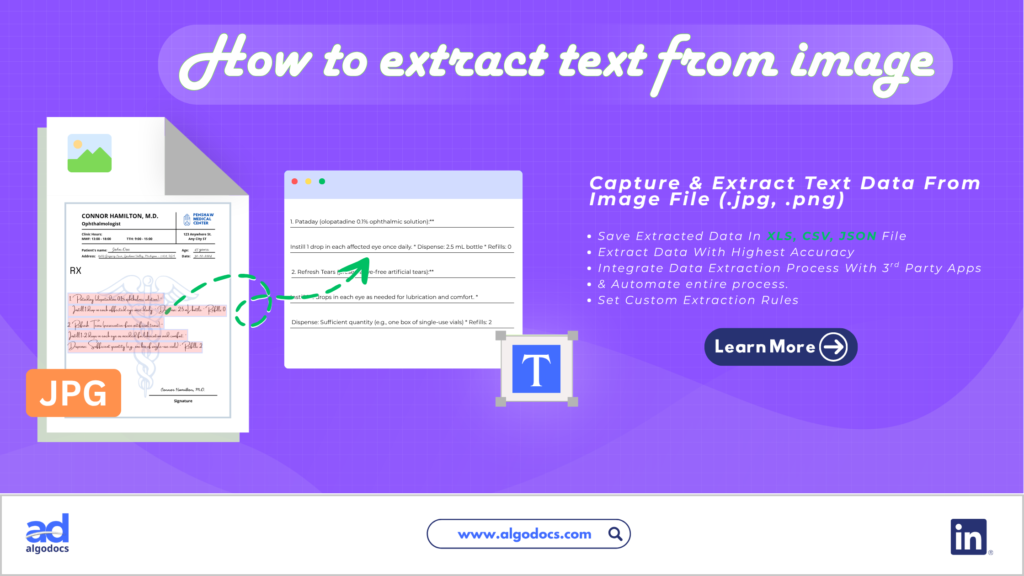
How to Extract Text from Image: Tools, Methods, and Best Practices

Back to Blog Table of contents On this page How to Extract Text from Image: Tools, Methods, and Best Practices You Must Know Home › Blog › Image Data Extraction › How to Extract Text from Image: Tools, Methods, and Best Practices Categories Image Data Extraction Tags AI Data Extraction how to guide image data extraction image text extraction By Shubhankar Biswas Published August 7, 2026, 06:38 Updated August 7, 2026, 06:40 Introduction Text data can be carried through various types of document file extensions: a PDF, Word, or CSV, as well as an image. But when you need to extract text from image files, the process can get complicated fast, largely because of file complexity and how the text sits within the picture. That’s why so many people search for a reliable image text extractor: a tool that lets you pull text from image content quickly, whether you prefer an online text from image extractor or an offline desktop app. An image with text data is used in various business and personal settings. A business may receive a scanned invoice in image format that contains important financial data. A large business can also record keep old files by scanning paper documents as image PDF files to save physical space in an office. In this blog, we will discuss how to extract text from image files, the challenges involved, the best tools for the job, and other useful tips. But before we start, what exactly is image text data? TL;DR Summary Extracting text from image files means pulling readable text out of a picture, screenshot, or scanned document so it can be edited, searched, or stored digitally. You can do this manually or, more effectively, with an automated text extractor powered by OCR (Optical Character Recognition) or IDP (Intelligent Document Processing). Automated tools like Algodocs, Nanonets, Rossum, and Klippa let you extract data from image files with higher accuracy and speed than manual entry, especially for blurry, skewed, or complex documents. When choosing a picture text extractor, consider features, pricing, data privacy, and integrations. What Is an Image with Text Data An image with text data can be a screenshot or scanned copy of a document created as a .jpg or .png file format. You will also find scanned image text files in PDF format, which is very common in business settings. You may have a website opened on your cellphone and want to save some visible part of text or data, so you take a screenshot and it becomes a text image file. Similarly, you might take multiple screenshots of a website, or a preview of a file in your browser that you can’t save, but you still want that text data stored somewhere, so you take screenshots and turn those screenshots into a PDF, or simply keep them as they are to save the data on your computer. Where the Image with Text Data Is Used As discussed earlier, an image text file is used in various ways, from personal data keeping and sharing to sending data files as email attachments. Many organizations safekeep old records as scanned image text files. A vendor can send a handwritten invoice to a supplier via a scanned image email attachment. So the uses of image text data can be seen in many scenarios, which is why the ability to extract text from image files becomes more important. Challenges with Image Text Data One of the biggest challenges with image text extraction is the quality of the image and how visible the text and data are within the file. As you know, scanned image quality can be poor. Oftentimes, document quality and text visibility are hurdles for users or machines trying to capture the data from an image. Old, blurry documents are the most troublesome cases, where blurry, skewed fonts, broken page layouts, and torn images create the most trouble. Trying to pull text from image files like these often becomes nearly impossible. Even OCR based data extraction technologies struggle to understand, capture, and extract data from these types of image text documents. Manual vs Automated Image Data Extraction There are primarily two ways to extract data from an image: manually or through an automated method using OCR and IDP. Manual data extraction is prone to many errors, and its data accuracy is not reliable. Automated methods using technologies such as OCR, IDP, AI, and NLP offer higher data extraction accuracy, faster extraction speed, better control, and third-party automation, which makes them the preferred choice for anyone who needs to extract data from image files regularly. How Do You Pull Text from Image Files (Step by Step) As discussed above, there are two primary methods of extracting text from an image. But using automated methods, such as AI based data extraction tools and OCR tools, gives you far better results than typing everything out by hand. We have previously covered this topic in another blog dedicated entirely to how to extract text from image files. You can read our blog on this for a detailed walkthrough. Technologies Behind Image Text Extraction One of the foundations of image data extraction is OCR technology, which has been around for many years and remains a common way to turn image into text. OCR is widely used for data extraction from many types of files and formats. Then came ICR, which was also useful, with a few updated features. But in recent times, a new technology emerged known as IDP (Intelligent Document Processing). IDP has taken the ability to extract text from picture files to a whole new level. IDP can extract text data from very poor, skewed, and blurry images, which was not possible with OCR and ICR alone. Since IDP uses machine learning and artificial intelligence to capture and extract data, this technology is highly effective for precision and faster text extraction. Best Tools for Extracting Text from Image There are many tools you will find on the internet to pull text from
Algodocs, Data Extraction, Image Data Extraction

How to Extract Handwritten Data from PDFs with Algodocs?

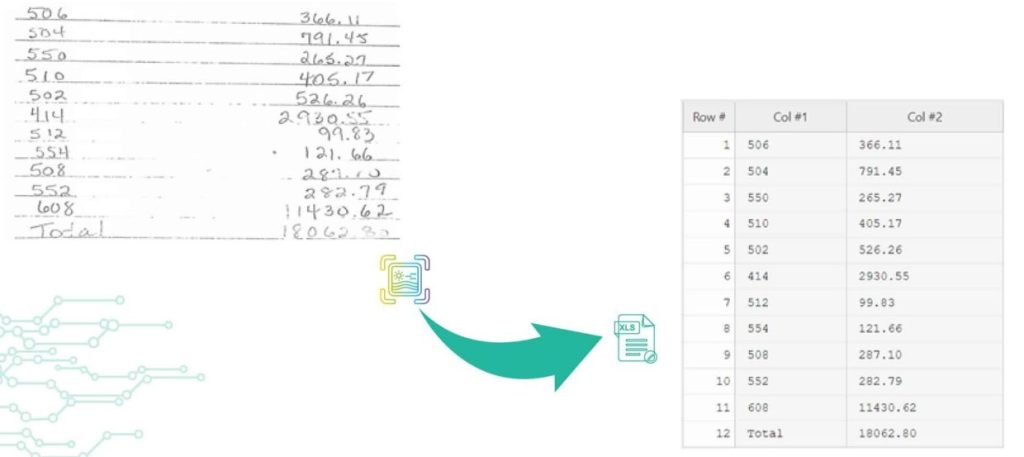
Back to Blog Table of contents On this page How to Extract Handwritten Data from PDFs with Algodocs? Home › Blog › Algodocs › How to Extract Handwritten Data from PDFs with Algodocs? Categories Algodocs Data Extraction Image Data Extraction Tags ai platform for data extraction algodocs character recognition data extraction from images handwritten pdf How to Extract Handwritten Data from PDFs web-based ai platform for data extraction By Shubhankar Biswas Published October 13, 2025, 12:19 Updated July 23, 2026, 07:36 Want to learn how to extract handwritten data from PDFs easily for your business documents? Algodocs is a powerful AI platform developed based on the latest technologies to streamline your processes and free your team from annoying and error-prone manual data entry by offering fast, secure, and accurate document data extraction. It helps you get rid of your workforce from repetitive, time-consuming, and error-prone manual data entry tasks such as extracting handwritten data. With its AI capabilities, Algodocs gives one of, if not the best, user experiences and interfaces. Areas and applications of Algodocs include extracting handwriting, tables, key-value pairs, marks, and signatures from PDFs and image files. Algodocs offers a forever free subscription, with 50 pages processed every month. What is OCR? Optical Character Recognition (OCR) engines are primarily focused on machine-printed text and may produce low accuracy for handwritten text. Intelligent Character Recognition (ICR) is an advanced recognition system that is used to recognize handwritten text. This allows the automatic conversion of text in an image into letter codes that are usable within computer and text-processing applications. Although many processes involve computer-based operations and are implemented in a digital environment, paper is still widely used across most core business processes such as mortgage origination, order fulfillment, contracts, and other documents that usually require handwritten input and signatures. Nowadays, the digitalization of paper documents plays an important role, and deciding on the right data capture software is critical since handwriting recognition, unlike printed text recognition is a more complex task that usually involves advanced deep learning algorithms. How Does Algodocs Do It? Handwritten data extraction from PDFs is implemented by converting handwritten text into machine-printed text with high accuracy. With the Intelligent Character Recognition (ICR) of Algodocs, you can automate your document processing workflow and get rid of manual data entry. Scan your paper documents with handwritten text and let Algodocs automatically extract data and convert it to Excel or JSON. Let’s consider the following portion of a scanned document, which contains a table of five columns filled with handwritten numbers. If you upload this image to your account at Algodocs, you will see the following output, which has 100% accuracy. Algodocs uses advanced ICR engines trained with Artificial Intelligence algorithms and Deep Learning. Extracting data from various document formats could be a challenging task, especially when it comes to the necessity to extract specific data sets from files containing different types of documents that span across multiple pages. In these quick materials, we will list key features that are available in Algodocs, and which will help you to extract data from your documents using the Algodocs advanced AI engine without relying on templates or even labeling and training your files. What Are the Supported File Formats for Data Extraction? You may upload to Algodocs different types of files of different Image formats for data recognition and data extraction: Portable Document Format (PDF) Joint Photographic Experts Group (JPEG) Portable Graphics Format (PNG) Tagged Image File Format (TIFF) What Are the Supported Languages for Data Recognition? Algodocs supports data extraction from documents with Arabic, Armenian, Belorussian, Bulgarian, Catalan, Chinese, Croatian, Czech, Danish, Dutch, English, Estonian, Filipino, Finnish, French, German, Greek, Hebrew, Hindi, Icelandic, Indonesian, Italian, Japanese, Korean, Lao, Latvian, Lithuanian, Macedonian, Nepali, Norwegian, Persian, Polish, Portuguese, Russian, Serbian, Slovak, Slovenian, Spanish, Swedish, Telugu, Thai, Turkish, Ukrainian, Vietnamese, and many other up to 200 languages. How to Extract Handwritten Data from PDFs Using Algodocs Step 1: Log in to your Algodocs account and go to the home page which is the Dashboard. Step 2: Click on the Extractors tab, where you can see the Create button on the top right side, click on it. Step 3: Choose the Custom Extractor, for getting structured data from your documents as you need it. Step 4: A pop-up window will appear, upload your sample file to extract data from. Click on the Choose file, to locate the document from your device storage folder, then assign a name to the extractor. Once done, click on the Create Extractor button. It will populate under Extractors as below; in this article, our example is called “Sample1.” Step 5: Click on the blue button labeled “Manage”, to create the data to be extracted. Step 6: Click on Add to choose what type of extraction method you want, here, you may use rule-based and AI extraction. In this example, we will choose the AI extraction method, “Form Data Extraction.” After clicking on “Form data extraction”, the page that you want to extract data from will appear on a new page. On the Top Right corner click on” Continue”. Step 7:  The raw data from your document is displayed. Now use available filters to select certain data, and update, or format the extracted data as you like. Once done, write the Field/Table name on the Left side inside the blank text box, and click the SAVE button on the right side. Step 8:  Now go to the extracted date and choose the extractor name, from the first drop-down menu. The extractor will populate the extracted date information. To view the extracted data, click on the Rows, and the data will populate as below.  Then choose to download the data as Excel, JSON, or XML Final Thoughts As we can see Algodocs performs well in handwritten text extraction from scanned documents. Feel free to start a free subscription right now and test your handwritten scanned documents. You can use Algodocs for free forever, and you will have 50 pages per month. If you need to process a higher number of pages, then please see our affordable pricing plans. Please contact

Image Data Extraction

A Guide on Extracting Tables From Low-Quality Scanned Documents

Back to Blog Table of contents On this page A Guide on Extracting Tables From Low-Quality Scanned Documents Home › Blog › Image Data Extraction › A Guide on Extracting Tables From Low-Quality Scanned Documents Categories Image Data Extraction Tags ai platform for data extraction algodocs character recognition data extraction from images deep learning export extracted data to excel invoice process machine learning ocr api web-based ai platform for data extraction By Shubhankar Biswas Published October 13, 2025, 11:52 Updated July 22, 2026, 09:54 Many companies deal with thousands of documents every month. Document workflow automation becomes vital for such companies as the number of documents increases. One of the most frequent and at the same time tedious operations when processing documents is reading data from tables, especially when documents are scanned PDFs or images. Automating table extraction from scanned documents and exporting them into Excel or JSON within seconds is a dream for every company dealing with manual data entry. Automating table data extraction from scanned documents and images reduces operational costs and saves a lot of time. In this article, we will talk about table extraction from scanned documents or images with low quality. You, most probably, came across some online tools that can extract tabular data from documents. However, there are a few that really work with low-quality scanned documents or images taken by a mobile device. Optical Character Recognition (OCR) is the technology used for converting scanned images into text. However, standard OCR tools require you to apply certain image processing operations on the images before you can apply OCR on them. Without manual pre-processing, OCR will fail in most cases, and accuracy will be low. Unfortunately, even with pre-processing operations free OCR tools produce poor performance. How to extract tables from scanned PDFs and images with low quality? Algodocs has an advanced AI-powered OCR engine that automatically handles any type of scanned PDF or image with a low quality. Algodocs accepts either colorful scanned images, black and white, or any other settings and extracts data with high accuracy. Algodocs can process scanned images with as low a dpi as 75. If you have scanned PDFs or images with low quality, then Algodocs is the right solution for you. You may start a free subscription right now and test your own scanned documents since we offer a free subscription (forever) with 50 pages per month. If you need to process a higher number of pages, then please see our affordable pricing plans. Please read our article on the basic steps for table extraction from documents here: Extract tables from PDF and scanned documents Algodocs: the best software tool to extract tables from scanned PDFs and images Consider the portions of the scanned documents below and the tables that Algodocs extracted from them. Example #1 Sample scanned image with low-quality (black and white) Extracted table by Algodocs. Example #2 Extracted table by Algodocs As you can see, the accuracy of Algodocs is perfect even with low-quality scans. However, there are cases when scanned images may cause Algodocs to make mistakes concerning small characters such as punctuation or other symbols (points, commas, date separators, etc.). Let’s have a look at the example below with a scanned image and see what Algodocs could extract from it. The extracted table from the above-scanned image is shown below. As you can see, there are numbers that are extracted with wrong decimal separators (indicated in red circles), i.e. a decimal point is mistakenly recognized as a comma. This is due to the dark background that some rows have on the image. With the help of flexible extracting rules of Algodocs, the workaround is quick and simple. Whenever you have low-quality scanned PDFs of images, we always advise you to follow the steps explained below. Step1. Remove all points and commas from the numbers We apply the ‘Search & Replace’ filter in Algodocs by using regular expressions as the search type. We apply this rule to all the columns in the example below, but you can restrict this rule to a specific column when needed. In order to find all dots or commas we use .|, as the search term and we leave empty the second field (replace by this), since we simply want to remove them. Step 2. Convert all numbers to their previous format Since we removed all points and commas from numbers, they actually increased, i.e. multiplied by 100 we can say (2,378.63 became 237863). Therefore, since we know that our numbers had 2 decimal places, we can divide all numbers by 100 to get the original numbers. The ‘Arithmetic Operation’ filter helps us implement exactly this. We divide numbers by 100 in the last column as shown in the example below. You may apply this filter to other columns too. That’s it. We got numbers in their original form with 100% accuracy! The same approach can be applied to other symbols when you have documents with a low quality. Please, contact us if you need any assistance. You Might Also Like How to Extract Handwritten Data from PDFs with Algodocs? Table of Contents Want to learn how to extract handwritten data from PDFs easily for your business documents? Algodocs is a powerful AI platform… Shubhankar Biswas October 13, 2025 Data Extraction for Legal Industry : How Intelligent Document Processing (IDP) Can Transform Legal Industry Document Workflow The global law and legal services industry is expected to reach $1,591.56 billion by the end of 2032, according to a report. The legal industry… Shubhankar Biswas October 12, 2025 Extract Tables from Images with AlgoDocs Extract Tables from Images with AlgoDocs One might find themselves overwhelmed by a deluge of paperwork—orders, checks, articles—all containing… Ibrahim Nalbant June 20, 2024 Start extracting your data today No credit card required. Process up to 50 pages per month on the Forever Free plan. Book a Demo Get Started for Free

Data Extraction, Image Data Extraction, Legal Document Extraction

Data Extraction for Legal Industry : How Intelligent Document Processing (IDP) Can Transform Legal Industry Document Workflow

Back to Blog Table of contents On this page Data Extraction for Legal Industry : How Intelligent Document Processing (IDP) Can Transform Legal Industry Document Workflow Home › Blog › Data Extraction › Data Extraction for Legal Industry : How Intelligent Document Processing (IDP) Can Transform Legal Industry Document Workflow Categories Data Extraction Image Data Extraction Legal Document Extraction Tags AI algodocs data extraction IDP intelligent document processing Legal Industry machine learning By Shubhankar Biswas Published October 12, 2025, 16:36 Updated July 22, 2026, 10:08 The global law and legal services industry is expected to reach $1,591.56 billion by the end of 2032, according to a report. The legal industry primarily relies on information, with activities such as contracts, court filings, discovery documents, and legal research forming the foundation of every case and legal process. These tasks involve a significant amount of documentation and data. However, managing this mountain of data has always been a challenge for the legal industry. Traditional methods of manual review and data entry are time-consuming, expensive, and prone to human error. Fortunately, technologies such as Artificial Intelligence (AI) and Intelligent Document Processing (IDP) have revolutionized how law firms and legal departments handle data extraction from multiple documents and files, significantly improving their work efficiency. In this blog, we will discuss how IDP (Intelligent Document Processing) can enhance document processing efficiency for the legal industry and why Algodocs AI is an ideal document processing solution that can elevate data extraction and document management for legal service business owners. Data Extraction for Legal Industry : A Major Challenge for Law Firms and Legal Service Providers Data is the lifeblood of the legal profession and law firms. Whether it involves extracting key clauses from contracts, identifying vital information in discovery documents, or analyzing legal precedents, the ability to quickly and accurately extract data is critical. This is where IDP (Intelligent Document Processing) for the legal industry comes into play. IDP automates the process of identifying and extracting relevant information from various legal documents, transforming unstructured data into a structured, usable format. This process is vital for several reasons: Efficiency: Manual data extraction is notoriously slow and labor-intensive. IDP and AI automate this process, freeing legal professionals to focus on higher-value tasks like strategy and client interaction. Accuracy: Human error is inevitable when manually extracting data. IDP and AI solutions, such as Algodocs, significantly reduce errors, ensuring data integrity and reliability. Cost Savings: Manual data extraction is not cost-effective, especially when dealing with bulk documents, which are abundant in the legal industry. By automating data extraction, law firms and legal departments can reduce overhead costs and improve their bottom line. Improved Decision-Making: Extracted data can be analyzed to provide valuable insights, enabling lawyers to make more informed decisions and develop stronger legal strategies. The Limitations of Traditional Data Extraction Methods Before the advent of technologies like IDP, AI, or OCR, legal professionals relied heavily on manual methods for data extraction. These methods, while sometimes necessary, come with significant challenges: Time-Consuming: Sifting through hundreds or thousands of pages of legal documents to locate and extract specific information is tedious and time-intensive. Error-Prone: Manual data entry is susceptible to human error, which can have severe consequences in legal matters. Inconsistent: Manually extracted data can vary in format and accuracy depending on the individual performing the task, leading to inconsistencies and difficulties in analysis. Costly: Labor costs associated with manual data extraction can be significant, particularly for large-scale legal projects. These limitations highlight the need for a more efficient, accurate, and cost-effective solution for data extraction in the legal industry. This is where IDP steps in. How IDP Works IDP leverages the power of artificial intelligence (AI) technologies such as machine learning (ML), natural language processing (NLP), computer vision, and OCR to automate data extraction from legal documents. Here’s how it works: Document Ingestion: IDP solutions can ingest various document formats, including PDFs, scanned images, Word documents, handwritten notes, and emails. Pre-Processing: Documents undergo pre-processing steps like optical character recognition (OCR) to convert scanned images into machine-readable text and remove noise. Data Extraction: NLP and ML algorithms identify and extract relevant information based on pre-defined rules or learned patterns, such as clauses, dates, names, addresses, and financial figures. Data Validation: Extracted data is validated using techniques like cross-referencing and pattern matching to ensure accuracy. Output: The validated data is exported into a structured format, such as a spreadsheet or database, for easy analysis and use. The Benefits of IDP for Legal Data Extraction IDP offers numerous benefits for legal professionals seeking to streamline data extraction: Increased Efficiency: Automates the data extraction process, significantly reducing time and effort. Improved Accuracy: Minimizes human intervention, reducing errors and ensuring greater precision. Enhanced Consistency: Provides consistent data extraction across all documents, regardless of complexity. Reduced Costs: Cuts labor costs by automating repetitive tasks. Better Risk Management: Identifies potential risks and liabilities within documents. Improved Compliance: Ensures adherence to legal and regulatory requirements. Enhanced Client Service: Enables legal professionals to deliver faster, more accurate services. Use Cases of IDP in the Legal Industry Contract Analysis: Automatically extracts key details like parties, dates, payment terms, and clauses. Due Diligence: Speeds up the review process for mergers and acquisitions by analyzing contracts and financial statements. Discovery: Analyzes vast amounts of discovery data to identify relevant information and patterns. Legal Research: Automatically extracts relevant information from case law, statutes, and legal journals. Compliance Monitoring: Ensures documents adhere to regulations and internal policies. Choosing the Right IDP Solution To maximize its benefits, selecting the right IDP solution is crucial. Consider factors such as accuracy, scalability, integration, security, user-friendliness, and vendor support when making your choice. Algodocs: A Leading IDP Solution for Legal Industry Algodocs is a powerful IDP solution tailored to address the challenges of data extraction in the legal field. It automates document processing, ensures high accuracy, offers customizable data extraction, and integrates seamlessly with existing systems. By implementing Algodocs, law firms and legal departments can enhance efficiency, accuracy, and cost-effectiveness, enabling better outcomes for clients. Conclusion Intelligent Document Processing is transforming the legal industry by automating critical processes. By improving efficiency, accuracy, and cost-effectiveness, IDP empowers law firms and legal departments to

Image Data Extraction

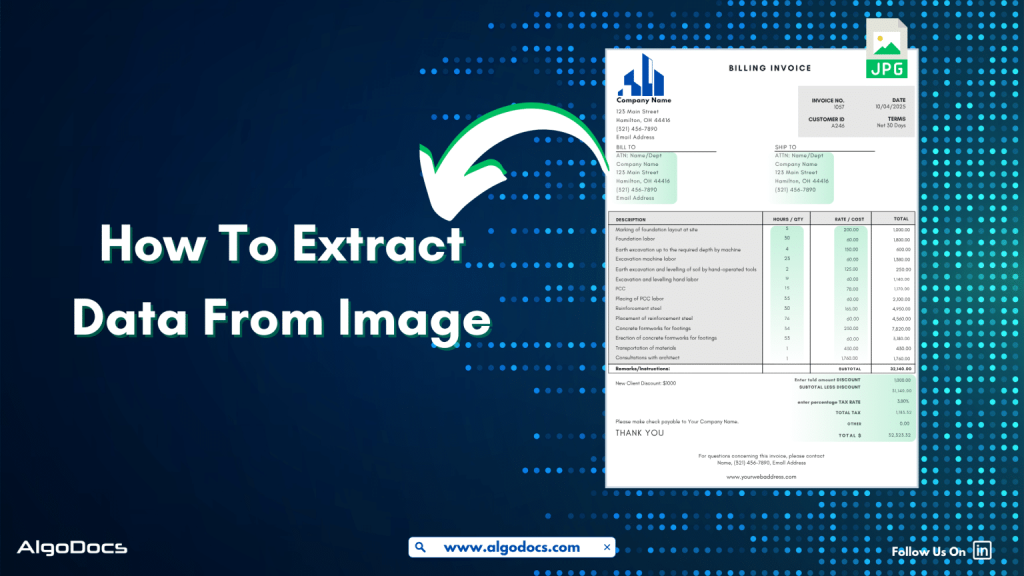
How to Extract Data from Image: With 99% Accuracy

Back to Blog Table of contents On this page How to Extract Data from Image: With 99% Accuracy Home › Blog › Image Data Extraction › How to Extract Data from Image: With 99% Accuracy Categories Image Data Extraction Tags ai platform for data extraction algodocs data extraction from images machine learning By Shubhankar Biswas Published September 1, 2025, 06:37 Updated July 21, 2026, 05:49 Data in today’s digital age comes in various formats. It could be in an Excel sheet, scanned PDFs, Word documents, scanned images, or more complex formats such as JSON or XML. But extracting data from image feels more challenging than others. Why? Because the unstructured content, skewed letters, and blurry images are difficult to process. If we talk about data extraction from images, then these images are obtained from various sources. These might be a scanned copy of a report from your office scanner, a mobile screenshot of a passport or driving license, or photos taken from your mobile of your certificates. It can be handwritten notes, invoices, bills, etc. As we can see, data in image format can be found in many life scenarios. But data extraction from images remains a challenge for us due to inconsistent document layouts, poorly scanned documents, and skewed letters, which make data extraction difficult. The manual method of data extraction is slow and full of human errors, which reduces work efficiency. But with the rise of advanced technologies such as Artificial Intelligence, Machine Learning, Intelligent Document Processing, and OCR, extracting data from images has become easy. In this blog, we will discuss the challenges associated with image data extraction, tools and technologies for extracting data from images, how manual image data extraction is not reliable, the best tools you can consider for image data extraction, and how Algodocs is the best tool for extracting data from images. Let’s explore. What is Image Data Extraction? Image data extraction means to capture and extract data from an image document using technologies such as AI, IDP, and OCR. These image documents can be in the form of JPG, PNG, or other image formats. The extracted data is later stored in a structured format and utilized for various business activities such as analytics, record keeping, decision-making, etc. One of the crucial aspects of image data extraction is that modern businesses thrive on data. The more accurate data extraction from images is, the better the business results. What Types of Data Can an Image Contain? An image can carry a wide variety of data. Here are some major types: Handwritten Notes (Scanned) –Handwritten notes written on paper and scanned with a scanner or mobile device are very common types of image data. Personal notes, bills, invoices, memos, patient forms, college admission forms, etc., are good examples of images containing valuable data. Scanned Documents –Documents are scanned in various scenarios. This could be in the office, where you need to scan a sales report or an ID card such as passports, driving licenses, etc., for verification purposes or any other documents for business or personal needs. Mobile Screenshot Images –A mobile device has become the backbone of our digital life. Except for any personal images, we also tend to carry lots of documents and screenshots of documents on our mobile devices. In many scenarios, we tend to take lots of screenshots of documents or web pages for business and personal use. Computer Screenshot Images –A screenshot taken from a sales report, dashboard, or document is often in image format. These images contain valuable business information, and processing and extracting data from these images is essential for business activities. Types of Documents That Are in Image Data Format Image files containing valuable data often come in the form of scanned documents, photographed documents, screenshots, etc. These documents can be of various types such as: Invoices –Talking about image data, what can be a more useful example than an invoice? An invoice contains data such as item, price, address, invoice number, etc. Generally, invoices are generated as docs or PDF files. But sometimes the same invoice documents are scanned or their pictures taken for sharing and record-keeping purposes. Extracting data from these types of images becomes important for many reasons. Bills and Receipts –A bill is used in many B2B and B2C settings. It’s a proof of sale from the seller to the customer. This contains details such as vendor name, item description, billing date, payment info, etc. A general bill or receipt document can be a physical copy of the actual bill or receipt generated in PDF or document formats. But sometimes this can be in the form of JPG images or screenshots as well. Certificates –Educational certificates often provided by educational institutions, colleges, or schools are generally available in physical formats. But sometimes we carry them in the form of scanned images or photographs as well. ID Cards –ID cards are crucial documents for various types of KYC verification and other business activities. While a physical identity card such as employee ID, passports, driving licenses, etc., can be found in physical formats, sometimes we need to carry these documents in the form of scanned images, pictures, and other digital formats for ease. Bank Statements, Bills, and Others –We can also see the example of bank statements or various types of bills which are often available in physical paper form and are often carried in image, screenshot, or scanned document formats. Challenges Associated with Image Data Extraction While image data extraction is important, there are many challenges that persist in extracting data from images. The challenges include: Sign up for Algodocs Free-Forever Plan Today & Enjoy Premium Features For Free Create Free Account Poor Image Quality –One of the major problems with image data extraction is poor image quality. Poor-quality image data is difficult to capture by human eyes as well as by automated data extraction software such as OCR and Intelligent Document Processing. This can lead to data errors during extraction. Handwritten Texts –Handwritten notes or text that have been converted into an image file

Algodocs, Image Data Extraction

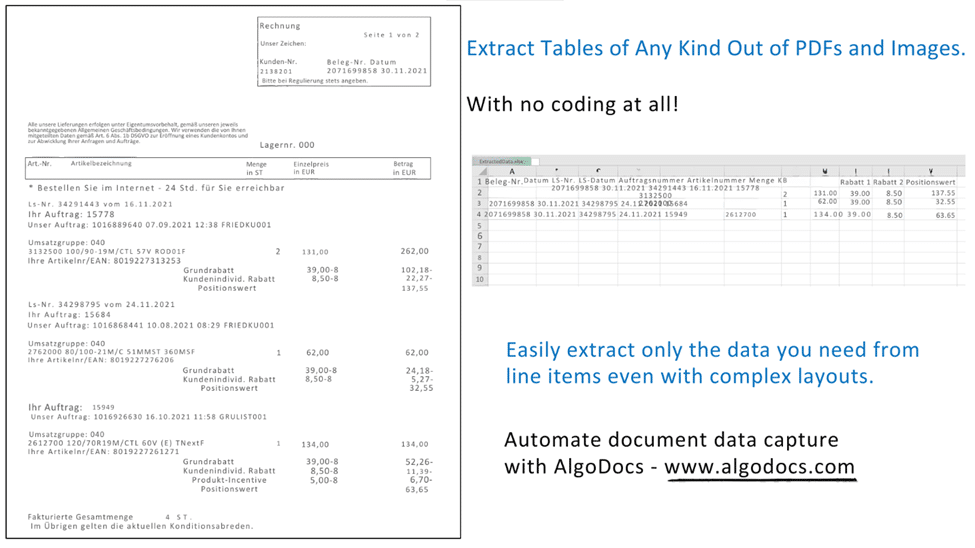
Extract Tables from Images with AlgoDocs

Back to Blog Table of contents On this page Extract Tables from Images with AlgoDocs Home › Blog › Algodocs › Extract Tables from Images with AlgoDocs Categories Algodocs Image Data Extraction Tags bank ocr deep learning Finance ocr invoice invoice process KYC loan forms pdf to text sea waybill ocr web-based ai platform for data extraction By Ibrahim Nalbant Published June 20, 2024, 12:36 Updated July 22, 2026, 09:50 One might find themselves overwhelmed by a deluge of paperwork—orders, checks, articles—all containing valuable data locked up in tables. Extracting this information manually is like looking for a needle in a haystack. What if there was a way to free this data with some simple mouse movements? This is where image to table conversion becomes essential, transforming images into usable data. At AlgoDocs, we pride ourselves on making this process seamless. Sit tight and let the journey to efficient table extraction from images begin! How We Extract Tables from Images (and How Others Do It Too) There are specialized programs that help extract table information from scanned files like images and PDFs. But how does this happen? The All-Seeing Eye of OCR: At the center is Optical Character Recognition (OCR) technology. It functions like a digital magnifying glass, identifying text within the images frame by frame. The Mastermind of Layout Analysis: Sophisticated calculations dissect the layout of the image to understand patterns or lines that form the tables’ structure. AlgoDocs and the Gang: We are not the only entities in this data extraction game, are we? ExtractTable: A web-based table extractor with basic functionalities for grabbing simple tables from websites. (Limited to basic tables and web sources only). Nanonets: Offers a suite of functions specifically designed to convert images containing invoices and receipts into structured tables. (Focuses on a specific document type). Docsumo Pro (Free Feature): Provides a free feature that can identify tables within PDFs and images. (Limited functionality in the free version). Why Choose AlgoDocs? Here’s Your Ticket to Data Freedom While these options exist, this AI-based software stands out as the data extraction champion. Here’s why: Simplicity We prioritize user-friendliness. Table extraction requires little or no effort from the user because our interface is user-friendly regardless of the user’s technical level. Saves Time Data extraction manually is very time-consuming and tiresome. That’s why our tool automates the entire process, freeing you to focus on more strategic tasks. Easy Workflow This tool comes as a feature in your tool chests and is naturally added to your day-to-day approaches seamlessly— Its seamless integration with existing tools and workflows ensures a smooth transition into your data management routine—no more data juggling across different platforms. You can trust our tool to adapt to your needs. Efficiently Extracts Data Designed for various professional fields, it can save hundreds and possibly thousands of hours for researchers, students, and home users. This relieves them from the burden of having to spend hours manipulating data to achieve the required outcome, freeing them up to practice concepts. A Feature-Packed Extraction Powerhouse We offer a robust suite of features designed to streamline your data extraction process and ensure exceptional results: • Cutting-Edge AI Technology: This is why we can state that when it comes to such tasks as tables’ extraction, AI contributes to the process, and therefore, we assure you of high results and fast, profound processing. • Seamless API Integration: It has intrinsic API incorporated, which means that one has the independent power to start them effortlessly with other APIs, and this lays down all the power in the extraction segment. In addition, Zapier allows you to link AlgoDocs to over 2,000 different web services. Automated connections known as Zaps, which can be set up in minutes with no coding, can automate your daily tasks and create workflows between apps that would otherwise be impossible. • Effortless Batch Processing: From thousands of images to many more thousands on a daily basis, or even millions weekly, it can assist you. As for this task, our batch processing capabilities should have no trouble managing it: they work on large sets as a matter of course. • Flexible File Format Support: As for supported file formats we accept images of varying formats and PDF files and are happy to be considered as your ultimate resource for extracting data. • Real-Time Data Access: Wish waiting can be scrapped off as one of the things that has no place in this fashion tale. It is online, which is why our system promptly pulls the tables and gives you access to your important data. • Unmatched Accuracy: We respect data and we strive to make sure that it remains closed to any alterations. Our system has high accuracy rates that it provides documents filled with complete and thorough results for the customers. • Forever Free Forever: It is our firm conviction that all should be able to get hands on some highly efficient data extraction solutions. This is why we provide users with a forever free subscription that enables you to convert up to 50 pages every month- for free! Advanced Functionalities: Conquering Toughest Tables Here’s how AlgoDocs tackles even the most challenging scenarios: Taming Handwritten Challenges: Of course, while writing on paper, people make different mistakes – that’s why we can recognize even the most complex handwritten tables with great success. Conventionally, handwriting oftentimes comes in different forms and our smart AI engine comes ready to deal with all these forms making it easier to convert reports, historical documents among others into usable data. Bye-bye Watermarks and Background Woes: Effectively erases overlays, watermarks, and elaborate backgrounds using sophisticated image pre-processing algorithms. This ensures that regardless of the shapes and forms that the input image came in, the data extracted is easy to manipulate and usable. Security Like Fort Knox: We do appreciate the need to ensure that the data collected and stored in this database is secure at all times. We have adequate security measures that protect the input data

Scroll to Top