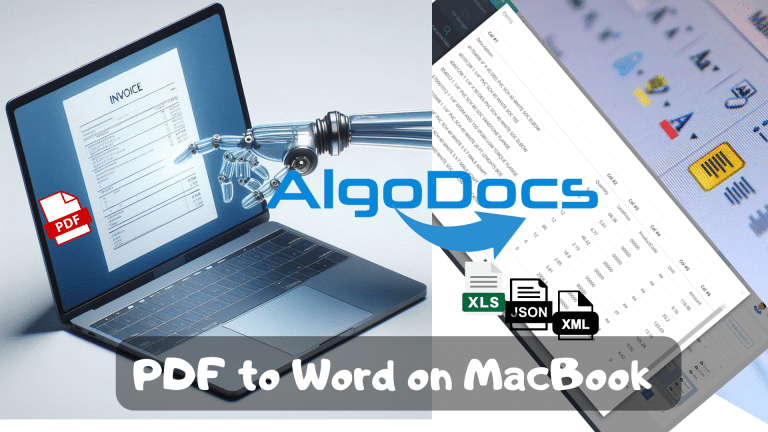
Why convert PDF to Word on MacBook (Mac)?
Back to Blog Table of contents On this page Why convert PDF to Word on MacBook (Mac)? Home › Blog › Algodocs › Why convert PDF to Word on MacBook (Mac)? Categories Algodocs By Shubhankar Biswas Published October 12, 2025, 19:49 Updated July 20, 2026, 07:02 Picture this: You have a PDF file that needs to be revised or a scanned document that you wish to convert into an editable format like an MS Word document. Perhaps you have to work on a task and receive source files that cannot be changed and are saved in PDF or image format. Frustrating, right? That is when the miracles of converting PDF to Word come into existence. Yes, it is like taking your boring PDFs and probably turning them into lively and easily manageable Word docs. Converting PDFs to Word opens a new world of possibilities. Features include text editing, table editing or adding, and even the modification of images within the official document. Further, it creates the basis for exporting extracted data directly into other used tools like accounting ones so that everyone is in sync (metaphorically speaking!). Accessibility is another factor. Converting files from PDF to Word lets more people, including decision-makers, access the content. AI data extraction adds another layer of awesomeness to your PDF to Word conversion. You can pull out tables, key-value pairs, marks, figures, and even handwritten notes. Therefore, no matter whether you are a financer, a student, a worker in any data-driven field, or an ordinary user who is trying to simplify your digital life. We provide you with some tools that provide accurate results regardless of the device and OS used. As a case study, this article will discuss in detail how to convert PDF to Word on MacBook (Mac). This is where AI comes in and helps you take it up a notch. Built-in Mac Tools for PDF to Word Conversion Mac users, rejoice! You have a couple of tools integrated into your operating system. These tools effectively convert PDF to Word. First on the list is the Preview which is your go-to basic PDF viewer. This is not only a viewer for PDFs, you can also convert them to Word using it! Just launch the PDF in Preview, go up to the ‘File’ header, click on ‘Export,’ and select, ‘Word’ under the format. Boom, you’re done! Pages is next – it is a word processor developed by Apple Inc. PDF to Word conversion isn’t very popular. However, it’s a secret weapon in this area. The Open button brings you back to the menus. From there, go to ‘File,’ then ‘Open,’ and select the PDF you want. Pages will attempt to translate the PDF into editable Word format. But these built-in tools, may find it difficult to work with complicated PDFs and images. They certainly are not the best solution when trying to extract tables, handwritten, and processing multilanguage documents. To clarify, don’t think that you’re doomed to use these options for eternity; in the next sections, more sophisticated tools are presented. Free Online PDF to Word Converters Alright, okay, let’s assume you are interested in a quick-fix solution and you don’t want to download anything onto your computer. That is where free online PDF to Word converters come in helpful. Fortunately, there are many tools available today, all of which have their advantages and nuances. Some tools you can use are Smallpdf, PDF Candy, and Online2PDF. These tools let you upload your PDFs and a Word file for download format will be ready. It’s convenient and perfect for those one-off conversions. Still, free online converters are not without their perks. They might struggle with preserving complex formatting or handling large files. Plus, their data extraction capabilities can be limited. If you need to pull specific information from your PDF, like tables, key value pairs, or images, you might have to manually copying the wanted data. If you’re looking for more advanced data extraction capabilities, consider exploring AI-powered alternatives like Algodocs. This platform not only converts PDFs to Word but also intelligently extracts data like tables, handwriting, and key-value pairs. We’ll dive deeper into AI-powered solutions later in this guide. Paid PDF to Word Converter Software for Mac If you are looking to work with PDFs locally without accessing the Internet, purchasing PDF to Word conversion software will be useful. Such tools provide additional features like powerful editing and OCR data extraction. Adobe Acrobat Pro is the undisputed champion in the PDF world. It’s the best tool for PDF reading and editing. It offers a free trial to convert PDFs into Word format. Additionally, it comes with sophisticated OCR functions for importing and updating scanned PDFs. Well, Adobe Acrobat Pro is not the only way to make life easier; PDFelement and PDFpenPro offer similar features for an affordable price. The tools mentioned above work well for basic editing and conversion. However, they can’t handle multipage tables, handwritten, low-quality, or multi-language documents. If you’re looking for a solution beyond basic conversion, you might want to try AI-powered PDF to Word tools like Algodocs. They use artificial intelligence to improve precision, address complications with structure, and even specific data from your scanned files like PDFs and images. It feels like having a professional secretary for your document conversion needs. Unleashing the Power of AI Data Extraction for PDF Conversion Let’s face it—not all PDFs are the same. Some might contain only plain text, while others may contain lots of tables, figures, diagrams, handwriting, etc. Converting such files leads to formatting issues and lost data. That’s where the magic of AI data extraction comes in. But AI doesn’t stop there. It can even recognize handwritten text and extract data from the most complicated tables. Introducing Algodocs If you’re looking for a powerful AI-powered PDF conversion and data extraction solution, look no further than Algodocs. This web-based platform harnesses the latest technologies to deliver exceptional results. Algodocs can extract a wide range of data from your

