Algodocs

Author name: Shubhankar Biswas

invoice extraction, Logistics Data Extraction

SKU List Data Extraction With Artificial Intelligence and IDP: Benefits, Features, Risks & More

Back to Blog Table of contents On this page SKU List Data Extraction With Artificial Intelligence and IDP: Benefits, Features, Risks & More Home › Blog › invoice extraction › SKU List Data Extraction With Artificial Intelligence and IDP: Benefits, Features, Risks & More Categories invoice extraction Logistics Data Extraction Tags data extraction Invoice Data Extraction Logistics By Shubhankar Biswas Published September 1, 2025, 06:42 Updated July 21, 2026, 08:07 What is An SSKU List Data Extraction With Artificial Intelligence and IDP: Benefits, Features, Risks & MoreKU List? The paradigm shift of global shoppers has changed from offline to online in recent years. The eCommerce industry is currently a $7.5 trillion economy and is growing at a very fast pace according to a report. This rapidly growing eCommerce economy has given birth to many big platforms as well as small eCommerce businesses. Many traditional retail businesses have transitioned their business model from offline channels to online channels in recent years. And this transition has increased their sales and revenue. Now eCommerce businesses thrive on many factors such as their business model, where their customers are, how they want to target their customers, and how the sold product will be delivered to the customer. Unlike a physical store that is only able to display and market a limited number of inventory items, an online store is able to display and share countless numbers of items without requiring much space and manpower. With such a large number of products and items, businesses need to maintain a list of product data which is known as an SKU list. An SKU list is used in both online and offline channels. But data extraction from an SKU list is a challenging task. Due to the number of items, various fields, and tables, data extraction becomes a challenging task. The old manual data extraction method is prone to human errors and data accuracy remains a big challenge. But with tools such as SKU list OCR, intelligent document processing, and Artificial Intelligence, SKU data extraction has become more accurate, speedy, and efficient. In this blog post, we will discuss various aspects of SKU list data extraction, including its challenges, benefits, and other key considerations. What is An SKU List? An SKU list or Stock Keeping Unit is a list of products that shows the available and sold inventory of a store. An SKU list consists of details such as product name, title, variants, color variants, size variants, SKU number, product URL, price variants, availability, etc.This helps businesses to maintain a record of what products have been sold and what is in stock, with all corresponding details of product types, variants, etc. In both online and offline businesses, the SKU list plays a vital role, but specifically in online and eCommerce businesses, it holds major importance. Difference between SKU List vs. Product List: There are many types of documents used on a day-to-day basis in online and offline businesses for various types of business activities. Documents such as bills, invoices, SKU lists, packing lists, and purchase orders are a few essential documents that are frequently used in business. But every document is different; similarly, an SKU list and a packing list are two different documents. But sometimes people get confused and consider the SKU list as a packing list. Here are the differences: Feature Packing List SKU List Purpose Details shipment contents Tracks products in inventory Scope Focuses on shipped items Covers all stock in a system Usage Used in logistics and shipping Used in warehousing and retail Contents Item descriptions, weights, packaging details Product codes, descriptions, stock levels Format Structured for shipping documentation Formatted for inventory databases Tracking Ensures shipment verification Monitors stock movement and availability Customization Focuses on shipment accuracy Includes pricing and supplier details Regulatory Role Required for customs clearance and freight calculations Not required for shipping Verification Helps buyers confirm received goods Helps businesses manage stock levels Integration Linked to shipping and order fulfilment Integrated with inventory management systems What is the Purpose of an SKU List in eCommerce? The real purpose of an SKU list is to keep a record of the items that are available or being sold by a store or business. This helps businesses manage their inventory and keep a record of which products are in stock and which have been sold. Secondly, when an online business or store fulfills an order, they can ensure that the right product has been packed and shipped to the logistics company. The third important role of an SKU list is to help with product listing in both online stores and offline stores. If a business sells its product on multiple online eCommerce platforms, then with a single SKU list, you can manage your product listings across all channels. Analysis and reporting of sold and unsold products can also be done with the SKU list.A well-maintained SKU list is the backbone of smooth eCommerce operations. But extracting and organizing this data can be tricky. What is SKU List Data Extraction? SKU list data extraction means extracting information such as product names, titles, variants, SKU ID, size, color, availability, and other information from an SKU list using automated software. The main purpose of SKU list data extraction is to improve workflow efficiency for logistics, product listing, and other decision-making activities for an online or offline store. A typical SKU list is usually generated in Excel or CSV format, but in some cases, it could be a scanned image PDF, native PDF, handwritten note, or JPG image as well.Extracting data from a long and bulky SKU list manually isn’t efficient, but tools such as SKU list OCR and Intelligent Document Processing have made this task more efficient and smoother. Challenges with SKU List Data Extraction Extracting data from an SKU list manually is not very reliable for a business. Manual SKU list data extraction poses great challenges such as: Multiple Formats:SKU lists generally come in Excel format, but sometimes they can be PDFs, scanned images, or emails as

Image Data Extraction

How to Extract Data from Image: With 99% Accuracy

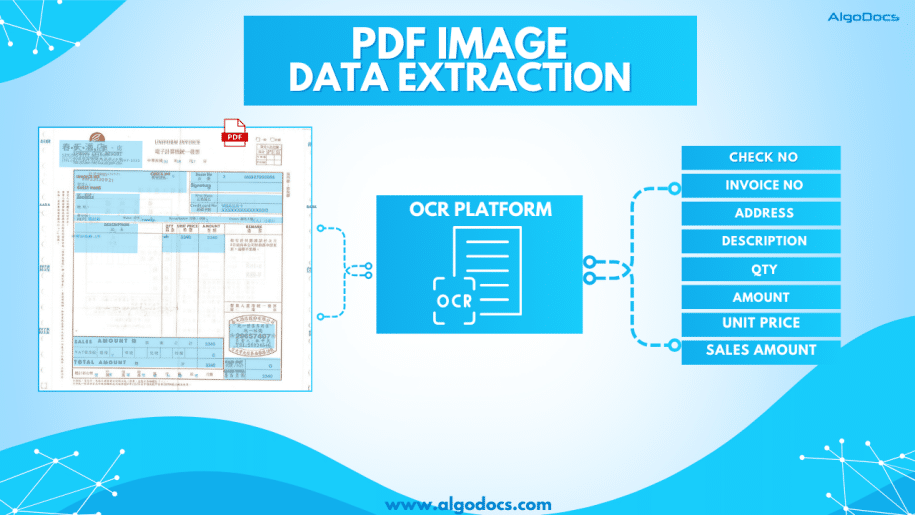
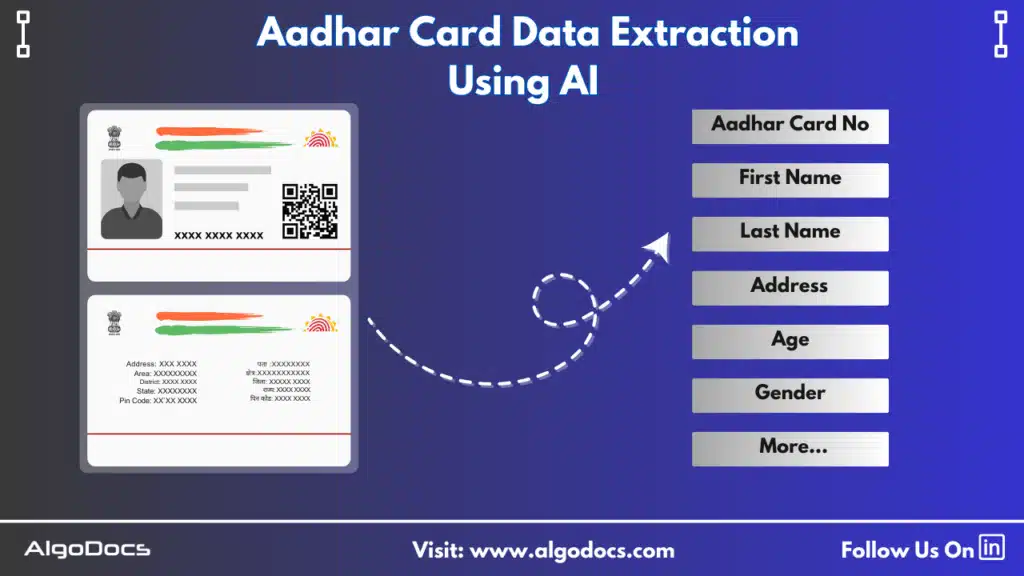
Back to Blog Table of contents On this page How to Extract Data from Image: With 99% Accuracy Home › Blog › Image Data Extraction › How to Extract Data from Image: With 99% Accuracy Categories Image Data Extraction Tags ai platform for data extraction algodocs data extraction from images machine learning By Shubhankar Biswas Published September 1, 2025, 06:37 Updated July 21, 2026, 05:49 Data in today’s digital age comes in various formats. It could be in an Excel sheet, scanned PDFs, Word documents, scanned images, or more complex formats such as JSON or XML. But extracting data from image feels more challenging than others. Why? Because the unstructured content, skewed letters, and blurry images are difficult to process. If we talk about data extraction from images, then these images are obtained from various sources. These might be a scanned copy of a report from your office scanner, a mobile screenshot of a passport or driving license, or photos taken from your mobile of your certificates. It can be handwritten notes, invoices, bills, etc. As we can see, data in image format can be found in many life scenarios. But data extraction from images remains a challenge for us due to inconsistent document layouts, poorly scanned documents, and skewed letters, which make data extraction difficult. The manual method of data extraction is slow and full of human errors, which reduces work efficiency. But with the rise of advanced technologies such as Artificial Intelligence, Machine Learning, Intelligent Document Processing, and OCR, extracting data from images has become easy. In this blog, we will discuss the challenges associated with image data extraction, tools and technologies for extracting data from images, how manual image data extraction is not reliable, the best tools you can consider for image data extraction, and how Algodocs is the best tool for extracting data from images. Let’s explore. What is Image Data Extraction? Image data extraction means to capture and extract data from an image document using technologies such as AI, IDP, and OCR. These image documents can be in the form of JPG, PNG, or other image formats. The extracted data is later stored in a structured format and utilized for various business activities such as analytics, record keeping, decision-making, etc. One of the crucial aspects of image data extraction is that modern businesses thrive on data. The more accurate data extraction from images is, the better the business results. What Types of Data Can an Image Contain? An image can carry a wide variety of data. Here are some major types: Handwritten Notes (Scanned) –Handwritten notes written on paper and scanned with a scanner or mobile device are very common types of image data. Personal notes, bills, invoices, memos, patient forms, college admission forms, etc., are good examples of images containing valuable data. Scanned Documents –Documents are scanned in various scenarios. This could be in the office, where you need to scan a sales report or an ID card such as passports, driving licenses, etc., for verification purposes or any other documents for business or personal needs. Mobile Screenshot Images –A mobile device has become the backbone of our digital life. Except for any personal images, we also tend to carry lots of documents and screenshots of documents on our mobile devices. In many scenarios, we tend to take lots of screenshots of documents or web pages for business and personal use. Computer Screenshot Images –A screenshot taken from a sales report, dashboard, or document is often in image format. These images contain valuable business information, and processing and extracting data from these images is essential for business activities. Types of Documents That Are in Image Data Format Image files containing valuable data often come in the form of scanned documents, photographed documents, screenshots, etc. These documents can be of various types such as: Invoices –Talking about image data, what can be a more useful example than an invoice? An invoice contains data such as item, price, address, invoice number, etc. Generally, invoices are generated as docs or PDF files. But sometimes the same invoice documents are scanned or their pictures taken for sharing and record-keeping purposes. Extracting data from these types of images becomes important for many reasons. Bills and Receipts –A bill is used in many B2B and B2C settings. It’s a proof of sale from the seller to the customer. This contains details such as vendor name, item description, billing date, payment info, etc. A general bill or receipt document can be a physical copy of the actual bill or receipt generated in PDF or document formats. But sometimes this can be in the form of JPG images or screenshots as well. Certificates –Educational certificates often provided by educational institutions, colleges, or schools are generally available in physical formats. But sometimes we carry them in the form of scanned images or photographs as well. ID Cards –ID cards are crucial documents for various types of KYC verification and other business activities. While a physical identity card such as employee ID, passports, driving licenses, etc., can be found in physical formats, sometimes we need to carry these documents in the form of scanned images, pictures, and other digital formats for ease. Bank Statements, Bills, and Others –We can also see the example of bank statements or various types of bills which are often available in physical paper form and are often carried in image, screenshot, or scanned document formats. Challenges Associated with Image Data Extraction While image data extraction is important, there are many challenges that persist in extracting data from images. The challenges include: Sign up for Algodocs Free-Forever Plan Today & Enjoy Premium Features For Free Create Free Account Poor Image Quality –One of the major problems with image data extraction is poor image quality. Poor-quality image data is difficult to capture by human eyes as well as by automated data extraction software such as OCR and Intelligent Document Processing. This can lead to data errors during extraction. Handwritten Texts –Handwritten notes or text that have been converted into an image file

Data Extraction

SMB Document Automation & Processing Using IDP and AI

Back to Blog Table of contents On this page SMB Document Automation & Processing Using IDP and AI Home › Blog › Data Extraction › SMB Document Automation & Processing Using IDP and AI Categories Data Extraction Tags algodocs data extraction data extraction from images deep learning image recognition By Shubhankar Biswas Published September 1, 2025, 05:13 Updated July 23, 2026, 06:53 Growing a business in today’s hyper-competitive world can be a real challenge for small and medium enterprises (SMEs). One of the reasons that hinders their progress is the lack of resources to invest in essential services such as smb document automation services etc. One of these essential and important services is processing data from various types of documents, which can come in the form of invoices, bills, receipts, contacts, etc. While larger corporations often have solid resources to invest in extensive digital transformation initiatives, many SMBs feel left behind, struggling with manual processes that drain valuable time and resources from the organization. But what if there were a way to scale your business beyond the grips of manual data entry and unlock the true potential of your information? Yes, it is possible with an AI-powered Intelligent Document Processing (IDP) platform. IDP is emerging as a game-changer for SMBs, offering a powerful blend of artificial intelligence (AI), machine learning (ML), and optical character recognition (OCR) to transform how documents are processed. In this blog, we will delve deep into the world of IDP, exploring its mechanics, its immense benefits for SMBs, the challenges it addresses, and what to consider when choosing the right solution to propel your business forward. What is Intelligent Document Processing (IDP)? At its core, Intelligent Document Processing (IDP) is an AI- and ML-based data extraction tool that helps automate data extraction from various types of documents. It can classify, extract, validate, and organize data from both structured and unstructured documents. These documents can be invoices, bills, HR forms, medical bills, shipping documents, etc. Unlike traditional OCR, which merely converts standard images or documents into machine-readable formats, IDP goes beyond basic data extraction. It leverages advanced technologies such as AI and ML algorithms to understand the context of the information, identify relevant data fields, and even handle variations in document layouts and formats. Think of it as a computer program that has the ability to “read” and “understand” documents in a way that mimics human cognition, but at a speed and accuracy level far beyond human capabilities. This means it can process everything from standardized forms and invoices (structured data) to emails, contracts, and even handwritten notes (unstructured and semi-structured data) with 10 times more speed and accuracy. One of the major advantages of intelligent document processing tools is that they can be integrated with desired third-party platforms and business apps. This makes data exchange and processing smooth and saves time. IDP’s automation capability makes repetitive tasks more productive and cost-effective for the organization. How Intelligent Document Processing Works Intelligent document processing is a multistep process, from capturing, processing, and classifying to extracting the final data. We have written a detailed blog on how intelligent document processing works Meanwhile, you can learn how intelligent document processing works: Document Ingestion: The journey begins with ingesting documents into the IDP system. This can be done through various channels, including scanners for physical documents, email attachments, network folders, or direct integrations with business applications. The system can handle a wide array of file formats, such as PDFs, images (JPEG, PNG, TIFF), Word documents, and more. Pre-processing and Enhancement: Once ingested, documents undergo a pre-processing phase to optimize them for accurate data extraction. This involves techniques like de-skewing (straightening crooked images), noise reduction (removing specks and imperfections), binarization (converting to black and white for better text recognition), and de-speckling. These steps significantly improve the quality of the document image, ensuring higher accuracy in subsequent stages. Document Classification: This is where the “intelligent” aspect truly shines. The IDP solution uses AI and ML algorithms, often incorporating Natural Language Processing (NLP), to automatically classify the ingested documents. For instance, it can distinguish between an invoice, a purchase order, a customer complaint, or an HR application. This classification is crucial for routing documents to the appropriate processing workflows and applying the correct extraction rules. The system learns from historical data and user feedback, becoming increasingly accurate over time in its classification abilities. Data Extraction: Once a document is classified, the IDP system employs sophisticated algorithms to identify and extract specific data points. This is where OCR works in tandem with AI and ML. For structured documents, it might use pre-defined templates. However, for semi-structured and unstructured documents, it uses contextual understanding to locate key-value pairs (e.g., “Invoice Number: 12345”, “Total Amount: $500.00”), dates, names, addresses, and other relevant information, regardless of their position on the page. Machine learning continuously refines the extraction models, leading to higher accuracy with each processed document. Data Validation and Verification: To ensure data integrity, extracted information undergoes a rigorous validation process. This can involve: Rule-based validation: Checking against pre-defined business rules (e.g., ensuring a total amount matches the sum of line items). Cross-referencing: Validating extracted data against existing databases or internal systems (e.g., verifying a vendor’s name against a vendor master list). Human-in-the-Loop (HITL): For uncertain or low-confidence extractions, the system flags the data for human review and correction. This human feedback is invaluable, as it feeds back into the machine learning models, enabling continuous improvement and higher automation rates over time. Data Export and Integration: The final, validated data is then exported in a structured format (e.g., CSV, JSON, XML) and seamlessly integrated into your existing business applications. This could include Enterprise Resource Planning (ERP) systems, Customer Relationship Management (CRM) software, accounting platforms, document management systems, or any other critical business application, ensuring a unified and accessible data flow. Benefits of Intelligent Document Processing for Small and Medium Enterprises Small and Medium size business can greatly benefit from intelligent document processing as it give more power to small scale business owners to do more with versatile IDP tool.

Extract PDF Data with ChatGPT
PDF

How to Extract PDF Data with ChatGPT?

Back to Blog Table of contents On this page How to Extract PDF Data with ChatGPT? Home › Blog › PDF › How to Extract PDF Data with ChatGPT? Categories PDF Tags data extraction from images By Shubhankar Biswas Published February 28, 2025, 08:52 Updated July 20, 2026, 08:20 We are all familiar with PDFs—an essential document format used for sharing textual data. However, extracting data from a PDF can be a challenging task due to the way information is stored within the file. There are two primary types of PDFs: native PDFs, which are usually editable, and scanned PDFs, which contain images of documents saved as PDF files. Both types are widely used in professional and personal settings. You may have a 50-page document of important notes or receive a 1,000-page scanned report from your manager. Extracting data from these two types of PDFs requires different approaches. Native PDFs are easier to process, while scanned PDFs need advanced OCR and AI capabilities for accurate and efficient data extraction. That’s why we’ll explore how to use the powerful LLM model, ChatGPT, to extract data from PDFs. Additionally, we’ll discuss how AlgoDocs AI provides a more precise and efficient solution for handling both types of PDFs. What You Need to Know Before Starting Before diving into PDF data extraction with ChatGPT, it’s essential to understand the basics. PDFs can vary greatly—some contain plain text that is easy to extract, while others have scanned images, complex tables, or charts that require extra processing. Knowing the type of PDF you’re working with is the first step. ChatGPT, developed by OpenAI, is excellent at processing text but does not directly read PDFs. You need to convert the PDF content into a format it can handle, such as plain text. What You’ll Need: A PDF file A tool to convert the PDF to text (if it’s not already editable) Examples: AlgoDocs AI, Adobe Acrobat, or free online converters Access to ChatGPT (via the web interface or API) Clear instructions for ChatGPT to process the extracted text Understanding these essentials will make the PDF data extraction process smoother and more efficient. Step-by-Step Guide to Extract PDF Data with ChatGPT Now, let’s break down the process into five simple steps that anyone can follow, even without technical expertise. Step 1: Preparing Your PDF File Ensure that your PDF is ready for extraction. If it’s a native text-based PDF, it’s good to go. If it’s a scanned document or an image-based file, use AlgoDocs AI or Adobe Acrobat to convert it into an editable format. While ChatGPT can process scanned PDFs, it may struggle with blurry or unstructured data, leading to errors or inaccurate results. Step 2: Feeding Data into ChatGPT Once you have extracted the text, open ChatGPT and paste it into the chat box. However, don’t just drop the text in without guidance. Provide ChatGPT with clear instructions. For example: “Extract all the dates from this text and list them.” “Identify the item names and prices in this invoice.” If you have a simple PDF and need full data extraction, you can use a straightforward command like: “Extract all data from this PDF.” This method works well for small-scale extractions but may become difficult when dealing with large datasets. Step 3: Structuring and Extracting Insights ChatGPT will process your request and present the extracted data. If the output is unorganized, refine your prompt: “Sort the extracted dates in chronological order.” “Format the item list into a table.” “Summarize the extracted data.” By tweaking your queries, you can refine the results for better readability and usability. Step 4: Troubleshooting Common Issues If ChatGPT misses data or produces inconsistent results, consider: Checking if the text extraction process introduced errors. Adjusting your prompt to be more specific. Cleaning up the extracted text manually before feeding it into ChatGPT. Step 5: Improving Your Extraction Results For more effective results: Use high-quality OCR tools like AlgoDocs  or any online pdf tools for scanned PDFs. Break down complex PDFs into sections (e.g., extract tables separately from narrative text). Use precise prompts to minimize errors (e.g., “Extract all email addresses from this text”). Limitations of Using ChatGPT for PDF Extraction While ChatGPT is powerful, it has limitations: Cannot directly read PDFs – requires conversion. Struggles with complex data – such as tables and handwritten notes. Does not store session data – meaning you cannot reference previous extractions. These limitations highlight why ChatGPT is best for quick extractions rather than large-scale automated tasks. Why AlgoDocs AI Outshines ChatGPT for PDF Data Extraction For more advanced PDF extractions, AlgoDocs AI offers several advantages over ChatGPT: Directly processes PDFs – No need for conversion. Handles structured data effectively – Ideal for tables, invoices, and forms. Works efficiently on large volumes – Extracts data from multiple PDFs simultaneously. Integrates with third party apps – Streamlining workflow automation. For instance, if you’re processing invoices, ChatGPT might only extract limited structured data, while AlgoDocs AI allows you to extract invoice numbers, item lists, and totals accurately. Conclusion Extracting PDF data with ChatGPT is a useful skill for handling small projects efficiently. By converting PDFs to text and providing clear instructions, you can extract valuable insights. However, ChatGPT has its limitations, especially with scanned and complex PDFs. For more precise and large-scale extraction, AlgoDocs AI provides a faster and more reliable alternative. Whether you choose ChatGPT or AlgoDocs, mastering PDF data extraction can save time and enhance productivity. You Might Also Like Bank Statement Extraction: How To Revolutionize Financial Data Management with AlgoDocs AI Introduction In today’s world, managing financial data quickly and accurately is very important. One task that takes a lot of time is bank statement… Ibrahim Nalbant December 31, 2024 How To Convert PDF to Text Using AI: A Comprehensive Guide For 2025 Challenges of Converting How To Convert PDF to Text Using AI: A Comprehensive Guide For 2025PDF to Text Using AI PDF files remain the backbone of… Shubhankar Biswas September 1, 2025 PDF Image

PDF Table Extraction
PDF

Ultimate Guide: How to Extract Tables from PDFs Effortlessly

Back to Blog Table of contents On this page Ultimate Guide: How to Extract Tables from PDFs Effortlessly Home › Blog › PDF › Ultimate Guide: How to Extract Tables from PDFs Effortlessly Categories PDF Tags bank ocr deep learning Finance ocr invoice process loan forms packing list ocr pdf to text sea waybill ocr web-based ai platform for data extraction By Shubhankar Biswas Published June 25, 2024, 07:13 Updated July 21, 2026, 04:42 Are you struggling to extract tables from PDFs? If you feel trapped in a text-based jungle, hacking your way through dense PDFs to snag a specific table, you’re not alone. PDFs, while fantastic for preserving document formatting, can be a nightmare when you need to liberate the precious data trapped within their tables. Fear not, fellow data warriors! This guide will equip you with the knowledge and tools to transform those PDFs from unruly beasts into neat, organized spreadsheets. How to Extract Tables from PDFs There are two main approaches to conquering the PDF table extraction challenge: manual and automated. Each method has pros and cons, which can help you choose the right approach for your needs. Manual vs. Automated Extraction Manual Extraction The manual approach involves selecting the table in your PDF viewer and painstakingly copying and pasting each cell into a spreadsheet. While this method is straightforward, it comes with several drawbacks. Pros of Manual Extraction: Free (no software needed) Granular control over the selection area Cons of Manual Extraction: Time-consuming, especially for large PDFs with multiple tables Prone to errors during data entry (copy-pasting mistakes) Not ideal for repetitive tasks Automated Extraction Automated extraction utilizes software to identify and extract tables from PDFs, significantly reducing the time and effort required. Pros of Automated Extraction: Saves a ton of time and effort Reduces data entry errors Often offers additional features like data cleaning and formatting Cons of Automated Extraction: May require software installation (though web-based options exist) Accuracy can vary depending on the tool and PDF complexity Extracting Tables from PDFs: A Guide to Automated Methods Extracting tables from PDFs can be a tedious task. This section explores several popular automated table extraction methods and their strengths and weaknesses to help you choose the right solution for your needs. Common Automated Table Extraction Methods Built-in PDF Export Tools: Most PDF viewers offer a primary “export to Excel” functionality. This can be convenient for occasional use with simple tables. However, accuracy can be unreliable for complex formatting or merged cells. The exported data might also lack structure, requiring further cleaning and organization. Free Online Tools: Several free web-based tools, such as Tabula and Camelot, tackle essential table extraction. While they offer a step up from manual methods, accuracy can be inconsistent, and limitations often exist regarding file size (e.g., maximum 10MB) or processing volume. OCR (Optical Character Recognition) Software: OCR software is a technology that can convert scanned PDFs with non-machine-readable text into searchable text. It works by analyzing the shapes and patterns of characters and matching them to a known character database. However, OCR accuracy can vary depending on the scanned image quality, and tables might require additional formatting adjustments after conversion. OCR also struggles with handwritten documents. Paid PDF Editing Software: High-end PDF editing software like Adobe Acrobat Pro DC offers table extraction features. While effective, these programs often have a hefty price tag and require a learning curve to master their functionalities. AlgoDocs: Automated Extraction Powerhouse Among these methods, AlgoDocs excels at efficient and user-friendly table extraction. Here’s why it stands out: Effortless Automation This web-based tool automates the entire process, eliminating the need for manual selection or wrestling with complex software. Upload your PDF, and the advanced algorithms will intelligently identify and extract tables, ensuring exceptional accuracy. Unmatched Accuracy Powered by advanced algorithms, our tool prioritizes reliable data extraction. You can be confident your extracted tables are ready for further analysis without worrying about errors. Flexibility for All Needs AlgoDocs caters to users of all levels. The Forever Free plan allows you to explore its capabilities at no cost, with a limit of 50 monthly pages. This plan is ideal for small-scale or occasional users. For high-volume needs, we offer affordable paid plans with increased processing capabilities. Seamless Integration Extract your data in various formats like XML, JSON, CSV, or Excel for effortless integration with your existing spreadsheets and data analysis tools. A robust API is also available, allowing developers to programmatically integrate table extraction functionalities into their workflows for a truly automated experience. Cloud-Based Convenience No software downloads or installations are necessary. It can be accessed from any device with an internet connection, making it a perfect choice for on-the-go data analysis. By leveraging this data extraction tool’s automated prowess, you can reclaim your valuable time and ensure the accuracy of your extracted data. Let this tool be your trusted companion in the world of PDF table extraction! Detailed Guide on Using AlgoDocs Let’s delve into the automated PDF table extraction world using our user-friendly and powerful tool. How to Extract Tables from PDFs: Step-by-Step Instructions Step 1: Log in to your account and go to the dashboard, which is the home page. Step 2: Click on the Extractor tab. On the right side of the Extractor tab, you will notice a populated option for choosing what kind of extractor you want to create. Step 3: Click Custom Extractor, and a new window to name the extractor will appear. Step 4: Now, it’s time to upload your sample PDF file. Once you’ve done that, click ‘Create Extractor ‘. The window will close, and you’ll find your newly created extractor in the folder as shown below. Step 5: Click on Manage next to your newly created extractor to go to the field/table creation page. Step 6: Click on the +Add to show the extraction methods options. Step 7: Click on TABLE EXTRACTION. This will launch a new window in which you can preview the sample PDF document you uploaded. Step

Scroll to Top