Algodocs

Algodocs

Algodocs

SMB Document Automation & Processing Using IDP and AI

Growing a business in today’s hyper-competitive world can be a real challenge for small and medium enterprises (SMEs). One of the reasons that hinders their progress is the lack of resources to invest in essential services. One of these essential and important services is processing data from various types of documents, which can come in the form of invoices, bills, receipts, contacts, etc. While larger corporations often have solid resources to invest in extensive digital transformation initiatives, many SMBs feel left behind, struggling with manual processes that drain valuable time and resources from the organization. But what if there were a way to scale your business beyond the grips of manual data entry and unlock the true potential of your information? Yes, it is possible with an AI-powered Intelligent Document Processing (IDP) platform. IDP is emerging as a game-changer for SMBs, offering a powerful blend of artificial intelligence (AI), machine learning (ML), and optical character recognition (OCR) to transform how documents are processed. In this blog, we will delve deep into the world of IDP, exploring its mechanics, its immense benefits for SMBs, the challenges it addresses, and what to consider when choosing the right solution to propel your business forward. What is Intelligent Document Processing (IDP)? At its core, Intelligent Document Processing (IDP) is an AI- and ML-based data extraction tool that helps automate data extraction from various types of documents. It can classify, extract, validate, and organize data from both structured and unstructured documents. These documents can be invoices, bills, HR forms, medical bills, shipping documents, etc. Unlike traditional OCR, which merely converts standard images or documents into machine-readable formats, IDP goes beyond basic data extraction. It leverages advanced technologies such as AI and ML algorithms to understand the context of the information, identify relevant data fields, and even handle variations in document layouts and formats. Think of it as a computer program that has the ability to “read” and “understand” documents in a way that mimics human cognition, but at a speed and accuracy level far beyond human capabilities. This means it can process everything from standardized forms and invoices (structured data) to emails, contracts, and even handwritten notes (unstructured and semi-structured data) with 10 times more speed and accuracy. One of the major advantages of intelligent document processing tools is that they can be integrated with desired third-party platforms and business apps. This makes data exchange and processing smooth and saves time. IDP’s automation capability makes repetitive tasks more productive and cost-effective for the organization. How Intelligent Document Processing Works Intelligent document processing is a multistep process, from capturing, processing, and classifying to extracting the final data. We have written a detailed blog on how intelligent document processing works Meanwhile, you can learn how intelligent document processing works: Benefits of Intelligent Document Processing for Small and Medium Enterprises Small and Medium size business can greatly benefit from intelligent document processing as it give more power to small scale business owners to do more with versatile IDP tool. Previously these benefits were limited to large cash enable enterprises. For SMBs, the benefits of implementing an IDP solution are not just incremental; they are transformational. These advantages directly address many of the pain points that commonly hinder growth and profitability in smaller organizations. How it Can Improve Business IDP doesn’t just offer isolated benefits; it fundamentally improves how an SMB operates across various departments and functions: Challenges for SMBs for Data Extraction Despite the clear advantages of efficient data handling, SMBs often face unique and formidable challenges when it comes to data extraction from documents: How IDP Solves It Intelligent Document Processing directly tackles these pervasive challenges, offering robust solutions that empower SMBs to overcome their data extraction hurdles: Challenges Associated with IDP for SMB Businesses While the benefits are compelling, SMBs should also be aware of potential challenges when adopting IDP solutions. Understanding these can help in effective planning and implementation: What to Look for Before Choosing an IDP Tool for SMB Selecting the right IDP tool is a critical decision that can determine the success of your digital transformation efforts. For SMBs, it’s not just about features, but about finding a solution that aligns with their unique constraints and growth aspirations. Here’s what to look for: How Algodocs Can Be a Great Intelligent Document Processing Tool for Small and Medium Size Businesses For small and medium-sized businesses navigating the complex world of document processing, Algodocs stands out as a powerful and intuitive Intelligent Document Processing solution designed to address their specific needs. It recognizes that SMBs require robust functionality without the exorbitant costs or overwhelming complexity often associated with enterprise-grade solutions. Here’s how Algodocs can be a great IDP tool for your business: 1. Unmatched Simplicity and Rapid Deployment: Algodocs prioritizes ease of use. Its highly intuitive, user-friendly interface means that even team members without extensive technical backgrounds can quickly learn to set up and manage document processing workflows. With its low-code/no-code approach, SMBs can configure extraction fields and validation rules with minimal effort, significantly reducing the time from implementation to tangible results. This rapid deployment capability allows your business to start realizing benefits almost immediately. 2. AI-Powered Accuracy for All Document Types: At its core, Algodocs leverages cutting-edge AI and Machine Learning, combined with advanced OCR, to deliver exceptional data extraction accuracy. Whether you’re dealing with clean, structured forms, or messy, semi-structured invoices from various vendors, Algodocs intelligently identifies and extracts the relevant data points. Its continuous learning algorithms ensure that with every document processed, the system gets smarter, adapting to variations and improving accuracy over time, minimizing the need for manual review. 3. Seamless Integration with Your Existing Ecosystem: Algodocs understands that SMBs operate within a pre-existing technology stack. That’s why it offers robust integration capabilities through flexible APIs and pre-built connectors to popular accounting software, CRM systems, ERP platforms, and document management solutions. This ensures that the extracted data flows effortlessly into your core business applications, eliminating data silos and creating a unified, efficient workflow across your organization.
Algodocs

How To Extract Handwriting Data With Handwritten Notes OCR

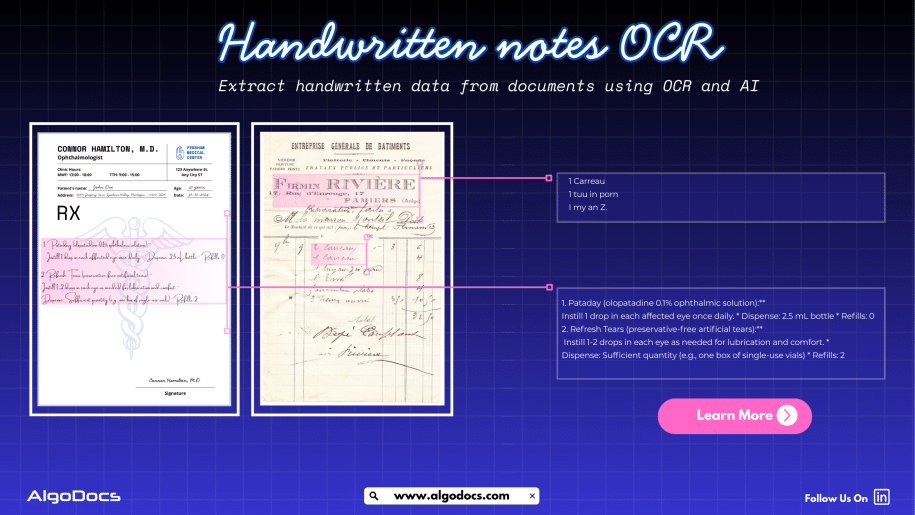
Handwritten notes capture some of our most important ideas, such as meeting minutes, classroom assignments, diary entries, handwritten invoices, medical forms, and much more. But when these valuable insights are trapped on paper, sharing, searching, or analyzing them can be a major challenge. But what if we could instantly turn stacks of handwritten sheets, sticky notes, or scanned handwritten image documents into searchable, editable data? It would surely make our work much easier and more productive. All this can be achieved with the technology called handwritten notes OCR, an advanced data extraction technology that brings the power of optical character recognition (OCR) with AI and ML to process handwritten data from various types of documents with accuracy. In this blog, you will discover how handwritten notes OCR works, why it is now more powerful than ever thanks to AI and machine learning, how modern handwritten notes OCR technology such as intelligent document processing revolutionizes data extraction, and practical tips for digitizing handwritten information in your business or personal life What Is Handwritten Notes OCR? Handwritten notes OCR is a specialized form of optical character recognition designed to capture, convert, and extract handwritten text from various types of documents. These documents are either in scanned image formats or can be PDF documents as well. Handwritten notes OCR turns document data into a digital, machine-readable format. Unlike standard OCR, which works well on clear, formatted images or document data, handwritten notes OCR can recognize the complex and unique nature of individual handwriting styles, even when the text is messy, faded, or uses old-fashioned scripts. With a high-performing handwritten notes OCR tool, you can:• Scan and digitize handwritten assignments, meeting notes, and personal memos.• Preserve historical letters, diaries, and legacy records for research and genealogy.• Archive and search medical forms, receipts, or contracts with handwritten details.• Export transcribed data to systems like Excel, Word, or your business platform — all in seconds. Handwriting vs. Traditional OCR: Why Is It Hard? Older OCR systems struggled to read handwriting, often failing to produce useful results. Anyone who has tried to scan a doctor’s prescription knows the frustration. This is where advanced handwritten notes OCR solutions powered by artificial intelligence come in. How Handwritten Notes OCR Works Modern handwritten notes OCR combines several powerful technologies to capture and convert handwriting into text: Intelligent Document Processing: Putting AI and ML to Work Today, OCR for handwritten notes is supercharged by intelligent document processing (IDP), a blend of AI, machine learning (ML), computer vision, and NLP that turns “just text” into actionable data. Here is what makes IDP so powerful:• Automates data entry from scanned forms, notes, contracts, and even sticky notes.• Learns and adapts to new handwriting styles, layouts, and languages over time.• Classifies documents by type and context, not just by keywords or layout.• Extracts unstructured data, even from non-standard or messy notes.• Reduces manual work, errors, and operational costs, in some cases by up to 32 percent. For example, a handwritten meeting note attached to a scanned invoice is not just digitized for archiving. AI-powered IDP can link the note to the correct customer record and make the content searchable for everyone on your team in seconds. AI and ML: Raising the Bar in Handwritten Notes Data Extraction Artificial intelligence and machine learning have transformed handwritten notes OCR:• Machine Learning Models: By training on thousands or even millions of handwriting samples, these models can recognize a wider variety of writing styles, languages, and scripts.• Neural Networks: Mimicking how human brains read, deep learning models adapt over time, improving accuracy as they process more documents.• Large Language Models (LLMs): When OCR struggles with a word or phrase, LLMs use context clues to predict the correct transcription, boosting results beyond basic pattern matching.• Document Layout Analysis: Advanced IDP tools understand page layouts, tables, forms, and structures, allowing even heavily formatted notes to be converted accurately.• Continuous Learning: Every correction or manual review helps the system improve for the next time. Practical Use Cases and Benefits of Handwritten Notes OCR: • Education: Teachers and students can archive and search assignment notes, grade papers faster, and collaborate on shared materials.• Healthcare: Transcribe doctors’ handwritten notes, prescriptions, and patient forms for secure digital records.• Finance & Legal: Convert contracts, receipts, and case notes into searchable, compliant formats.• Business Operations: Make meeting notes, idea sketches, and legacy documents accessible across the company.• Historical Research: Preserve and analyze old letters, diaries, and census records for genealogy or academic studies. Digitized handwritten notes are easier to search, analyze, share, and back up, making your organization more agile and data-driven. How to Digitize Handwritten Notes: Simple Steps Overcoming Common Challenges Handwriting OCR still faces challenges such as unusual scripts, messy writing, mixed sketches and text, or multi-language notes. Fortunately, AI-based systems continue to improve, with newer tools boasting word error rates below 1 percent and supporting hundreds of languages. If your notes include diagrams, tables, or special formatting, choose platforms that offer layout analysis and form recognition. Training your own AI model, as supported by platforms like Algodocs, can further boost accuracy for specific use cases. Future Trends: Where Is Handwritten Notes OCR Headed? Innovations in AI continue to advance handwritten notes OCR:• Hybrid Models: Combining OCR, ICR (Intelligent Character Recognition), and LLMs for greater context and human-like understanding.• Integration with Workflow Automation: Linking data directly to business processes for instant action, such as triggering approvals, sending alerts, or updating records.• Mobile-first Solutions: Smartphone apps offering real-time digitization and on-the-go accessibility.• Historical Document Support: Advanced models that can read faded, old, or non-standard scripts for research and preservation projects.• Universal Language Support: Systems capable of handling hundreds of languages and dialects for seamless global collaboration. Key Takeaways • Handwritten notes OCR makes it easy to digitize and utilize handwritten information.• AI-based OCR, intelligent document processing, and ML have made handwriting recognition more accurate, fast, and scalable.• Businesses, schools, healthcare, and researchers all benefit from digitized handwritten notes.• Getting started is simple. With the right tool and a few steps, you can transform notes, memos, and archives into digital gold. Conclusion The latest handwritten notes OCR solutions, such as Algodocs, are designed to be intuitive for all users, regardless of technical skill. Whether

High-resolution image of ChatGPT interface displayed on a monitor, highlighting its capabilities and limitations.
Algodocs

How to Extract PDF Data with ChatGPT?

We are all familiar with PDFs—an essential document format used for sharing textual data. However, extracting data from a PDF can be a challenging task due to the way information is stored within the file. There are two primary types of PDFs: native PDFs, which are usually editable, and scanned PDFs, which contain images of documents saved as PDF files. Both types are widely used in professional and personal settings. You may have a 50-page document of important notes or receive a 1,000-page scanned report from your manager. Extracting data from these two types of PDFs requires different approaches. Native PDFs are easier to process, while scanned PDFs need advanced OCR and AI capabilities for accurate and efficient data extraction. That’s why we’ll explore how to use the powerful LLM model, ChatGPT, to extract data from PDFs. Additionally, we’ll discuss how AlgoDocs AI provides a more precise and efficient solution for handling both types of PDFs. Before diving into PDF data extraction with ChatGPT, it’s essential to understand the basics. PDFs can vary greatly—some contain plain text that is easy to extract, while others have scanned images, complex tables, or charts that require extra processing. Knowing the type of PDF you’re working with is the first step. ChatGPT, developed by OpenAI, is excellent at processing text but does not directly read PDFs. You need to convert the PDF content into a format it can handle, such as plain text. What You’ll Need: Understanding these essentials will make the PDF data extraction process smoother and more efficient. Now, let’s break down the process into five simple steps that anyone can follow, even without technical expertise. Step 1: Preparing Your PDF File Ensure that your PDF is ready for extraction. If it’s a native text-based PDF, it’s good to go. If it’s a scanned document or an image-based file, use AlgoDocs AI or Adobe Acrobat to convert it into an editable format. While ChatGPT can process scanned PDFs, it may struggle with blurry or unstructured data, leading to errors or inaccurate results. Step 2: Feeding Data into ChatGPT Once you have extracted the text, open ChatGPT and paste it into the chat box. However, don’t just drop the text in without guidance. Provide ChatGPT with clear instructions. For example: If you have a simple PDF and need full data extraction, you can use a straightforward command like: This method works well for small-scale extractions but may become difficult when dealing with large datasets. Step 3: Structuring and Extracting Insights ChatGPT will process your request and present the extracted data. If the output is unorganized, refine your prompt: By tweaking your queries, you can refine the results for better readability and usability. Step 4: Troubleshooting Common Issues If ChatGPT misses data or produces inconsistent results, consider: Step 5: Improving Your Extraction Results For more effective results: Use precise prompts to minimize errors (e.g., “Extract all email addresses from this text”). While ChatGPT is powerful, it has limitations: These limitations highlight why ChatGPT is best for quick extractions rather than large-scale automated tasks. For more advanced PDF extractions, AlgoDocs AI offers several advantages over ChatGPT: For instance, if you’re processing invoices, ChatGPT might only extract limited structured data, while AlgoDocs AI allows you to extract invoice numbers, item lists, and totals accurately. Extracting PDF data with ChatGPT is a useful skill for handling small projects efficiently. By converting PDFs to text and providing clear instructions, you can extract valuable insights. However, ChatGPT has its limitations, especially with scanned and complex PDFs. For more precise and large-scale extraction, AlgoDocs AI provides a faster and more reliable alternative. Whether you choose ChatGPT or AlgoDocs, mastering PDF data extraction can save time and enhance productivity.

Algodocs

Intelligent Document Processing Trends in 2025: How AI & Automation are Reshaping Digital Workflows

Intelligent Document Processing Trends in 2025: How AI & Automation are Reshaping Digital Workflows Intelligent Document Processing (IDP) is revolutionizing how businesses handle unstructured data. From invoices and contracts to medical records and customer correspondence, IDP enhances operational efficiency, compliance, and innovation. As we move into 2025, IDP is evolving rapidly to meet the growing need for speed, accuracy, and scalability. This article explores the key Intelligent Document Processing trends shaping 2025, the technologies driving change, and their real-world applications. IDP leverages Artificial Intelligence (AI), Machine Learning (ML), Natural Language Processing (NLP), and Optical Character Recognition (OCR) to extract, classify, and process data from structured and unstructured documents. Unlike traditional document management systems, IDP understands context, learns from data, and seamlessly integrates into business workflows. Hyperautomation combines AI, Robotic Process Automation (RPA), and advanced analytics to automate complex workflows. Businesses are now striving for end-to-end automation, allowing IDP systems to extract data, validate it, and route it for processing without human intervention. For example, in the finance sector, IDP-powered hyperautomation significantly reduces loan application processing times by automatically verifying documents and routing approvals. By 2026, over 80% of enterprises are expected to utilize generative AI-powered APIs or models, significantly enhancing various operations, including document processing. Generative AI is transforming IDP by understanding context and generating actionable insights. These models can summarize contracts, flag risks, and automate compliance checks. Zero-shot learning enables IDP systems to process new document formats without prior training. This means businesses no longer need to configure IDP for each unique invoice or contract layout manually. With stricter data privacy regulations (GDPR, HIPAA, CCPA), IDP vendors are focusing on privacy-first architectures: For example, law firms digitizing case files can extract key information while ensuring compliance with data protection laws. Businesses are aligning IDP with Environmental, Social, and Governance (ESG) goals by optimizing IDP algorithms for efficiency and using green cloud computing. Human-in-the-loop (HITL) systems are evolving into human-on-the-loop (HOTL), where humans monitor IDP decision-making instead of directly intervening. Generic IDP tools are being replaced by tailored, industry-specific solutions that are pre-trained on domain-specific jargon, layouts, and compliance needs. Blockchain for Secure Document Processing Blockchain-enhanced IDP is improving document integrity by: Intelligent Document Processing in 2025 is driven by AI, automation, and privacy-first approaches. As businesses shift toward hyper-automation, generative AI, and industry-specific solutions, IDP is becoming a strategic asset rather than just a document management tool. Platforms such as AlgoDocs AI leverage generative AI features to efficiently and swiftly extract and automate data from documents, making data extraction more productive and scalable for businesses. Organizations embracing these trends will gain a competitive edge, while those failing to adapt risk falling behind.

Algodocs

How to Extract Data from Purchase Orders With AlgoDocs Purchase Order OCR. A Comprehensive Guide For 2025

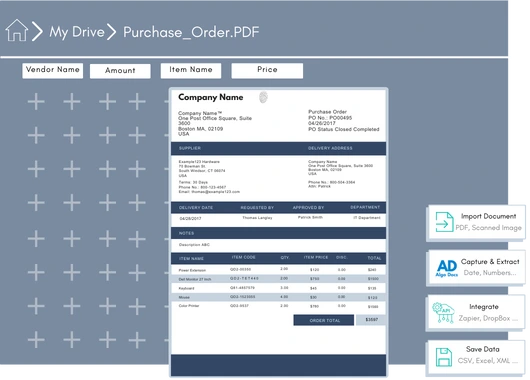
How to Extract Data from Purchase Orders With AlgoDocs Purchase Order OCR. A Comprehensive Guide For 2025 Purchase orders (POs) are critical documents in business operations, which makes purchase order data extraction and automation an important step in processing purchase orders. They ensure clear communication between buyers and sellers, detailing the goods or services, pricing, and other contractual terms. With the rise of digitization, extracting data from purchase orders efficiently has become essential for modern businesses. Both b2b and b2c business scenarios use a purchase order to facilitate clear communication between two parties. It helps in maintaining important information related to the transaction of goods between two parties. This guide explores how to extract data from purchase orders, focusing on tools like purchase order OCR and strategies to streamline the process. A purchase order (PO) is a written document issued by a buyer to a seller that indicates the type, quantity, and agreed price for products or services by two parties. It plays a very crucial role in ensuring smooth procurement operations and is a legally binding document once accepted by the seller. In simple terms, a purchase order (PO) document describes what goods have been requested by the buyer to sellers to confirm their interest in procuring goods and services. Key Elements of a Purchase Order  Manually managing this information is time consuming, especially for businesses handling large volumes of POs. Relying on manual methods to extract and process data from purchase orders leads to many challenges for businesses. Time Consuming: Extracting data from a purchase order manually is a time-consuming task. If you have to extract data from a single page document, then manually it can take hours, but using a purchase order app for data extraction only takes 5 to 10 minutes. Error Prone: One of the biggest challenges with manually extracting data from a purchase order is that it is prone to error. The most common human errors, such as typos or missed fields, can disrupt workflows and lead to costly mistakes. Due to the high volume of data, errors tend to happen if data is being extracted with manual method. Scalability Issues: As businesses grow, manually processing hundreds or thousands of purchase orders becomes unsustainable. The manual processing of 100 purchase order documents can slow down the productivity of an organization, which can lead to other challenges, such as loss of profit and time. Resource Intensive Manual methods require significant labour, which leads to a rise in operational costs. To overcome these challenges, businesses are turning to automation tools like purchase order OCR technology. Since the purchase order OCR technology requires very little or no human intervention. Purchase Order OCR (Optical Character Recognition) is a technology that captures and converts a printed or handwritten text into machine-readable data. This type of OCR technology is built and trained to capture and extract data such as vendor name, buyer name, date, amount, address, and other information from a PO document. You can save this extracted data in Excel, CSV, JSON, or another file format. With the help of purchase order OCR technology, businesses can significantly save time and money and scale their business to greater heights. The advent of AI OCR tools such as AlgoDocs Purchase Order OCR has made data extraction from purchase orders more accurate and productive. Purchase Order OCR (Optical Character Recognition) is a technology that streamlines the extraction of information from purchase orders. It works by scanning documents in various formats—such as PDFs, images, or scanned papers—and recognizing text to extract key data like order numbers, item descriptions, quantities, prices, and delivery dates. The data is subsequently organized into a structured format, facilitating seamless integration into procurement systems. Automating this process allows Purchase Order OCR to decrease manual data entry, reduce errors, and improve the efficiency of the procurement workflow. Scanning Documents: Paper POs are digitized using scanners.  Data Recognition: The OCR engine identifies text fields such as PO numbers, item descriptions, and quantities.  Data Extraction: The software extracts relevant fields and organizes them into a structured format.  Integration: The extracted data is transferred into systems like ERP or accounting software. Algodocs is an AI-based purchase order OCR app that extracts data from PO documents. AlgoDocs uses AI technology to automate data extraction from pdfs, scanned documents, and handwritten notes. You can build your own extractor in Algodocs and train the AI model to capture, analyze, and process the data from a document. You can integrate Algodocs with third-party apps for document processing and data extraction. Signup for AlgoDocs Free-Forever plan and access all premium features for free A purchase order OCR (Optical Character Recognition) app is a highly beneficial tool for industries of all types. Whether you are operating in a B2B (Business-to-Business) or B2C (Business-to-Consumer) environment, implementing a PO OCR solution can significantly enhance productivity and drive business growth. However, certain industries stand to gain the most from the adoption of OCR technology: Retail and E-commerce: In the fast-paced world of retail and e-commerce, businesses generate a high volume of purchase order documents daily. As customer transactions increase, so does the number of PO document requests. In such scenarios, OCR technology is invaluable for efficiently processing and managing data from these documents. It automates the extraction of key information, reducing manual effort and minimizing errors, ultimately leading to smoother operations and improved customer service. Manufacturing: The manufacturing sector handles an immense amount of data regularly, including invoices, purchase orders, and various other types of documents. Manually capturing, extracting, and organizing this data can be inefficient and prone to errors. By leveraging OCR technology, manufacturing businesses can achieve significant efficiency gains and streamline their data processing workflows. With the high volume of purchase orders typical in this industry, a purchase order OCR app can resolve many challenges related to data extraction, enabling better resource management and operational efficiency. Healthcare: The healthcare industry deals with extensive documentation, including numerous purchase order documents daily. Accurate and swift data extraction is crucial for maintaining operational

Algodocs

Ultimate Guide: How to Extract Tables from PDFs Effortlessly

Ultimate Guide: How to Extract Tables from PDFs Effortlessly Introduction Are you struggling to extract tables from PDFs? If you feel trapped in a text-based jungle, hacking your way through dense PDFs to snag a specific table, you’re not alone. PDFs, while fantastic for preserving document formatting, can be a nightmare when you need to liberate the precious data trapped within their tables. Fear not, fellow data warriors! This guide will equip you with the knowledge and tools to transform those PDFs from unruly beasts into neat, organized spreadsheets. How to Extract Tables from PDFs There are two main approaches to conquering the PDF table extraction challenge: manual and automated. Each method has pros and cons, which can help you choose the right approach for your needs. Manual vs. Automated Extraction Manual Extraction The manual approach involves selecting the table in your PDF viewer and painstakingly copying and pasting each cell into a spreadsheet. While this method is straightforward, it comes with several drawbacks. Pros of Manual Extraction: Cons of Manual Extraction: Automated Extraction Automated extraction utilizes software to identify and extract tables from PDFs, significantly reducing the time and effort required. Pros of Automated Extraction: Cons of Automated Extraction: Extracting Tables from PDFs: A Guide to Automated Methods Extracting tables from PDFs can be a tedious task. This section explores several popular automated table extraction methods and their strengths and weaknesses to help you choose the right solution for your needs. Common Automated Table Extraction Methods Built-in PDF Export Tools: Most PDF viewers offer a primary “export to Excel” functionality. This can be convenient for occasional use with simple tables. However, accuracy can be unreliable for complex formatting or merged cells. The exported data might also lack structure, requiring further cleaning and organization. Free Online Tools: Several free web-based tools, such as Tabula and Camelot, tackle essential table extraction. While they offer a step up from manual methods, accuracy can be inconsistent, and limitations often exist regarding file size (e.g., maximum 10MB) or processing volume. OCR (Optical Character Recognition) Software: OCR software is a technology that can convert scanned PDFs with non-machine-readable text into searchable text. It works by analyzing the shapes and patterns of characters and matching them to a known character database. However, OCR accuracy can vary depending on the scanned image quality, and tables might require additional formatting adjustments after conversion. OCR also struggles with handwritten documents. Paid PDF Editing Software: High-end PDF editing software like Adobe Acrobat Pro DC offers table extraction features. While effective, these programs often have a hefty price tag and require a learning curve to master their functionalities. AlgoDocs: Automated Extraction Powerhouse Among these methods, AlgoDocs excels at efficient and user-friendly table extraction. Here’s why it stands out: Effortless Automation This web-based tool automates the entire process, eliminating the need for manual selection or wrestling with complex software. Upload your PDF, and the advanced algorithms will intelligently identify and extract tables, ensuring exceptional accuracy. Unmatched Accuracy Powered by advanced algorithms, our tool prioritizes reliable data extraction. You can be confident your extracted tables are ready for further analysis without worrying about errors. Flexibility for All Needs AlgoDocs caters to users of all levels. The Forever Free plan allows you to explore its capabilities at no cost, with a limit of 50 monthly pages. This plan is ideal for small-scale or occasional users. For high-volume needs, we offer affordable paid plans with increased processing capabilities. Seamless Integration Extract your data in various formats like XML, JSON, CSV, or Excel for effortless integration with your existing spreadsheets and data analysis tools. A robust API is also available, allowing developers to programmatically integrate table extraction functionalities into their workflows for a truly automated experience. Cloud-Based Convenience No software downloads or installations are necessary. It can be accessed from any device with an internet connection, making it a perfect choice for on-the-go data analysis. By leveraging this data extraction tool’s automated prowess, you can reclaim your valuable time and ensure the accuracy of your extracted data. Let this tool be your trusted companion in the world of PDF table extraction! Detailed Guide on Using AlgoDocs Let’s delve into the automated PDF table extraction world using our user-friendly and powerful tool. How to Extract Tables from PDFs: Step-by-Step Instructions Step 1: Log in to your account and go to the dashboard, which is the home page. Step 2: Click on the Extractor tab. On the right side of the Extractor tab, you will notice a populated option for choosing what kind of extractor you want to create. Step 3: Click Custom Extractor, and a new window to name the extractor will appear. Step 4: Now, it’s time to upload your sample PDF file. Once you’ve done that, click ‘Create Extractor ‘. The window will close, and you’ll find your newly created extractor in the folder as shown below. Step 5: Click on Manage next to your newly created extractor to go to the field/table creation page. Step 6: Click on the +Add to show the extraction methods options. Step 7: Click on TABLE EXTRACTION. This will launch a new window in which you can preview the sample PDF document you uploaded. Step 8: Click on Continue. This will open your space to manipulate the detected data and structure it according to your own preference. Based on the uploaded sample PDF, the system detected multiple tables. Step 9: Select the table option for Manual selection. This page also shows multiple options that can be used to format the extracted table(s) are available, such as “Merge table.” Step 10: The next step is to select the page number of the table you want by selecting “Select tables.” After that, click Apply Filter, and the table will reproduce as per the image below. Step 11:  You can apply the available filters to structure the table in your desired format. Step 12:  For example, you can select which section of the table you want to keep using the KEEP

PDF Text Extraction
Algodocs

PDF Text Extraction: Our Comprehensive Guide 2024

PDF Text Extraction: Our Comprehensive Guide 2024 In a society filled with advanced technology, Portable Document Formats or PDFs are considered supreme. They retain the structure as well as the format, including graphics and charts of the documents. However, conversion of data from PDF to another format that requires analysis or editing is not easy. Apart from exploring the most vital topic of PDF text extraction, this detailed blog also enables you to learn more about enhancing content through text extraction. Types of PDFs The two primary types of PDFs have a very important distinction that directly impacts how you process texts. Searchable PDFs: These PDFs have text embedded in them. This makes copying, pasting, and searching within a document very simple and hassle-free. Examples of such objects include reports, eBooks, and other documents created in a digital environment. Scanned PDFs: These include electronic images of the actual paper-based documents. They have no text layer and thus must be processed further with Optical Character Recognition technology. Optical Character Recognition (OCR) Optical Character Recognition (OCR) simply translates scanned PDFs into forms you can edit. It is a technology that scans the PDF and carefully analyzes the image data it contains, breaks characters into individual segments, and decrypts them to form a machine-readable text. The degree of variation in OCR technology depends greatly on the readability or quality of the source document scanned. Aspects such as the type of font used, the quality of the image, and whether there are large chunks of text with a complicated layout will affect the OCR outputs. The current generation of OCR engines has become very complex and can handle various kinds of inputs and provide high accuracy rates, which builds up confidence in using the tool. Step-by-Step Functions of OCR: A Multifaceted Approach: Exploring Text Extraction Methods Now that you understand the different types of PDFs and the role of OCR. Let’s explore the various methods available for extracting text: Manual Copy and Paste (Limited Use): This method is capable of extracting a few words from a searchable PDF. Right-click the arrow placed near the desired text passage and click on copy, unlock your word processing software, and paste. This technique is quite useful, but for really big documents, it becomes incredibly tedious and highly impractical. Built-in PDF Reader Export (Searchable PDFs Only): All typical PDF viewers, like Adobe Acrobat Reader, contain the native “Export” feature. This enables you to convert the searchable PDF into a file format you may wish to edit further, such as Word format (.docx). It is ideal for fast conversion of PDFs that are already easily searchable, but for scanned PDFs, it is useless. Online PDF to Text Conversion Tools (Flexibility and Convenience): Many sites on the World Wide Web offer PDF-to-text conversion services. These are online OCR tools that work more like PDF text extraction. You upload your PDF, click on the Convert button, and receive a downloadable text file. Here are some benefits of online PDF to Text conversion tools: Offline PDF Text Extraction Software (Advanced Features): For users who want to extract text from PDFs without an online interface, there are many offline text extraction applications. These programs offer a more comprehensive range of features compared to traditional tools, such as: However, there are also some drawbacks to consider: How to Choose the Right Text Extraction Method The optimal method for text extraction depends on several factors: Volume of PDFs Basic tools that come with MS Office, like the PDF reader export, might be enough if one only occasionally needs to sign several documents. However, if you are likely to process dozens of documents, for example, consider online tools that support batch processing or offline tools with good batch capabilities. Document Type Many methods can parse basic PDF documents with few formatting features. However, if the text layout is complicated or if high precision is needed, one can use stand-alone programs with additional functions, such as OCR, or use online tools that allow for customization. Security Concerns While working with sensitive documents, it is better to search for software that can use data protection principles such as encryption and compliance with industry standards. Budget There is abundant freeware available on the Internet, but certain constraints may limit the number of files processed or the number of features available. The free versions are generally less downloadable and have fewer options than the paid versions. Finding the Perfect Fit: Popular Text Extraction Solutions As mentioned before, extracting text from PDF can be done in many ways and with different levels of effectiveness: Online Text Extraction Tools: For those who may need advanced and high accuracy while processing simple or even advanced scanned files such as the ones with handwritten or tables, there are online applications such as AlgoDocs. Because of their interfaces and the availability of features, they are one of the best choices. Let’s look at the famous tool in detail. AlgoDocs: A Powerful and Secure PDF Text Extraction Tool Those who consider getting a more progressive and quite efficient product can use this advanced web based automated data extraction tool. It is an application designed for different categories of people. The Forever Free plan is more suitable for individuals as well as small companies. It enables one to scrape text from as many as 50 pages per month. This tool is efficient as well for large document libraries since it can process hundreds, if not thousands, of files at a time. How to Use AlgoDocs? Simply open the program and drag and drop the PDF into the tool, or open the file from Google Drive or Dropbox. The rest is done by our tool as it uses its advanced Optical Character Recognition OCR to translate documents into a usable text format. In the following screencast video, AlgoDocs demonstrates steps for extracting data from PDF and image documents in less than a minute. Benefits of Using This PDF Text Extraction Tool Unmatched Accuracy: This handy tool uses

Algodocs

Extract Tables from Images with AlgoDocs

One might find themselves overwhelmed by a deluge of paperwork—orders, checks, articles—all containing valuable data locked up in tables. Extracting this information manually is like looking for a needle in a haystack. What if there was a way to free this data with some simple mouse movements? This is where image to table conversion becomes essential, transforming images into usable data. At AlgoDocs, we pride ourselves on making this process seamless. Sit tight and let the journey to efficient table extraction from images begin! How We Extract Tables from Images (and How Others Do It Too) There are specialized programs that help extract table information from scanned files like images and PDFs. But how does this happen? The All-Seeing Eye of OCR: At the center is Optical Character Recognition (OCR) technology. It functions like a digital magnifying glass, identifying text within the images frame by frame. The Mastermind of Layout Analysis: Sophisticated calculations dissect the layout of the image to understand patterns or lines that form the tables’ structure. AlgoDocs and the Gang: We are not the only entities in this data extraction game, are we? Why Choose AlgoDocs? Here’s Your Ticket to Data Freedom While these options exist, this AI-based software stands out as the data extraction champion. Here’s why: Simplicity We prioritize user-friendliness. Table extraction requires little or no effort from the user because our interface is user-friendly regardless of the user’s technical level. Saves Time Data extraction manually is very time-consuming and tiresome. That’s why our tool automates the entire process, freeing you to focus on more strategic tasks. Easy Workflow This tool comes as a feature in your tool chests and is naturally added to your day-to-day approaches seamlessly— Its seamless integration with existing tools and workflows ensures a smooth transition into your data management routine—no more data juggling across different platforms. You can trust our tool to adapt to your needs. Efficiently Extracts Data Designed for various professional fields, it can save hundreds and possibly thousands of hours for researchers, students, and home users. This relieves them from the burden of having to spend hours manipulating data to achieve the required outcome, freeing them up to practice concepts. A Feature-Packed Extraction Powerhouse We offer a robust suite of features designed to streamline your data extraction process and ensure exceptional results: • Cutting-Edge AI Technology: This is why we can state that when it comes to such tasks as tables’ extraction, AI contributes to the process, and therefore, we assure you of high results and fast, profound processing. • Seamless API Integration: It has intrinsic API incorporated, which means that one has the independent power to start them effortlessly with other APIs, and this lays down all the power in the extraction segment. In addition, Zapier allows you to link AlgoDocs to over 2,000 different web services. Automated connections known as Zaps, which can be set up in minutes with no coding, can automate your daily tasks and create workflows between apps that would otherwise be impossible. • Effortless Batch Processing: From thousands of images to many more thousands on a daily basis, or even millions weekly, it can assist you. As for this task, our batch processing capabilities should have no trouble managing it: they work on large sets as a matter of course. • Flexible File Format Support: As for supported file formats we accept images of varying formats and PDF files and are happy to be considered as your ultimate resource for extracting data. • Real-Time Data Access: Wish waiting can be scrapped off as one of the things that has no place in this fashion tale. It is online, which is why our system promptly pulls the tables and gives you access to your important data. • Unmatched Accuracy: We respect data and we strive to make sure that it remains closed to any alterations. Our system has high accuracy rates that it provides documents filled with complete and thorough results for the customers. • Forever Free Forever: It is our firm conviction that all should be able to get hands on some highly efficient data extraction solutions. This is why we provide users with a forever free subscription that enables you to convert up to 50 pages every month- for free! Advanced Functionalities: Conquering Toughest Tables Here’s how AlgoDocs tackles even the most challenging scenarios: Taming Handwritten Challenges: Of course, while writing on paper, people make different mistakes – that’s why we can recognize even the most complex handwritten tables with great success. Conventionally, handwriting oftentimes comes in different forms and our smart AI engine comes ready to deal with all these forms making it easier to convert reports, historical documents among others into usable data. Bye-bye Watermarks and Background Woes: Effectively erases overlays, watermarks, and elaborate backgrounds using sophisticated image pre-processing algorithms. This ensures that regardless of the shapes and forms that the input image came in, the data extracted is easy to manipulate and usable. Security Like Fort Knox: We do appreciate the need to ensure that the data collected and stored in this database is secure at all times. We have adequate security measures that protect the input data as well as the data that is in the course of being uploaded, processed, or stored. This means that we respect data privacy laws very much to ensure that your confidential data remains highly protected from any unauthorized access. Use Cases: Unleashing the Power of Extracted Data It has a wide range of applicability for cases where it is necessary to convert an image to a table. Conclusion It is equally beneficial in extracting necessary information in today’s environment where images are used vastly. Many people give up great ideas because of messy tables. AlgoDocs gives you the ability to turn on what is hidden in your data. Sign up now, and grab 50-page monthly conversions along with our forever free trial and unleash the power of seamless data extraction. Frequently Asked Questions Do I need to train

Algodocs

Extract Invoice Data from PDF with AI: How to Automate Data Extraction

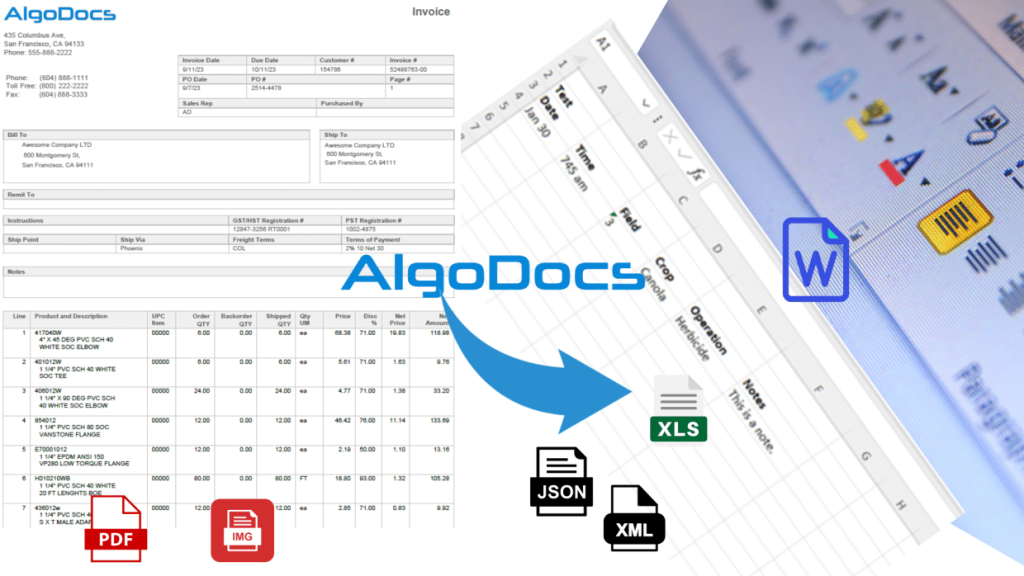
An efficient methods of handling Invoices should be applied in the current techniques of business and especially in bureaucratic organizations. AI invoice data extraction is not just about automating data extraction but it is more of an immense power of deriving useful insights for effective financial decision making. Conceive a process where the extraction of data from invoices is efficient and at the same time puts less effort and has better quality. The above is the glimpse of AI in formally extracting data from invoices – the solution that could revolutionize your business. What is Invoice Data Extraction? Invoice data extraction is the capability of operate and render the data correlated to invoices in a form that can be better analyzed. This entails tasks such as the identification of invoice numbers, dates, amounts, vendor details, and lines on paper and electronic invoices. Ideally, it should be in a form that could be input directly into the accounting software, the ERP, or any other system. Common Invoice Data Extraction Methods Some of the widely used techniques for invoice data extraction are discussed below: Manual Data Entry: Picture the tedious process of having to look at each invoice individually and then re-enter the information from it by using a keyboard. However, this method is applicable for only several invoices and very time-consuming, and I am likely to make mistakes when doing this. Thus, it may lead to inaccurate decisions as well as mistakes in financial decisions and, therefore, is inefficient. Automated Data Extraction: Methods, including OCR and AI, accelerate the capturing and processing of invoice data at an incredibly rapid pace. This also saves time and energy and brings convenience in handling the many invoices while at the same time offsetting the workloads of personnel in the department of finance and accounts. With this, they can plan on more significant things, having a sense of power and control over the time and tools they use. Benefits of Extract Invoice Data Boost your invoice processing with AlgoDocs, an AI-powered one-stop solution. If PDF is causing you grief, AlgoDocs, specializing in invoice parsing, uses AI and OCR to make light work of parsing data in this format, as well as scanned and handwritten text. This invoice data extraction software works like a charm since it has a well-developed user interface that will allow even a new user to perform most operations. Batch processing and automatic transmission of data also further increase the speed and ease of data conversion over manual processing. It is time to migrate to a smarter automatic invoice procurement system that operates on Artificial Intelligence technology. As seen, employing this tool to extract data from an invoice involves a few easy steps. Step-By-Step Guide: Step 1: Log in to your account and go to the home page, which is the Dashboard. Step 2: Click on the Extractor tab. On the right side of the Extractor tab, you will notice a populated option for choosing what kind of extractor you want to create. Step 3: Click on Invoices from the above screen, and it will pop up a new window to name the extractor. Step 4: After you have named the extractor, click on Create Extractor . The Window will close, and you will be able to see your extractor in the folder as below, Step 5: Click on the File Manager tab , and you will notice just on the right side of the File Manage tab, there is an icon labeled root. Step 6: Right-click on the root , and it will pop up a drop-down menu with different actions. Step 7: Click on Upload files for Data Extraction , this will launch a new window that you can use to upload your PDF document from your device. Step 8: Click on the blue button labeled + Choose files . This will open your device files folder, where you can find and select the exact document. Step 9: Select the Extractor from the drop-down menu. Step 10: The next step is to select the Upload button at the bottom of the pop-up window. By doing this, this AI invoice processing tool starts to process the invoice for data extraction. Step 11: To see the output, go to Extracted Data and select the extractor from the drop-down Menu. Step 12: This will show all the invoices that have been processed using the extractor. You can see which invoice is in particular by looking at the document name. Step 13: Once you are satisfied with the data, scroll to the end of the last column. You will see an option in the Icon form to export the extracted data to Excel, XML, or JSON. For example, if you choose Excel, the output will look as follows. If you want to choose particular fields and not show all the extracted fields, you can do that by going back to the Extractor tab and selecting the Fields/Tables icon. A new window will populate, which allows you to edit, rename, or delete the fields you do not want to be displayed. Once you have selected the field you want, go back to the extracted date and check the output. If you are satisfied, you can go ahead and export the file to Excel, XML, or JSON. Here is the output to Excel after editing the fields. To Sum Up Invoice data extraction is an important task regardless of the type of company, whether big or small. This process can be done with the help of AI, hence the term advanced Optical Character Recognition; it takes less time and helps determine the accuracy level and valuable insights out of invoice data. Regardless of the nature and size of the company or enterprise, using AI-based advanced data extraction, such as AlgoDocs, can yield important improvements in productivity, accuracy, and even financial management. FAQs 1. Is AI data extraction completely accurate? Despite realizing high levels of accuracy in its operations, it is pertinent to mention that AI

Algodocs

Convert PDFs to Excel Files with AI

Imagine this: you have just received an important report in PDF form with all the pertinent information that you must spend time dissecting and incorporating into your existing system. But here’s the rub – inputting all of that data can take AGES when done by hand. Data entry turns into a tedious chore when the fun is sucked out of the workday, and the chances of making mistakes are high. Do not despair, battle-slain data miners! This is where introducing the idea of using AI for PDF to Excel conversion becomes powerful and appealing. This can be done much faster and with maximum accuracy by using a dedicated tool that uses the latest AI technologies to convert your PDFs into clean-cut Excel files. How to Convert PDF to Excel with AI? In the case of AI-powered conversion, simplicity is certainly its major strength. It is important to look for the proper PDF to Excel AI tool. Here, we will explore AlgoDocs from the first instance. It checks all these areas, making it ideal for converting PDF files to Excel easily. Conversion Process This screencast demonstrates how one can easily scan different documents, such as PDF files and images, and convert them into edit-friendly formats like Microsoft Word, Excel, PowerPoint, Text, or RTF. In addition, doing your PDFs to Excel with the help of this tool is very easy. Here’s a quick guide: Step 1: Log in to your AlgoDocs account. Step 2: From the Dashboard, click on the File Manager tab . Step 3: Right-click on the root , and a drop-down menu will pop up showing available options such as Convert PDF/Image to Editable Files Step 4: Click on Convert PDF/Image to Editable Files . Step 5: Click on the blue button labeled + Choose files , which allows you to upload your file. Once you select the PDF/Image, it will be uploaded. Step 6: Select the Document language from the language drop-down menu . If your file contains text in multi-lingual format, you are welcome to choose more than one language. Step 7: Choose your preferred format in the Output file type field. For this demonstration, we will choose Microsoft Excel. Other output types are MS Word, PowerPoint, Text, RTF, and HTML. Step 8: The next operation is to click on the Upload button, and the magic begins (AlgoDocs will work with the file in a few seconds). Step 9: Once the conversion is done, the uploaded document will no longer appear in the pop-up window. The Close button at the bottom right will close the pop-up and take you back to the File Manager view. Step 10: To the left of the file type icon is an icon that allows you to access and download the converted Excel file. Step 11: As soon as you click on the Excel icon , the file will be downloaded. The sample PDF used for this demonstration is given in Figure 1, and the resultant Excel file is given in Figure 2. Figure 1. An example of a PDF file that has been uploaded and transformed by the tool. Figure 2. The Excel file created by AlgoDocs has the text extracted from the uploaded PDF inside it. Why Our Customers Choose This Tool Here’s what sets this tool apart from the competition: Advanced Conversion Techniques This tool goes beyond basic conversions, offering a range of powerful features: Batch Conversion Have you got several files that require converting into PDF format? It also supports batch conversion so that you are relieved from many invocations in a single operation. Handling Scanned PDFs The best thing about this tool is that even if the text in the PDFs is handwritten or scanned blurry, they are no match for this tool. A recent development in OCR is highly efficient at extracting data with low error rates. Maintaining Original Formatting If you do not want to spend long hours reformatting your data, then it offers smart features that maintain greater formatting after the conversion of your PDFs and require less formatting change afterward. Use Cases This tool caters to a wide range of industries, streamlining workflows across the board:                 Final Thoughts Say no to time-consuming manual data entry and yes to AI as your new best friend. PDF to Excel with AI recognizes your complex and plain PDFs and swiftly converts them into fully editable Excel documents, enabling you to concentrate on what matters – data analysis. Join the AlgoDocs journey today and discover the power of efficient PDF document management! The Forever Free Subscription allows you to process the documents for free, up to 50 pages per month. Please visit our affordable pricing plans page if the number of pages in your document is beyond this limit. Welcome to the new phase in non-complex PDF to Excel tool usage, and learn to appreciate the necessity of AI in our daily lives. Frequently Asked Questions Can Large Language Models Extract Data from PDFs? For instance, large-scale language models like ChatGPT can be helpful; however, their applicability for scraping data from PDFs can be pertinent. As for now, ChatGPT operates primarily with text generation; it may not grasp the specifics of table organization and further PDFs’ nuances. When it comes to data extraction, a specialized tool such as AlgoDocs, which has been specifically developed for PDF conversion, is recommended. What is PDF to Excel AI? PDF to Excel AI refers to converting PDF to Excel using Artificial Intelligence to support the conversion process. This AI reads the PDF, paying heed to the formation of the tables and texts in the PDF file before using the machine learning algorithm to format the data and display it in an Excel-like format. How Does AI Improve the Accuracy of PDF to Excel Conversions? AI goes beyond previous approaches (for instance, using just Optical Character Recognition—OCR) in the sense that it considers the content within a PDF. It can recognize table characteristics, discern header and data labels, and even detect

Scroll to Top