How to Convert Handwritten PDF to Text in 2026
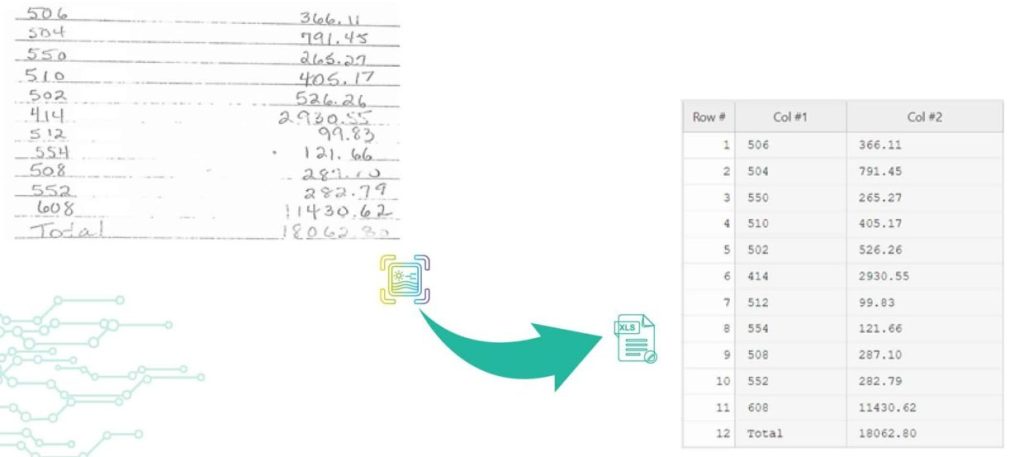
Back to Blog Table of contents On this page How to Convert Handwritten PDF to Text in 2026 Home › Blog › handwritten notes extraction › How to Convert Handwritten PDF to Text in 2026 Categories handwritten notes extraction Tags ai powered tools algodocs convert handwritten to text data extraction digital transformation free online tools handwriting recognition handwritten pdf machine learning ocr technology pdf to text converter text recognition accuracy By Shubhankar Biswas Published October 13, 2025, 12:13 Updated July 23, 2026, 07:38 Digitization enables ease in handling documents to save, share, and access material. However, converting handwritten PDFs to text is still a big challenge. Old methods of digitization are not precise enough in the conversion of handwriting to editable and machine-printed text because they lead to errors and confusion. In the current era of advanced technology, many tools and techniques are very helpful to handle this challenge. The tools to convert handwritten PDFs to text use OCR technology and transform them into editable text within seconds. Such tools make it easier to organize and share your words in that document. To know how to convert scanned files with handwritten text, we will discuss free options that will simplify your conversion of handwritten PDFs. These tools also make digitization and data extraction more manageable. Challenges in Handwriting data extraction There are many challenges in handwriting data extraction due to several reasons. The process of handwriting data extraction includes digitization. It converts handwritten documents into that digital format. This step is easy and straightforward. The real and noteworthy challenges in handwriting data extraction arise when we have to turn these scanned images into editable text. Here we will see some valid challenges in the extraction of data from handwritten scanned images; 1. Irregularities in handwriting styles The primary challenge is the irregularities in handwriting styles. People generally write in many different ways. They use different angles, forms, and sizes of letters. These irregularities make text recognition a complicated process. In this case, machine learning algorithms are very useful to improve accuracy, but sometimes, they also struggle with chaotic or unreadable handwriting. 2. Transcription The second most important challenge is transcription. It can also be problematic, especially when you are dealing with older documents where liquid ink is faded or scanned image paper has worsened. In these situations, the conversion of scanned PDF images into editable text can produce errors. These errors lead to inappropriate data extraction. 3. Context The third important challenge is context. It plays a crucial role in precise data extraction. Sometimes, handwriting recognition systems misinterpret numbers or letters. They interpret wrongly, especially when there is high uncertainty or misplaced information. Addressing this challenge needs cutting-edge technology and advanced Machine Learning Algorithms. Such technologies ensure correct transcription and reliable Data extraction. What are the main methods or tools for Automated Handwriting data extraction? For automated handwriting data extraction, there are numerous primary techniques or tools available. However, a few noteworthy and useful ones are as follows: 1. Optical Character Recognition The most common method for converting handwritten PDFs into editable text is Optical Character Recognition. It works by examining the scanned images of documents and identifying the shapes and patterns of individual characters. Optical Character Recognition tools can help in extracting text from native PDFs. However, its performance decreases when used for extracting handwritten. 2. Intelligent Character Recognition The second most common method is Intelligent Character Recognition. It is considered for Handwriting recognition text. This Automated Handwriting data extraction method uses machine learning algorithms to understand several styles of handwriting. Intelligent Character Recognition is particularly convenient when you need to convert handwritten PDFs to text. The main reason behind this is that it can; Handle different handwriting styles Produce editable text with greater accuracy Intelligent Character Recognition is far more flexible than in print fonts. 3. Free Online Tools Many free online tools can help you convert handwritten PDFs to text. These online tools often use both OCR and ICR technologies for the conversion of PDF to text. Some prominent and helpful tools are; Google Drive with Google Docs Microsoft OneNote OnlineOCR.net i2OCR Algodocs Users can upload their handwritten PDFs to these online services. These tools process the documents to extract text. The best part of these tools is that you can download the resulting editable text or copy it for further use. These free online tools offer a suitable way to convert handwritten PDFs to text. Algodocs, on the other hand, is an excellent choice if you’re searching for a more specialized tool that enables you to extract not just handwritten data but also any kind of data, including tables and structured data. Algodocs offers a forever free subscription, with 50 pages processed every month. Handwriting to Text: Easily Convert Handwriting to Text using Algodocs The best way to convert handwritten pdf to text is by using Algodocs. It is a convenient and amazing tool for converting handwriting to text online for free. It streamlines the process of digitization by providing an easy platform for usage. You can convert scanned handwritten documents and convert into editable text. Algodocs is equipped with advanced text recognition and machine learning algorithms. It guarantees high accuracy even with several handwriting styles. How to extract handwritten data using Algodocs Step 1: Log in to your Algodocs account and go to the home page, which is the Dashboard. Step 2: Click on the Extractors tab, where you can see the Create button on the top right side, and click on it. Step 3: Choose the custom extractor for getting structured data from your documents as you need it. Step 4: A pop-up window will come out, and this is where you upload your sample file to extract data from. Click on the Choose file to locate the document from your device storage folder, then assign a name to the extractor. Once done, click on the Create Extractor button. It will populate under Extractors as below; in this article, our example is called “Sample 1.” Step 5: Click on the blue button labeled “Manage”, to create the data to