

Algodocs

Algodocs

Product guides, step-by-step tutorials and real-world use cases for AlgoDocs. See how teams set up document types, define extraction rules without writing code, and send clean data straight to Excel, their accounting software or their own systems through the API.
PDF Text Extraction
Algodocs

Extract Invoice Data from PDF with AI: How to Automate Data Extraction

Back to Blog Table of contents On this page Extract Invoice Data from PDF with AI: How to Automate Data Extraction Home › Blog › Algodocs › Extract Invoice Data from PDF with AI: How to Automate Data Extraction Categories Algodocs Tags bank ocr deep learning Finance ocr invoice invoice process KYC loan forms pdf to text sea waybill ocr web-based ai platform for data extraction By Ibrahim Nalbant Published June 14, 2024, 16:25 Updated December 7, 2025, 18:52 An efficient methods of handling Invoices should be applied in the current techniques of business and especially in bureaucratic organizations. AI invoice data extraction is not just about automating data extraction but it is more of an immense power of deriving useful insights for effective financial decision making. Conceive a process where the extraction of data from invoices is efficient and at the same time puts less effort and has better quality. The above is the glimpse of AI in formally extracting data from invoices – the solution that could revolutionize your business. What is Invoice Data Extraction? Invoice data extraction is the capability of operate and render the data correlated to invoices in a form that can be better analyzed. This entails tasks such as the identification of invoice numbers, dates, amounts, vendor details, and lines on paper and electronic invoices. Ideally, it should be in a form that could be input directly into the accounting software, the ERP, or any other system. Common Invoice Data Extraction Methods Some of the widely used techniques for invoice data extraction are discussed below: Manual Data Entry: Picture the tedious process of having to look at each invoice individually and then re-enter the information from it by using a keyboard. However, this method is applicable for only several invoices and very time-consuming, and I am likely to make mistakes when doing this. Thus, it may lead to inaccurate decisions as well as mistakes in financial decisions and, therefore, is inefficient. Automated Data Extraction: Methods, including OCR and AI, accelerate the capturing and processing of invoice data at an incredibly rapid pace. This also saves time and energy and brings convenience in handling the many invoices while at the same time offsetting the workloads of personnel in the department of finance and accounts. With this, they can plan on more significant things, having a sense of power and control over the time and tools they use. OCR-based: These provide a near-perfect solution because they enable the user to convert PDFs to other editable formats quickly. It mainly employs the OCR simple techniques for the identification of text within a document. Probably, it can be helpful for working with texts in the simplest formats, while it would be hardly fair to consider it to show high efficiency when dealing with complex structures, low-quality scanned or written by hand. AI-based: Nonetheless, it is vital to note how the technology has developed in the last several years in the context of data extraction, especially with AI and machine learning. Recognition of invoice data: It is possible to train the principles of modality analysis and data extraction on the current methods of AI systems, electronic invoicing formats, PDFs, scanned images, or updated versions of handwritten notes. These mechanisms are oriented to the identification of the document layout and intricate data structure with a high degree of accuracy, which may be considered one of the major benefits for a business. This ensures that the financial data, which is used in arriving at the figures is accurate so that you can make proper decisions. Benefits of Extract Invoice Data Improved Accuracy: The use of AI in data extraction minimizes the possibility of human error, and hence, the probabilities of having wrong data are eliminated by the use of AI, which is suitable for financial data. Time and Cost Savings: This leads to time-saving in the process and also ensures low costs since it eliminates the need for manual treatment of data. This reduces the work of your team and allows the employees to work on more productive activities, which makes work easier. It also helps the decision-makers to fund optimistically as bottom-line time and cost, realized by the intelligent extraction, could be redeployed effectively to other key business concerns. Enhanced Data Quality: Automatic Data Processing (ADP) guarantees that it provides accurate and standard data, which creates an environment for making strategic business decisions based on pertinent data and regulations. Boost your invoice processing with AlgoDocs, an AI-powered one-stop solution. If PDF is causing you grief, AlgoDocs, specializing in invoice parsing, uses AI and OCR to make light work of parsing data in this format, as well as scanned and handwritten text. This invoice data extraction software works like a charm since it has a well-developed user interface that will allow even a new user to perform most operations. Batch processing and automatic transmission of data also further increase the speed and ease of data conversion over manual processing. It is time to migrate to a smarter automatic invoice procurement system that operates on Artificial Intelligence technology. As seen, employing this tool to extract data from an invoice involves a few easy steps. Step-By-Step Guide: Step 1: Log in to your account and go to the home page, which is the Dashboard. Step 2: Click on the Extractor tab. On the right side of the Extractor tab, you will notice a populated option for choosing what kind of extractor you want to create. Step 3: Click on Invoices from the above screen, and it will pop up a new window to name the extractor. Step 4: After you have named the extractor, click on Create Extractor . The Window will close, and you will be able to see your extractor in the folder as below, Step 5: Click on the File Manager tab , and you will notice just on the right side of the File Manage tab, there is an icon labeled root. Step 6: Right-click on the root
Algodocs

Convert PDFs to Excel Files with AI

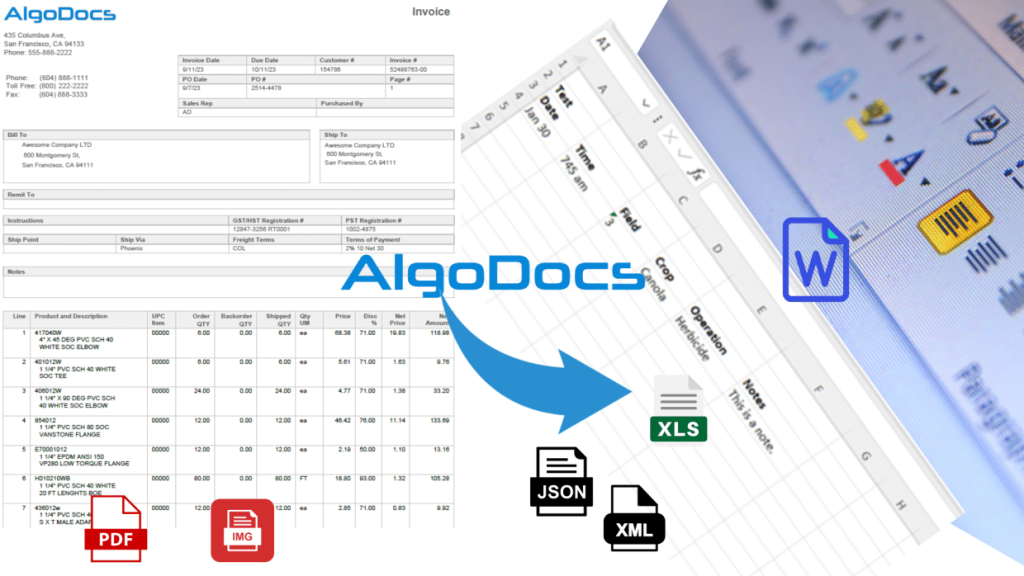
Back to Blog Table of contents On this page Convert PDFs to Excel Files with AI Home › Blog › Algodocs › Convert PDFs to Excel Files with AI Categories Algodocs By Ibrahim Nalbant Published June 13, 2024, 19:34 Updated July 20, 2026, 04:31 Imagine this: you have just received an important report in PDF form with all the pertinent information that you must spend time dissecting and incorporating into your existing system. But here’s the rub – inputting all of that data can take AGES when done by hand. Data entry turns into a tedious chore when the fun is sucked out of the workday, and the chances of making mistakes are high. Do not despair, battle-slain data miners! This is where introducing the idea of using AI for PDF to Excel conversion becomes powerful and appealing. This can be done much faster and with maximum accuracy by using a dedicated tool that uses the latest AI technologies to convert your PDFs into clean-cut Excel files. How to Convert PDF to Excel with AI? In the case of AI-powered conversion, simplicity is certainly its major strength. It is important to look for the proper PDF to Excel AI tool. Intuitive Interface: This, in turn, entails a program interface that does not necessitate any programming skills. Accuracy: Select a tool that is reliably accurate in its translation to avoid having to correct the text by hand. Security: the highest security for the data must be observed. Select the service that pays attention to security to keep your documents as safe as possible. Here, we will explore AlgoDocs from the first instance. It checks all these areas, making it ideal for converting PDF files to Excel easily. Conversion Process This screencast demonstrates how one can easily scan different documents, such as PDF files and images, and convert them into edit-friendly formats like Microsoft Word, Excel, PowerPoint, Text, or RTF. In addition, doing your PDFs to Excel with the help of this tool is very easy. Here’s a quick guide: Step 1: Log in to your AlgoDocs account. Step 2: From the Dashboard, click on the File Manager tab . Step 3: Right-click on the root , and a drop-down menu will pop up showing available options such as Convert PDF/Image to Editable Files Step 4: Click on Convert PDF/Image to Editable Files . Step 5: Click on the blue button labeled + Choose files , which allows you to upload your file. Once you select the PDF/Image, it will be uploaded. Step 6: Select the Document language from the language drop-down menu . If your file contains text in multi-lingual format, you are welcome to choose more than one language. Step 7: Choose your preferred format in the Output file type field. For this demonstration, we will choose Microsoft Excel. Other output types are MS Word, PowerPoint, Text, RTF, and HTML. Step 8: The next operation is to click on the Upload button, and the magic begins (AlgoDocs will work with the file in a few seconds). Step 9: Once the conversion is done, the uploaded document will no longer appear in the pop-up window. The Close button at the bottom right will close the pop-up and take you back to the File Manager view. Step 10: To the left of the file type icon is an icon that allows you to access and download the converted Excel file. Step 11: As soon as you click on the Excel icon , the file will be downloaded. The sample PDF used for this demonstration is given in Figure 1, and the resultant Excel file is given in Figure 2. Figure 1. An example of a PDF file that has been uploaded and transformed by the tool. Figure 2. The Excel file created by AlgoDocs has the text extracted from the uploaded PDF inside it. Why Our Customers Choose This Tool Here’s what sets this tool apart from the competition: Your PDFs are always accurately processed by the powerful AI engine with a minimum of errors that would need you to correct them. Say goodbye to the long conversion time. It offers results in a moment, assisting in regulating the flow of work. The tool can be easily applied by any of us since no technical knowledge or professional experience is needed. Data privacy is also of paramount significance. To ensure that your data remains as secure as possible, the tool uses the industry’s best security features. This tool is indeed a company that complies with ISO 27001 (Information Security Management System) and ISO 9001 (Quality Management System) and adheres to GDPR. Advanced Conversion Techniques This tool goes beyond basic conversions, offering a range of powerful features: Batch Conversion Have you got several files that require converting into PDF format? It also supports batch conversion so that you are relieved from many invocations in a single operation. Handling Scanned PDFs The best thing about this tool is that even if the text in the PDFs is handwritten or scanned blurry, they are no match for this tool. A recent development in OCR is highly efficient at extracting data with low error rates. Maintaining Original Formatting If you do not want to spend long hours reformatting your data, then it offers smart features that maintain greater formatting after the conversion of your PDFs and require less formatting change afterward. Use Cases This tool caters to a wide range of industries, streamlining workflows across the board:                 Financial Sector: Converting receipts, invoices, and statements into Excel sheets for further analysis can be done in a blink of an eye. Real Estate: Automatically convert rental agreements, property listings, and inspection reports to an Excel sheet for batch data processing. Project Management: To improve project control, it is time to move project schedules, resource allocation reports, and budget plans to Excel. Global Services: Here, you can extract data from any file, regardless of its language, including multilingual ones. Final Thoughts Say no to time-consuming manual data entry

Scroll to Top