
Algodocs

handwritten pdf

Algodocs, Data Extraction, Image Data Extraction

How to Extract Handwritten Data from PDFs with Algodocs?

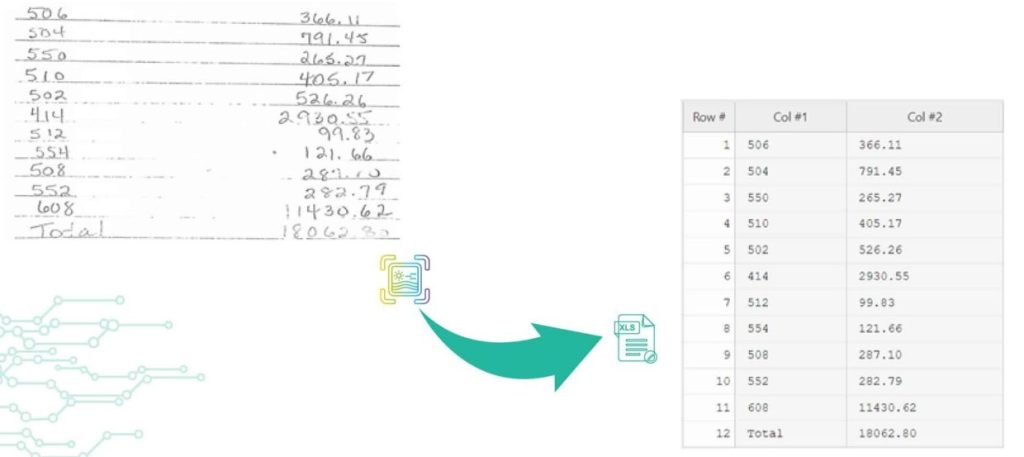
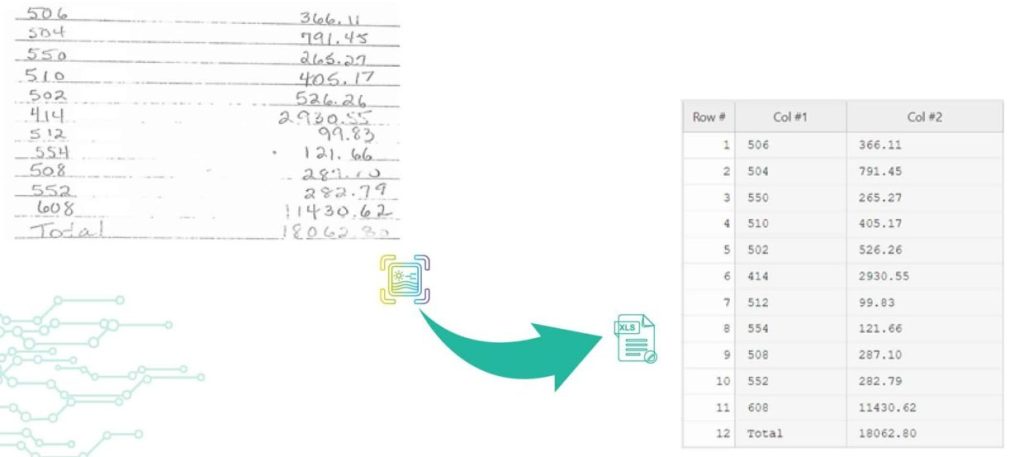
Back to Blog Table of contents On this page How to Extract Handwritten Data from PDFs with Algodocs? Home › Blog › Algodocs › How to Extract Handwritten Data from PDFs with Algodocs? Categories Algodocs Data Extraction Image Data Extraction Tags ai platform for data extraction algodocs character recognition data extraction from images handwritten pdf How to Extract Handwritten Data from PDFs web-based ai platform for data extraction By Shubhankar Biswas Published October 13, 2025, 12:19 Updated July 23, 2026, 07:36 Want to learn how to extract handwritten data from PDFs easily for your business documents? Algodocs is a powerful AI platform developed based on the latest technologies to streamline your processes and free your team from annoying and error-prone manual data entry by offering fast, secure, and accurate document data extraction. It helps you get rid of your workforce from repetitive, time-consuming, and error-prone manual data entry tasks such as extracting handwritten data. With its AI capabilities, Algodocs gives one of, if not the best, user experiences and interfaces. Areas and applications of Algodocs include extracting handwriting, tables, key-value pairs, marks, and signatures from PDFs and image files. Algodocs offers a forever free subscription, with 50 pages processed every month. What is OCR? Optical Character Recognition (OCR) engines are primarily focused on machine-printed text and may produce low accuracy for handwritten text. Intelligent Character Recognition (ICR) is an advanced recognition system that is used to recognize handwritten text. This allows the automatic conversion of text in an image into letter codes that are usable within computer and text-processing applications. Although many processes involve computer-based operations and are implemented in a digital environment, paper is still widely used across most core business processes such as mortgage origination, order fulfillment, contracts, and other documents that usually require handwritten input and signatures. Nowadays, the digitalization of paper documents plays an important role, and deciding on the right data capture software is critical since handwriting recognition, unlike printed text recognition is a more complex task that usually involves advanced deep learning algorithms. How Does Algodocs Do It? Handwritten data extraction from PDFs is implemented by converting handwritten text into machine-printed text with high accuracy. With the Intelligent Character Recognition (ICR) of Algodocs, you can automate your document processing workflow and get rid of manual data entry. Scan your paper documents with handwritten text and let Algodocs automatically extract data and convert it to Excel or JSON. Let’s consider the following portion of a scanned document, which contains a table of five columns filled with handwritten numbers. If you upload this image to your account at Algodocs, you will see the following output, which has 100% accuracy. Algodocs uses advanced ICR engines trained with Artificial Intelligence algorithms and Deep Learning. Extracting data from various document formats could be a challenging task, especially when it comes to the necessity to extract specific data sets from files containing different types of documents that span across multiple pages. In these quick materials, we will list key features that are available in Algodocs, and which will help you to extract data from your documents using the Algodocs advanced AI engine without relying on templates or even labeling and training your files. What Are the Supported File Formats for Data Extraction? You may upload to Algodocs different types of files of different Image formats for data recognition and data extraction: Portable Document Format (PDF) Joint Photographic Experts Group (JPEG) Portable Graphics Format (PNG) Tagged Image File Format (TIFF) What Are the Supported Languages for Data Recognition? Algodocs supports data extraction from documents with Arabic, Armenian, Belorussian, Bulgarian, Catalan, Chinese, Croatian, Czech, Danish, Dutch, English, Estonian, Filipino, Finnish, French, German, Greek, Hebrew, Hindi, Icelandic, Indonesian, Italian, Japanese, Korean, Lao, Latvian, Lithuanian, Macedonian, Nepali, Norwegian, Persian, Polish, Portuguese, Russian, Serbian, Slovak, Slovenian, Spanish, Swedish, Telugu, Thai, Turkish, Ukrainian, Vietnamese, and many other up to 200 languages. How to Extract Handwritten Data from PDFs Using Algodocs Step 1: Log in to your Algodocs account and go to the home page which is the Dashboard. Step 2: Click on the Extractors tab, where you can see the Create button on the top right side, click on it. Step 3: Choose the Custom Extractor, for getting structured data from your documents as you need it. Step 4: A pop-up window will appear, upload your sample file to extract data from. Click on the Choose file, to locate the document from your device storage folder, then assign a name to the extractor. Once done, click on the Create Extractor button. It will populate under Extractors as below; in this article, our example is called “Sample1.” Step 5: Click on the blue button labeled “Manage”, to create the data to be extracted. Step 6: Click on Add to choose what type of extraction method you want, here, you may use rule-based and AI extraction. In this example, we will choose the AI extraction method, “Form Data Extraction.” After clicking on “Form data extraction”, the page that you want to extract data from will appear on a new page. On the Top Right corner click on” Continue”. Step 7:  The raw data from your document is displayed. Now use available filters to select certain data, and update, or format the extracted data as you like. Once done, write the Field/Table name on the Left side inside the blank text box, and click the SAVE button on the right side. Step 8:  Now go to the extracted date and choose the extractor name, from the first drop-down menu. The extractor will populate the extracted date information. To view the extracted data, click on the Rows, and the data will populate as below.  Then choose to download the data as Excel, JSON, or XML Final Thoughts As we can see Algodocs performs well in handwritten text extraction from scanned documents. Feel free to start a free subscription right now and test your handwritten scanned documents. You can use Algodocs for free forever, and you will have 50 pages per month. If you need to process a higher number of pages, then please see our affordable pricing plans. Please contact
handwritten notes extraction

How to Convert Handwritten PDF to Text in 2026

Back to Blog Table of contents On this page How to Convert Handwritten PDF to Text in 2026 Home › Blog › handwritten notes extraction › How to Convert Handwritten PDF to Text in 2026 Categories handwritten notes extraction Tags ai powered tools algodocs convert handwritten to text data extraction digital transformation free online tools handwriting recognition handwritten pdf machine learning ocr technology pdf to text converter text recognition accuracy By Shubhankar Biswas Published October 13, 2025, 12:13 Updated July 23, 2026, 07:38 Digitization enables ease in handling documents to save, share, and access material. However, converting handwritten PDFs to text is still a big challenge. Old methods of digitization are not precise enough in the conversion of handwriting to editable and machine-printed text because they lead to errors and confusion. In the current era of advanced technology, many tools and techniques are very helpful to handle this challenge. The tools to convert handwritten PDFs to text use OCR technology and transform them into editable text within seconds. Such tools make it easier to organize and share your words in that document. To know how to convert scanned files with handwritten text, we will discuss free options that will simplify your conversion of handwritten PDFs. These tools also make digitization and data extraction more manageable. Challenges in Handwriting data extraction There are many challenges in handwriting data extraction due to several reasons. The process of handwriting data extraction includes digitization. It converts handwritten documents into that digital format. This step is easy and straightforward. The real and noteworthy challenges in handwriting data extraction arise when we have to turn these scanned images into editable text. Here we will see some valid challenges in the extraction of data from handwritten scanned images; 1. Irregularities in handwriting styles The primary challenge is the irregularities in handwriting styles. People generally write in many different ways. They use different angles, forms, and sizes of letters. These irregularities make text recognition a complicated process. In this case, machine learning algorithms are very useful to improve accuracy, but sometimes, they also struggle with chaotic or unreadable handwriting. 2.  Transcription The second most important challenge is transcription. It can also be problematic, especially when you are dealing with older documents where liquid ink is faded or scanned image paper has worsened. In these situations, the conversion of scanned PDF images into editable text can produce errors. These errors lead to inappropriate data extraction. 3.  Context The third important challenge is context. It plays a crucial role in precise data extraction. Sometimes, handwriting recognition systems misinterpret numbers or letters. They interpret wrongly, especially when there is high uncertainty or misplaced information. Addressing this challenge needs cutting-edge technology and advanced Machine Learning Algorithms. Such technologies ensure correct transcription and reliable Data extraction. What are the main methods or tools for Automated Handwriting data extraction? For automated handwriting data extraction, there are numerous primary techniques or tools available. However, a few noteworthy and useful ones are as follows: 1.    Optical Character Recognition The most common method for converting handwritten PDFs into editable text is Optical Character Recognition. It works by examining the scanned images of documents and identifying the shapes and patterns of individual characters. Optical Character Recognition tools can help in extracting text from native PDFs. However, its performance decreases when used for extracting handwritten. 2.    Intelligent Character Recognition The second most common method is Intelligent Character Recognition. It is considered for Handwriting recognition text. This Automated Handwriting data extraction method uses machine learning algorithms to understand several styles of handwriting. Intelligent Character Recognition is particularly convenient when you need to convert handwritten PDFs to text. The main reason behind this is that it can; Handle different handwriting styles Produce editable text with greater accuracy Intelligent Character Recognition is far more flexible than in print fonts. 3.    Free Online Tools Many free online tools can help you convert handwritten PDFs to text. These online tools often use both OCR and ICR technologies for the conversion of PDF to text. Some prominent and helpful tools are; Google Drive with Google Docs Microsoft OneNote OnlineOCR.net i2OCR Algodocs Users can upload their handwritten PDFs to these online services. These tools process the documents to extract text. The best part of these tools is that you can download the resulting editable text or copy it for further use. These free online tools offer a suitable way to convert handwritten PDFs to text. Algodocs, on the other hand, is an excellent choice if you’re searching for a more specialized tool that enables you to extract not just handwritten data but also any kind of data, including tables and structured data. Algodocs offers a forever free subscription, with 50 pages processed every month. Handwriting to Text: Easily Convert Handwriting to Text using Algodocs The best way to convert handwritten pdf to text is by using Algodocs. It is a convenient and amazing tool for converting handwriting to text online for free. It streamlines the process of digitization by providing an easy platform for usage. You can convert scanned handwritten documents and convert into editable text. Algodocs is equipped with advanced text recognition and machine learning algorithms. It guarantees high accuracy even with several handwriting styles. How to extract handwritten data using Algodocs Step 1: Log in to your Algodocs account and go to the home page, which is the Dashboard. Step 2: Click on the Extractors tab, where you can see the Create button on the top right side, and click on it. Step 3: Choose the custom extractor for getting structured data from your documents as you need it. Step 4: A pop-up window will come out, and this is where you upload your sample file to extract data from. Click on the Choose file to locate the document from your device storage folder, then assign a name to the extractor. Once done, click on the Create Extractor button. It will populate under Extractors as below; in this article, our example is called “Sample 1.” Step 5: Click on the blue button labeled “Manage”, to create the data to

Data Extraction, PDF

PDF Data Extraction: The Best Tool and Techniques

Back to Blog Table of contents On this page PDF Data Extraction: The Best Tool and Techniques Home › Blog › Data Extraction › PDF Data Extraction: The Best Tool and Techniques Categories Data Extraction PDF Tags ai powered tools algodocs convert handwritten to text data extraction digital transformation free online tools handwriting recognition handwritten pdf machine learning ocr technology pdf to text converter text recognition accuracy By Shubhankar Biswas Published October 13, 2025, 12:09 Updated July 21, 2026, 04:09 PDFs are ubiquitous in every organization, serving as the go-to format for sharing and exchanging business data. However, extracting, editing, or parsing data from these files can be a lot of work to do. In today’s data-driven world, efficiently extracting information from PDF documents is essential. This article talks about the problems with getting data from PDFs and shows how to extract data from PDFs to Excel online. Whether you need to get text, and tables, or make PDFs searchable, we’ll cover solutions that are fast, accurate, and easy to use. Challenges in PDF Data Extraction: Let’s explore some of the key challenges encountered in PDF data extraction, shedding light on why what may seem like a simple task can often become quite complex. Manual PDF text extraction requires meticulous attention to detail, making it a time-consuming endeavor. A slight error can lead to inefficiencies and potential errors. Human errors are common in manual extraction, potentially impacting the accuracy of the extracted data. Unlike other document formats like DOC, XLS, or CSV, editing PDF data is not straightforward, hindering customization according to specific requirements. Extracting data from tables in PDFs often results in the loss of original formatting, making it challenging to maintain data integrity. How to Extract Data from PDF Files in 2024: Extracting data from PDFs used to be a lot of work when the technology hadn’t advanced back in the days. However, now, with the advent of AI, OCR, and NLP, you don’t have to spend hours on manually extracting the data. All you need is an efficient tool like Algodocs that does the job for you accurately and easily. Let’s look at different PDF data extraction methods in 2024: Do it Manually While not the preferred method in 2024, manual data extraction remains a necessity for startups or beginners who are not ready to invest in good PDF data extraction software or are new to technology. Whether handling school documents, business reports, medical records, or any other file type, manual extraction is still widely utilized, although it is considered a less refined approach. Use Adobe Acrobat For more professional-grade PDF page extraction, Adobe Acrobat is a solid option. Although it’s not free, you can try it out with a 7-day free trial. Adobe Acrobat offers various plans, with Acrobat Pro starting at $19.99/month. This plan includes a range of features to streamline your document management process. Adobe Acrobat retains all interactive components of the PDF, including hyperlinks, comments, and forms. It allows you to extract any number of pages and save them as separate files or split the PDF into multiple PDFs, but all at a cost. You wouldn’t think it’s free, right? While Adobe Acrobat is a well-established tool for working with PDFs, it lacks the advanced data extraction capabilities of automated data extraction tools like Algodocs. Such a tool utilizes the latest technology to extract a wide range of information from PDFs and images, including handwriting, tables, and key-value pairs. This extracted data can then be exported into usable formats like CSV or Excel, making it ideal for integrating with accounting software or further analysis. In contrast, Adobe Acrobat offers limited data extraction functionalities. Automate Data Extraction with AI-powered OCR Technology What if you need to extract pages based on their content? Consider a scenario where you need to extract and analyze all invoices or pages containing specific key values such as names, dates, emails, total, address, etc. In such cases, an AI-powered OCR (Optical Character Recognition) tool can be invaluable. One important and powerful tool is Algodocs which we’re going to discuss in detail later in the article. It is the easiest way to get data from PDFs to Excel. Automated PDF Data Extraction: Algodocs Experience the power of Algodocs, an innovative AI data extraction platform designed to streamline your document processing workflow. With Algodocs, you can effortlessly extract valuable information from scanned files, including images, PDFs, Word, and Excel files. Whether these are HR forms, bank statements, purchase lists, or sales invoices, Algodocs handles them all with high accuracy. Gone are the days of manual data extraction. Algodocs empowers you to access and extract editable data effortlessly. Now get rid of the tedious tasks and say hello to editable formats like Excel, JSON, and XML, and seamless integrations with other software such as accounting or databases. Best of all, Algodocs offers a forever free subscription plan, allowing you to process up to 50 pages per month without any cost, so you can extract data from PDFs for free! Key Features of Algodocs PDF Extraction: Algodocs automates the extraction of tables from scanned files, including handwritten tables and those spanning multiple pages. The advanced AI-powered OCR engine can handle low-quality scanned PDFs and images at as low as 75 dpi. Using Intelligent Character Recognition (ICR) functions, Algodocs can extract handwritten text and convert it into machine-printed text. Algodocs can extract data, fields, and tables from native and scanned documents and save them as Excel, JSON, or XML files. Get Started in Minutes: The screencast video below shows how to quickly convert PDF files and photos into editable formats like Microsoft Word, Excel, PowerPoint, Text, or RTF. Moreover, a summary of the steps required for transforming a PDF into an editable Excel file is provided below. Convert PDF files and images into editable files in less than a minute. Step 1: Log in to your Algodocs account. Step 2: From the Dashboard, click on the File Manager tab  Step 3: Right-click on the root , and a drop-down menu will pop up showing available options

Scroll to Top