
Algodocs

character recognition

intelligent document processing

IDP Use Case: Transforming Restoration Practices

Earthquakes, hurricanes, mudslides, electrical fires, and burst pipes are some of the natural incidences that are usually unforeseen. Buildings that are often at the receiving end during catastrophic calamities require immense repair work. Any comprehensive structure will, in this respect, indeed call for disaster recovery management, especially if it is a house or a company. It has scaled tremendously to be vital software in the construction industry, but it is notably critical in the catastrophe repair industry, where most companies are small. Table of Contents: But as structures progress, many organizations like yours struggle to cope with change. Often, the driving force of success is in the technology that forms the basis of these organizations. Let us think of the building and restoration industry and see what we come up with. These companies have to estimate all possible costs for a building construction project, including additional costs such as salary for office employees, wear and tear of equipment, office rent and other overhead expenses, and cost of all the materials used and wages to workers. Enhancing Data Management in Restoration Processes Intelligent Document Processing (IDP) tools can capture information from any format that has not been pre-formatted, including images and handwritten writings. This can be of great importance, especially in restoration processes where data could be in large quantities, in the form of field notes and sketches, among other things. The Importance of Accurate Costs and Expenses Some of the factors one needs to understand well to accurately estimate the cost of the project include the building material costs, the requirements, the procedures, and the codes that are to be followed, as well as the need to understand the market trends in terms of pricing. Such information may be found by analyzing a bid package and working through the contingencies and profit inherent in a bid or a given project. Two Significant Challenges: Documentation obstacles: One of the challenges associated with restoration events is collecting all the relevant and non-concocted paperwork. Some of the effects of this cumbersome procedure include the failure to complete some forms or the delay in completing them. Accounts Receivable Delays are attributed primarily to fourteen struggles stemming from a high turnover rate in accounting: payment cycles take longer. This not only impacts cash flow but also definitely causes a lot of headaches for the business’s dealings with its customers. The Impact of Intelligent Document Processing (IDP) Software on Restoration Businesses: Implementing Intelligent Document Processing (IDP) Several Challenges. Here are some of the key ones: Case Study Use case for restoration: The repair company wishes to provide the customer with an overview of line-item estimates for the job. Cost estimates should not be utilized as a list of negotiable items. Supplemental costs may apply if more damage or repair that has not been found or is hidden below present finishes is required. This also enables the client to correct himself or herself if they chose compositions that are not within the estimate or if they need extra work. This is because, in the course of the project implementation, changes will be made to adjust for the revised estimate and present it to the client. Any changes made to these documents will be recorded in a change order and presented to the customer for revision. System: It is a form of advanced digital document processing with natural language processing, multimedia processes, and feature extraction. Primary actor: Accountant/bookkeeper/Customer Scenario: To meet the customer’s request to extract the estimated line-item information from the final amount, the following processes should be considered: They ask for the extracted data to be formatted differently than the original document’s formatting. They clearly explain what should be ignored and what needs to be extracted. There are a total of 11 headers in the PDF; each row value contains three different pieces of information: one is the labor, the second is the material, and the third is the equipment information. They need to extract the labor and material information. For example, the following are the instructions for the needed to be extracted data and how it should look like output: Tabular output with headers and the order they should be in JSON form: ·”ITEM#”, mapped from the label in Yellow (as in the picture above) ·”ROOM”, mapped from the label in dark green (as in the picture above) ·”UNIT”, mapped from the label in Red (as in the picture above) ·”QTY”, mapped from the label in light blue (as in the picture above) ·”UNIT PRICE”, mapped from the label in light green (as in the picture above) ·”TOTAL” mapped from the label in pink/magenta (as in the picture above) However, we still need to extract and differentiate data for Labor and Material information. While mapping the extracted data to the new headers, as requested by the customer. As complicated as it looks and sounds, Algodocs can do exactly this request easily.  How to Use Algodocs to Extract We only need a sample file uploaded to Algodocs to create the extractor. There are many ways to upload a sample document. The user can automate importing files to Algodocs uploading from their device, business email, Gmail, or other cloud storage. Once the documents are uploaded, the system will extract data from your documents using Algodocs’ advanced AI engine without relying on templates or even labeling and training your files.  The results are the actual contents extracted from the sample document according to the rules you specify. We have Rule-based extraction and artificial intelligence mining, which can be integrated to synthesize both extraction methods. This can help you further improve your extracted data by putting it into the correct form and structure.  The system makes it easy to control extracted data from your documents and handle business exceptions. It allows you to export the extracted data directly to an Excel Spreadsheet or, with the integration of Zapier, automate exporting extracted data directly to your email, Google Sheets, or other cloud storage. Example of Output in Excel Key Takeaways This should explain how Algodocs has boosted the restoration business and its experience with the solution to prove that technology can transform any business. Let your team be an example of how adopting effective and progressive concepts can
Algodocs, Data Extraction, Image Data Extraction

How to Extract Handwritten Data from PDFs with Algodocs?

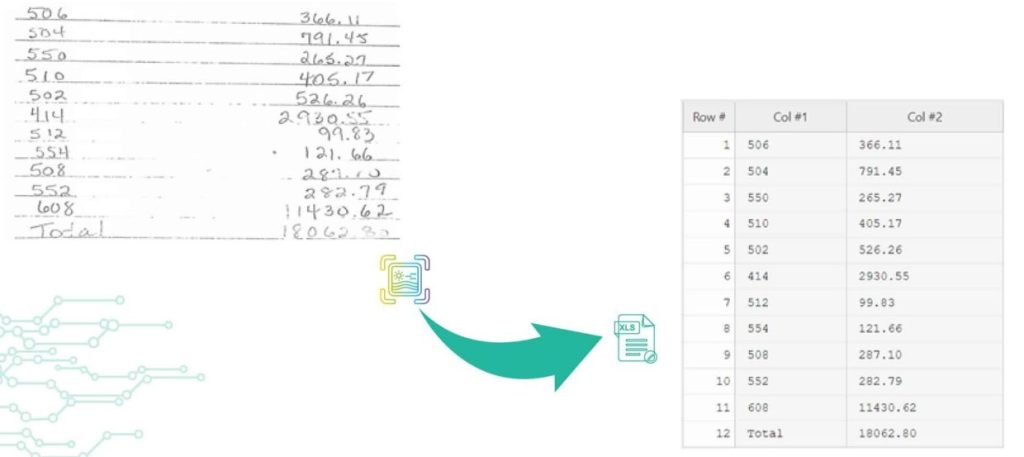
Back to Blog Table of contents On this page How to Extract Handwritten Data from PDFs with Algodocs? Home › Blog › Algodocs › How to Extract Handwritten Data from PDFs with Algodocs? Categories Algodocs Data Extraction Image Data Extraction Tags ai platform for data extraction algodocs character recognition data extraction from images handwritten pdf How to Extract Handwritten Data from PDFs web-based ai platform for data extraction By Shubhankar Biswas Published October 13, 2025, 12:19 Updated July 23, 2026, 07:36 Want to learn how to extract handwritten data from PDFs easily for your business documents? Algodocs is a powerful AI platform developed based on the latest technologies to streamline your processes and free your team from annoying and error-prone manual data entry by offering fast, secure, and accurate document data extraction. It helps you get rid of your workforce from repetitive, time-consuming, and error-prone manual data entry tasks such as extracting handwritten data. With its AI capabilities, Algodocs gives one of, if not the best, user experiences and interfaces. Areas and applications of Algodocs include extracting handwriting, tables, key-value pairs, marks, and signatures from PDFs and image files. Algodocs offers a forever free subscription, with 50 pages processed every month. What is OCR? Optical Character Recognition (OCR) engines are primarily focused on machine-printed text and may produce low accuracy for handwritten text. Intelligent Character Recognition (ICR) is an advanced recognition system that is used to recognize handwritten text. This allows the automatic conversion of text in an image into letter codes that are usable within computer and text-processing applications. Although many processes involve computer-based operations and are implemented in a digital environment, paper is still widely used across most core business processes such as mortgage origination, order fulfillment, contracts, and other documents that usually require handwritten input and signatures. Nowadays, the digitalization of paper documents plays an important role, and deciding on the right data capture software is critical since handwriting recognition, unlike printed text recognition is a more complex task that usually involves advanced deep learning algorithms. How Does Algodocs Do It? Handwritten data extraction from PDFs is implemented by converting handwritten text into machine-printed text with high accuracy. With the Intelligent Character Recognition (ICR) of Algodocs, you can automate your document processing workflow and get rid of manual data entry. Scan your paper documents with handwritten text and let Algodocs automatically extract data and convert it to Excel or JSON. Let’s consider the following portion of a scanned document, which contains a table of five columns filled with handwritten numbers. If you upload this image to your account at Algodocs, you will see the following output, which has 100% accuracy. Algodocs uses advanced ICR engines trained with Artificial Intelligence algorithms and Deep Learning. Extracting data from various document formats could be a challenging task, especially when it comes to the necessity to extract specific data sets from files containing different types of documents that span across multiple pages. In these quick materials, we will list key features that are available in Algodocs, and which will help you to extract data from your documents using the Algodocs advanced AI engine without relying on templates or even labeling and training your files. What Are the Supported File Formats for Data Extraction? You may upload to Algodocs different types of files of different Image formats for data recognition and data extraction: Portable Document Format (PDF) Joint Photographic Experts Group (JPEG) Portable Graphics Format (PNG) Tagged Image File Format (TIFF) What Are the Supported Languages for Data Recognition? Algodocs supports data extraction from documents with Arabic, Armenian, Belorussian, Bulgarian, Catalan, Chinese, Croatian, Czech, Danish, Dutch, English, Estonian, Filipino, Finnish, French, German, Greek, Hebrew, Hindi, Icelandic, Indonesian, Italian, Japanese, Korean, Lao, Latvian, Lithuanian, Macedonian, Nepali, Norwegian, Persian, Polish, Portuguese, Russian, Serbian, Slovak, Slovenian, Spanish, Swedish, Telugu, Thai, Turkish, Ukrainian, Vietnamese, and many other up to 200 languages. How to Extract Handwritten Data from PDFs Using Algodocs Step 1: Log in to your Algodocs account and go to the home page which is the Dashboard. Step 2: Click on the Extractors tab, where you can see the Create button on the top right side, click on it. Step 3: Choose the Custom Extractor, for getting structured data from your documents as you need it. Step 4: A pop-up window will appear, upload your sample file to extract data from. Click on the Choose file, to locate the document from your device storage folder, then assign a name to the extractor. Once done, click on the Create Extractor button. It will populate under Extractors as below; in this article, our example is called “Sample1.” Step 5: Click on the blue button labeled “Manage”, to create the data to be extracted. Step 6: Click on Add to choose what type of extraction method you want, here, you may use rule-based and AI extraction. In this example, we will choose the AI extraction method, “Form Data Extraction.” After clicking on “Form data extraction”, the page that you want to extract data from will appear on a new page. On the Top Right corner click on” Continue”. Step 7:  The raw data from your document is displayed. Now use available filters to select certain data, and update, or format the extracted data as you like. Once done, write the Field/Table name on the Left side inside the blank text box, and click the SAVE button on the right side. Step 8:  Now go to the extracted date and choose the extractor name, from the first drop-down menu. The extractor will populate the extracted date information. To view the extracted data, click on the Rows, and the data will populate as below.  Then choose to download the data as Excel, JSON, or XML Final Thoughts As we can see Algodocs performs well in handwritten text extraction from scanned documents. Feel free to start a free subscription right now and test your handwritten scanned documents. You can use Algodocs for free forever, and you will have 50 pages per month. If you need to process a higher number of pages, then please see our affordable pricing plans. Please contact

Data Extraction, PDF

What is a PDF Parser?

Back to Blog Table of contents On this page What is a PDF Parser? Home › Blog › Data Extraction › What is a PDF Parser? Categories Data Extraction PDF Tags ai platform for data extraction algodocs character recognition data extraction from images deep learning export extracted data to excel invoice process machine learning ocr api web-based ai platform for data extraction By Shubhankar Biswas Published October 13, 2025, 12:03 Updated July 29, 2026, 02:32 A PDF Parser is a program or a library that enables end-users and organizations to parse data from native PDF documents. Often, organizations need to parse PDF documents for specific fields such as Account Number, Date, Address, Bill to/from information, or parse tabular data. PDF Parsers are usually needed and used for processing and parsing data from large amounts of documents. On the other hand, when you have a handful of documents you simply go and copy the data you need from PDF documents manually and paste it to Excel or anywhere you need it to be. PDF Parsers enable end-users to get data from hundreds and thousands of PDF documents in real time by saving huge amounts of time and, thus, money. Parsing pdf documents isn’t an easy task. There are various ways native pdf documents are generated and parsing data from such pdf documents requires smart approaches. Parsed data from PDF documents greatly varies depending on the industry, which means the data parsed might also greatly change, which complicates the task. Parsing PDF medical forms, which contain specific fields such as First, Middle, and Last names, Sex, Date of Birth, etc. are very different from PDF purchase orders that contain mainly the items in the tabular form with such columns as Item No, Code, Quantity, Item Price, Amount, etc. Therefore, if PDF Parser produces just a bunch of text from a PDF document it does not make much sense for the end-user. What end-users or organizations require is the structured data parsed from PDF documents. In other words, PDF Parser should extract from PDF documents only the data the end-user needs and in the right structured format. For this, the PDF Parser must be smart and flexible enough to parse PDF documents with various layouts and data types. How to parse PDF documents with various layouts? Algodocs allows you to parse PDF documents of any complexity in their layouts and type of data. With the flexible extracting rules of Algodocs, you can parse data from PDFs with different layouts. It is very easy and quick to set up extractors in Algodocs for your PDF documents. We provide 100% free technical support and are ready to set up extractors for you. While we provide free support for creating extracting rules, you may check our help and support section if you wish to learn how to create extracting rules in Algodocs. Watch the following introductory video to get an idea of how it works in Algodocs. Feel free to start a free subscription right now and parse your pdf documents. You can use Algodocs free forever with 50 pages per month. If you need to process a higher number of pages, then please see our affordable pricing plans. If you have specific requirements and need a custom solution, please contact us. You Might Also Like PDF Data Extraction: The Best Tool and Techniques PDFs are ubiquitous in every organization, serving as the go-to format for sharing and exchanging business data. However, extracting, editing, or… Shubhankar Biswas October 13, 2025 PDF Image Extraction: A Comprehensive Guide To Extracting Image Data From Scanned Pdf Files In 2025 PDF image extraction is a challenging process. Without proper tools and technology, this process can be tedious and prone to errors, which can… Shubhankar Biswas September 1, 2025 Convert PDF to JSON – Convert PDF Documents to Structured JSON Objects Table of Contents Introduction Organizations in various industries widely use PDF documents, since no doubt PDF is a common document format for… Shubhankar Biswas October 13, 2025 Start extracting your data today No credit card required. Process up to 50 pages per month on the Forever Free plan. Book a Demo Get Started for Free

PDF

Convert PDF to JSON – Convert PDF Documents to Structured JSON Objects

Back to Blog Table of contents On this page Convert PDF to JSON – Convert PDF Documents to Structured JSON Objects Home › Blog › PDF › Convert PDF to JSON – Convert PDF Documents to Structured JSON Objects Categories PDF Tags ai platform for data extraction algodocs character recognition data extraction from images deep learning export extracted data to excel invoice process machine learning ocr api web-based ai platform for data extraction By Shubhankar Biswas Published October 13, 2025, 11:59 Updated July 21, 2026, 05:15 Introduction Organizations in various industries widely use PDF documents, since no doubt PDF is a common document format for businesses to transfer data. Purchase orders, Invoices, Agreements, and many more document types are interchanged in PDF formats. On the other hand, JSON is another format that represents data in a structured format, which is widely used in transferring data between web applications. As a result, Working with JSON is much easier than with PDF. Therefore, in this article, we will talk about PDF and JSON formats and how you can convert your PDF documents to JSON format. What is a PDF? PDF (Portable Document Format) was initially developed by Adobe® Systems in 1992 and is standardized as ISO 32000. What makes PDF so popular is it is independent of the application software, hardware, and operating system. Other than text and images PDF files may contain a variety of content such as annotations, form fields, layers, etc. There are many advantages of PDF format such as multi-dimensionality, which we have already mentioned – being able to contain various types of content, text, images, videos, vector graphics, interactive fields, hyperlinks, and buttons. Moreover, PDF documents are easily created and viewed on different devices.  Security in PDF was one of the primary concerns of Adobe® Systems. Therefore, PDFs have different access levels to protect the content and the whole document, such as passwords, digital signatures, and watermarks. However, some of the downsides of a PDF are the complexity of editing and especially extracting data from it. Moreover, PDFs are not generated in the same way, so different PDF files can be created in various ways, which complicates the task of extracting data from PDF documents. What is a JSON? JSON (JavaScript Object Notation) is a very popular data format, which appeared in the early 2000s. JSON is a language-independent data format and is used to transfer data between software applications, particularly web applications, usually between server and client.  Most of the API integrations are realized using JSON format for data transfer since it is very easy to work with JSON. Consider a JSON object called person, which contains the following information:{   “name”: “John”,   “surname”: “Doe”,   “age”: 25} Accessing fields of a JSON object is as simple as using the name of the object and the field name you want to access by separating them with a dot as follows: To access a person’s name we use person.name, which will give us “John” as a result. Similarly, we do for surname and age fields: person.surname, person.age Note how easy it is to access any field of a JSON object, which is definitely not compared to accessing specific information in the PDF document. How does JSON differ from PDF? Although PDF and JSON are both widely spread and used, there is a huge difference between PDF and JSON. The difference between them is simply in the purpose of their usage. PDF is mainly used for exchanging information between humans, since it contains text, graphics, illustrations such as images and videos, etc. On the other hand, JSON is mainly used between computer programs and different applications for communicating and exchanging data between each other. It is not an easy task for a human to read information from a JSON file, especially if it is a compressed one, but it is a perfect way to access information from JSON for a software application. The opposite goes for the PDF. Therefore, PDF and JSON become important, useful, and helpful only when they are used in the right place and for the right purpose. How to Convert PDF to JSON? Often, organizations need to transfer data to other programs for further processing. This data is often stored in PDF documents since businesses often speak to each other in a “PDF language”. However, extracting information from PDF documents can be challenging.  The simplest solution is that you can always copy and paste text from a PDF and send it to where it belongs. However, this simple approach has many problems, since first of all this will work only with native PDF files (not scans) for which you can even use some free PDF Parsers. Another problem even if your PDF documents are all native, it is not easy to copy the entire table from a PDF by maintaining its format, especially if the table spans over multiple pages, for example, 100 or 1000 pages. Additionally, often organizations need to extract specific data from PDFs, for example not the entire table, but instead specific rows or columns based on some conditions. Last, but not least, it is not worth spending your valuable time on menial data entry! Convert PDF documents to JSON with Algodocs Algodocs offers a perfect solution to extract any type of data from PDF documents and transfer it to other programs in real-time. Algodocs can extract fields and tables of any complexity from native as well as scanned PDF documents. You can convert your PDF documents to JSON in three steps with Algodocs. First, start by creating an extractor in Algodocs. Algodocs has some preprocessing operations that take some time depending on the number of pages your PDF document contains; usually, it is around 15-20 seconds. Then, go to the ‘Extracting Rules’ editor to create your extracting rules for every field you need to extract from your PDF documents. Similarly, if you need to extract tables from your PDF documents you can create extracting rules for tables by selecting ‘Table’ as the data type. After you are done with creating and extracting rules,

Algodocs

Extract handwritten text from scanned PDFs and images

Back to Blog Table of contents On this page Extract handwritten text from scanned PDFs and images Home › Blog › Algodocs › Extract handwritten text from scanned PDFs and images Categories Algodocs Tags ai platform for data extraction algodocs character recognition data extraction from images deep learning export extracted data to excel invoice process machine learning ocr api web-based ai platform for data extraction By Shubhankar Biswas Published October 13, 2025, 11:56 Updated November 10, 2025, 13:34 Optical Character Recognition (OCR) engines are primarily focused on machine-printed text and may produce low accuracy for handwritten text. Intelligent Character Recognition (ICR) is an advanced recognition system that is used to recognize handwritten text. This allows the automatic conversion of text in an image into letter codes that are usable within computer and text-processing applications. Although many processes involve computer-based operations and are implemented in a digital environment, paper is still vastly used across most core business processes such as mortgage origination, order fulfillment, contracts, and other documents that usually require handwritten input and signatures. Nowadays, the digitalization of paper documents plays an important role, and deciding on the right data capture software is critical since handwriting recognition unlike printed text recognition is a more complex task that usually involves advanced deep learning algorithms. Algodocs: Deep Learning Handwriting Recognizer Algodocs is capable of converting handwritten text into machine-printed text with high accuracy. With the ICR of Algodocs, you can automate your document processing workflow and get rid of manual data entry. Scan your paper documents with handwritten text and let Algodocs automatically extract data and convert it to Excel or JSON. Let’s consider the following portion of a scanned document, which contains a table of two columns filled with handwritten numbers. If you upload this image to your account at Algodocs, you will see the following output, which has 100% accuracy. Algodocs uses advanced ICR engines trained with Artificial Intelligence algorithms and Deep Learning. The above example includes mostly digits. Another example with characters is given below. The following is the extracted text by Algodocs from the above image. As we can see Algodocs performs well in handwritten text extraction from scanned documents. Feel free to start a free subscription right now and test your handwritten scanned documents. You can use Algodocs free forever with 50 pages per month. If you need to process a higher number of pages, then please see our affordable pricing plans. If you have specific requirements and need a custom solution, please contact us. You Might Also Like How to Extract Handwritten Data from PDFs with Algodocs? Table of Contents Want to learn how to extract handwritten data from PDFs easily for your business documents? Algodocs is a powerful AI platform… Shubhankar Biswas October 13, 2025 Conquer Multilingual Data Extraction: A Step-by-Step Guide with Algodocs Introduction Sick of spending hours manually extracting data from multilingual PDFs and images? It could be more efficient, prone to mistakes, and,… Shubhankar Biswas October 12, 2025 Why convert PDF to Word on MacBook (Mac)? Picture this: You have a PDF file that needs to be revised or a scanned document that you wish to convert into an editable format like an MS Word… Shubhankar Biswas October 12, 2025 Start extracting your data today No credit card required. Process up to 50 pages per month on the Forever Free plan. Book a Demo Get Started for Free

Image Data Extraction

A Guide on Extracting Tables From Low-Quality Scanned Documents

Back to Blog Table of contents On this page A Guide on Extracting Tables From Low-Quality Scanned Documents Home › Blog › Image Data Extraction › A Guide on Extracting Tables From Low-Quality Scanned Documents Categories Image Data Extraction Tags ai platform for data extraction algodocs character recognition data extraction from images deep learning export extracted data to excel invoice process machine learning ocr api web-based ai platform for data extraction By Shubhankar Biswas Published October 13, 2025, 11:52 Updated July 22, 2026, 09:54 Many companies deal with thousands of documents every month. Document workflow automation becomes vital for such companies as the number of documents increases. One of the most frequent and at the same time tedious operations when processing documents is reading data from tables, especially when documents are scanned PDFs or images. Automating table extraction from scanned documents and exporting them into Excel or JSON within seconds is a dream for every company dealing with manual data entry. Automating table data extraction from scanned documents and images reduces operational costs and saves a lot of time. In this article, we will talk about table extraction from scanned documents or images with low quality. You, most probably, came across some online tools that can extract tabular data from documents. However, there are a few that really work with low-quality scanned documents or images taken by a mobile device. Optical Character Recognition (OCR) is the technology used for converting scanned images into text. However, standard OCR tools require you to apply certain image processing operations on the images before you can apply OCR on them. Without manual pre-processing, OCR will fail in most cases, and accuracy will be low. Unfortunately, even with pre-processing operations free OCR tools produce poor performance. How to extract tables from scanned PDFs and images with low quality? Algodocs has an advanced AI-powered OCR engine that automatically handles any type of scanned PDF or image with a low quality. Algodocs accepts either colorful scanned images, black and white, or any other settings and extracts data with high accuracy. Algodocs can process scanned images with as low a dpi as 75. If you have scanned PDFs or images with low quality, then Algodocs is the right solution for you. You may start a free subscription right now and test your own scanned documents since we offer a free subscription (forever) with 50 pages per month. If you need to process a higher number of pages, then please see our affordable pricing plans. Please read our article on the basic steps for table extraction from documents here: Extract tables from PDF and scanned documents Algodocs: the best software tool to extract tables from scanned PDFs and images Consider the portions of the scanned documents below and the tables that Algodocs extracted from them. Example #1 Sample scanned image with low-quality (black and white) Extracted table by Algodocs. Example #2 Extracted table by Algodocs As you can see, the accuracy of Algodocs is perfect even with low-quality scans. However, there are cases when scanned images may cause Algodocs to make mistakes concerning small characters such as punctuation or other symbols (points, commas, date separators, etc.). Let’s have a look at the example below with a scanned image and see what Algodocs could extract from it. The extracted table from the above-scanned image is shown below. As you can see, there are numbers that are extracted with wrong decimal separators (indicated in red circles), i.e. a decimal point is mistakenly recognized as a comma. This is due to the dark background that some rows have on the image. With the help of flexible extracting rules of Algodocs, the workaround is quick and simple. Whenever you have low-quality scanned PDFs of images, we always advise you to follow the steps explained below. Step1. Remove all points and commas from the numbers We apply the ‘Search & Replace’ filter in Algodocs by using regular expressions as the search type. We apply this rule to all the columns in the example below, but you can restrict this rule to a specific column when needed. In order to find all dots or commas we use .|, as the search term and we leave empty the second field (replace by this), since we simply want to remove them. Step 2. Convert all numbers to their previous format Since we removed all points and commas from numbers, they actually increased, i.e. multiplied by 100 we can say (2,378.63 became 237863). Therefore, since we know that our numbers had 2 decimal places, we can divide all numbers by 100 to get the original numbers. The ‘Arithmetic Operation’ filter helps us implement exactly this. We divide numbers by 100 in the last column as shown in the example below. You may apply this filter to other columns too. That’s it. We got numbers in their original form with 100% accuracy! The same approach can be applied to other symbols when you have documents with a low quality. Please, contact us if you need any assistance. You Might Also Like How to Extract Handwritten Data from PDFs with Algodocs? Table of Contents Want to learn how to extract handwritten data from PDFs easily for your business documents? Algodocs is a powerful AI platform… Shubhankar Biswas October 13, 2025 Data Extraction for Legal Industry : How Intelligent Document Processing (IDP) Can Transform Legal Industry Document Workflow The global law and legal services industry is expected to reach $1,591.56 billion by the end of 2032, according to a report. The legal industry… Shubhankar Biswas October 12, 2025 Extract Tables from Images with AlgoDocs Extract Tables from Images with AlgoDocs One might find themselves overwhelmed by a deluge of paperwork—orders, checks, articles—all containing… Ibrahim Nalbant June 20, 2024 Start extracting your data today No credit card required. Process up to 50 pages per month on the Forever Free plan. Book a Demo Get Started for Free

insurance data extraction
Data Extraction, Insurance Data Extraction

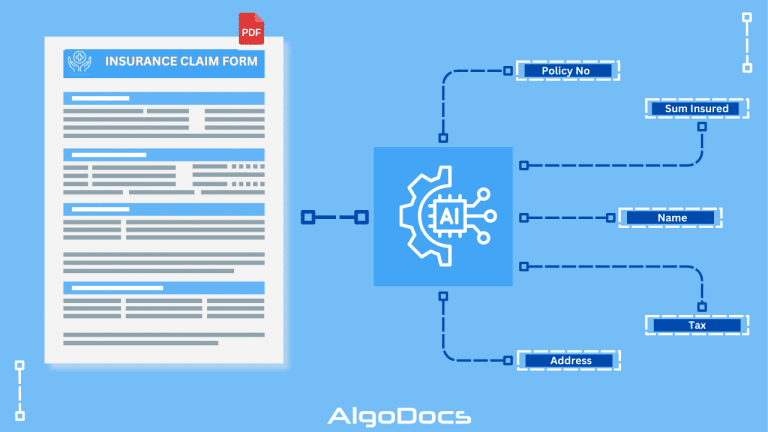
Insurance Data Extraction: Automating Policy and Claim Processing with AI

Back to Blog Table of contents On this page Insurance Data Extraction: Automating Policy and Claim Processing with AI Home › Blog › Data Extraction › Insurance Data Extraction: Automating Policy and Claim Processing with AI Categories Data Extraction Insurance Data Extraction Tags ai platform for data extraction algodocs character recognition deep learning IDP Insurances Data Extraction intelligent document processing By Shubhankar Biswas Published October 12, 2025, 18:20 Updated July 23, 2026, 05:31 The modern insurance sector operates on massive volumes of information and insurance data extraction is a crucial part of insurance industry business process. Every single day, insurance carriers, third-party administrators, brokers, and agencies process thousands of files. These files range from policy applications and loss notices to medical bills, repair estimates, legal notices, and property appraisal reports. Within this ocean of paperwork lies the essential information required to underwrite risks, calculate premiums, settle claims, detect fraud, and maintain regulatory compliance. However, a significant challenge facing the insurance industry today is that up to eighty percent of this critical information arrives in unstructured or semi-structured formats. Scanned PDF files, digital images, physical paper forms, email attachments, and handwritten adjuster notes cannot be directly read or processed by traditional enterprise databases. Historically, companies relied heavily on manual data entry to transfer details from incoming documents into core operational platforms like claims management systems or policy administration suites. Manual processing creates severe bottlenecks. It inflates operational expenses, slows down service delivery, introduces human error, and frustrates policyholders who expect immediate digital service. To overcome these challenges, progressive insurance providers are transitioning toward automated insurance data extraction. Driven by advances in AI OCR, Machine Learning, and Intelligent Document Processing, modern extraction tools allow organizations to transform messy, unformatted files into structured, machine-readable digital data in seconds. This comprehensive guide explores the fundamentals of automated insurance data extraction, examining the types of documents processed, the hidden costs of manual workflows, the business benefits of artificial intelligence, and the leading software solutions shaping the market. What is Insurance Data Extraction? Insurance data extraction is the automated technology process of reading, identifying, capturing, and converting information from paper or digital insurance records into structured digital data formats. Instead of requiring human workers to manually read documents and type values into software screens, an automated insurance data extraction workflow ingests files, interprets their contents, extracts specific data fields, and exports clean data directly into core databases or enterprise applications. The insurance data extraction workflow relies on an integrated stack of advanced technologies: Document Ingestion: The system collects inbound files from multiple channels, including email inboxes, mobile application uploads, scanned physical mail, cloud storage, or secure web portals. Optical Character Recognition (OCR) and AI OCR: Legacy OCR converts scanned document images into text strings. Next generation AI OCR goes further by recognizing complex handwriting, low-resolution scans, and non-standard typography. Intelligent Document Processing (IDP): Combining artificial intelligence with natural language processing, Intelligent Document Processing understands the context and semantic meaning of words. It recognizes that a dollar figure located next to the word deductible represents a specific financial field rather than a premium payment. Machine Learning and Field Validation: Machine learning algorithms continuously improve extraction accuracy over time. Automated validation rules cross check extracted policy numbers, dates, and mathematical totals against internal enterprise databases to verify accuracy. Data Export: Clean, structured data is formatted into structured payloads such as JSON, XML, or CSV, and delivered directly to core policy or claims platforms via APIs. Through AI insurance data extraction, carriers can automate repetitive administrative steps, reduce turnaround times, and establish seamless insurance workflow automation across every department. Types of Documents Used in Insurance Industry for Insurance Data Extraction Insurance carriers handle a vast assortment of forms, reports, and contracts. Each document type possesses unique layouts, terminology, and data extraction requirements. Automated insurance document processing systems are designed to process diverse document types efficiently. 1. Policy Documents and Applications Policy applications and insurance binders represent the foundational agreements between policyholders and carriers. Extracting accurate data during policy origination is crucial for setting terms and issuing coverage. Key documents include: ACORD 125 Applications: The standard commercial insurance application form containing applicant business details, policy effective dates, location details, and requested coverage limits. Policy Schedules and Declarations Pages: Summary pages detailing coverage types, policy numbers, named insureds, endorsement listings, and premium amounts. Endorsement Forms: Amendments to existing policy contracts that modify coverage terms, add new insured assets, or change liability limits. Accurate policy data extraction ensures that customer profiles, coverage clauses, and premium figures match internal records without requiring manual entry. 2. Insurance Claims and Loss Notices When policyholders suffer a loss, rapid claims intake is essential for customer satisfaction. Automated insurance claims data extraction parses critical details from early claims documentation: First Notice of Loss (FNOL) Reports: Initial notifications submitted by policyholders or agents detailing how, when, and where an incident occurred. ACORD Loss Notices: Standardized notices such as the ACORD 2 Automobile Loss Notice or ACORD 3 Property Loss Notice, capturing policy details, driver information, and loss descriptions. Incident and Police Reports: Official law enforcement collision records containing narrative descriptions, driver statements, weather conditions, and citations. Automating insurance claims data extraction accelerates claim registration, enabling immediate assignment to claims adjusters or automated decisioning engines. 3. Medical Records and Healthcare Billing Forms Health, workers compensation, and personal injury protection claims involve complex clinical and billing records. These documents combine typed text, medical terminology, complex codes, and handwritten notes: CMS-1500 and UB-04 Forms: Standard medical billing claim forms used by physicians, medical practices, and institutional healthcare providers. Explanation of Benefits (EOB): Statements sent by health plans explaining covered services, approved amounts, deductible applications, and patient responsibility. Clinical Discharge Summaries and Doctor Notes: Narrative medical charts containing diagnoses, treatment histories, and surgical notes. Automated extraction engines capture critical diagnostic codes such as ICD-10, procedure codes such as CPT, billing line items, and provider identification numbers to streamline health claims auditing. 4. Underwriting Documents and Financial Statements Underwriters must review complex

ID Card Data Extraction
Algodocs

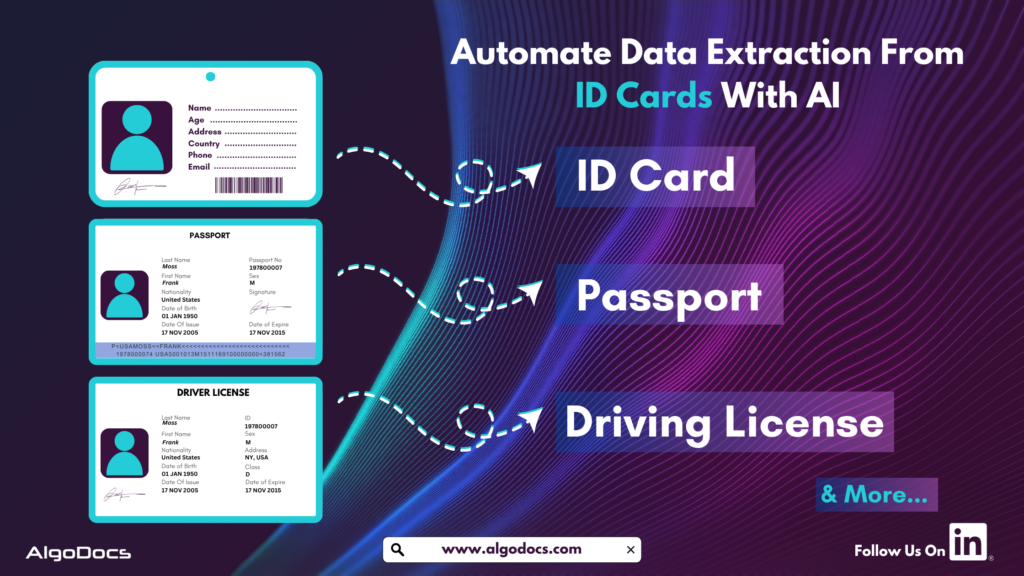
ID Card Data Extraction: Transforming Identity Verification with AI and OCR In 2025

Back to Blog Table of contents On this page ID Card Data Extraction: Transforming Identity Verification with AI and OCR In 2025 Home › Blog › Algodocs › ID Card Data Extraction: Transforming Identity Verification with AI and OCR In 2025 Categories Algodocs Tags ai platform for data extraction algodocs character recognition data extraction from images id card data extraction machine learning ocr api By Shubhankar Biswas Published September 1, 2025, 09:46 Updated July 10, 2026, 11:57 ID cards are crucial for individuals and corporate organizations for various reasons. In today’s fast-paced digital world, businesses and organizations need efficient ways to extract data from various types of identity cards for KYC, security, compliance, and customer onboarding. However, manual data entry is slow and prone to errors. This is where Artificial Intelligence (AI) and Optical Character Recognition (OCR) come into play, making the process faster, more accurate, and seamless across different industries. This blog explores the essentials of ID card data extraction, how it works, the technologies behind it, its real-world applications, challenges, and how Algodocs AI is leading the way in intelligent data extraction. What is ID Card Data Extraction? ID card data extraction involves capturing and extracting information from various types of identity documents, such as passports, driver’s licenses, national ID cards, employee badges, and student IDs. These extracted data are later used for identity verification, KYC (Know Your Customer), automated form-filling, and record management in different organizations. Businesses use ID card data extraction to enhance security, improve and streamline customer interactions, and boost operational efficiency. Some of the key data points extracted from an ID card include: Full Name Date of Birth Address Identification Number Expiry Date Issuing Authority Signature QR Codes or Barcodes Biometric Data (such as Photos) ID card data extraction is a multi-step process designed to deliver accurate and efficient results. It begins with capturing a clear image of the ID card using a scanner, smartphone camera, or document upload. Next, AI enhances the image through preprocessing by improving contrast, reducing noise, and correcting any distortions or angles. OCR technology then detects and extracts the text from the image, followed by AI-powered algorithms that organize the extracted text into structured fields like name, date of birth, and ID number. The data is then verified by cross-checking it against predefined parameters to ensure accuracy. Finally, the structured data is securely stored or seamlessly integrated into business applications, making it readily available for use with precision and reliability. What Types of ID Card and what types of data Can Be Extracted with AI and OCR? You can extract data from passports, driving licenses, and corporate ID cards using AI OCR apps. The following information can be extracted with ID card OCR apps, including: Personal Details: Full name, gender, date of birth. Document Information: ID number, issue and expiry date. Address Information: Residential or office address. Biometric Data: Signatures and photos. Security Features: Watermarks, holograms, QR codes, and barcodes. Organizational Details: Employer name, student ID, and membership numbers. Signup for Algodocs AI free ID card data extraction app today and access all the paid features for free. Sign Up Now Extracting these details helps businesses with verification, compliance, fraud prevention, and automated onboarding. Technology Behind ID Card Data Extraction: OCR & AI To achieve high accuracy and efficiency, ID card data extraction relies on a combination of Optical Character Recognition (OCR) and Artificial Intelligence (AI). These technologies work together to automate the process of identifying, extracting, and digitizing data from ID cards, eliminating the need for manual data entry and reducing human errors. How OCR Works for ID Card Data Extraction Optical Character Recognition (OCR) is a sophisticated technology designed to scan and convert printed or handwritten text into machine-readable digital data. It is the backbone of ID card data extraction, enabling businesses, financial institutions, and government agencies to streamline identity verification and document processing. The OCR Process for ID Card Data Extraction OCR follows a structured workflow to ensure accurate and efficient extraction of text from ID cards. The process involves multiple steps, as outlined below: Capturing an Image of the ID Card The process begins with scanning or photographing the ID card using a scanner, mobile camera, or document imaging device. High-quality images with proper lighting and minimal glare improve OCR accuracy. Image preprocessing techniques, such as noise reduction, contrast enhancement, and skew correction, are applied to improve readability. Detecting Text Regions Using AI AI-powered OCR systems analyze the scanned image to identify and segment text areas from graphical elements such as logos, watermarks, and holograms. Machine learning models help differentiate between text and non-text elements, ensuring only relevant data is extracted. Recognizing Character Patterns & Extracting Data OCR algorithms process each text segment, identifying individual characters, numbers, and symbols. AI-powered pattern recognition improves accuracy, allowing the system to recognize different fonts, languages, and even stylized text. Some advanced OCR solutions incorporate Intelligent Character Recognition (ICR), enabling the extraction of handwritten text. Converting the Text into a Structured Digital Format The extracted text is converted into structured digital formats such as JSON, CSV, XML, or databases. This allows businesses to easily integrate ID card data with customer management systems, banking applications, HR platforms, and other databases. Validating Extracted Data for Accuracy AI-powered post-processing techniques are used to validate and correct any potential errors in the extracted text. This step ensures that information such as names, ID numbers, and expiration dates are correctly interpreted and formatted. AI models compare extracted data with predefined templates, helping detect discrepancies or inconsistencies. Capabilities of Modern OCR Solutions With the rapid advancements in AI and machine learning, modern OCR solutions have evolved to offer greater accuracy and versatility. Some key capabilities include: Multi-Language Recognition: OCR can extract data from ID cards in various languages, including complex scripts such as Arabic, Chinese, and Cyrillic. Support for Different Fonts & Formats: Advanced OCR models can handle various font styles, text orientations, and formatting styles commonly found in global ID cards. Handwriting Recognition (ICR): Intelligent Character Recognition (ICR) enables the extraction of handwritten details, such as signatures or handwritten notes on IDs. Fraud Detection & Security Enhancements: AI-driven OCR can detect altered or fraudulent

sea waybill ocr
Algodocs

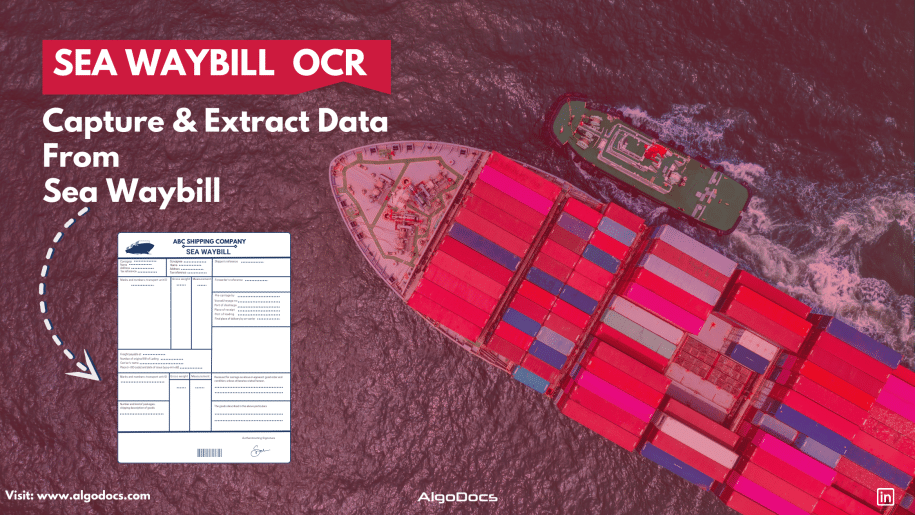
Sea Waybill OCR: Revolutionizing Maritime Logistics With AI-Powered Document Processing

Back to Blog Table of contents On this page Sea Waybill OCR: Revolutionizing Maritime Logistics With AI-Powered Document Processing Home › Blog › Algodocs › Sea Waybill OCR: Revolutionizing Maritime Logistics With AI-Powered Document Processing Categories Algodocs Tags ai platform for data extraction algodocs character recognition image to text invoice process sea waybill ocr By Shubhankar Biswas Published September 1, 2025, 08:39 Updated July 20, 2026, 08:08 Introduction Maritime logistics plays a crucial role in global trade, with millions of shipping documents processed daily. Among them, the sea waybill is a critical document in ocean freight digitalization, facilitating cargo movement and ensuring smooth supply chain operations. However, manually extracting and processing bulk sea waybills is time-consuming, prone to errors, and inefficient. With the advent of OCR (Optical Character Recognition) technology, businesses can now automate data extraction from shipping documents, streamlining operations and reducing human intervention. Sea Waybill OCR is a transformative technology that helps logistics companies by providing fast, accurate, and scalable data extraction solutions for document processing and automation. In this blog, we will explore how OCR technology is revolutionizing the maritime industry, along with its benefits, use cases, and future trends. Understanding the Sea Waybill A sea waybill is a shipping document issued by a carrier that acts as a contract of carriage but does not confer title to the goods. Unlike a bill of lading (BOL), a sea waybill is non-negotiable, meaning that the consignee can take delivery of goods without presenting the original document. This makes it a preferred choice for faster and more efficient transactions. Key Differences: Sea Waybill vs. Bill of Lading What is a Sea Waybill? A Sea Waybill is a commonly used document in international shipping that simplifies the transportation process. Why is it important? Acts as a Receipt – Confirms that the carrier has received the goods for shipment. Specifies the Destination – Clearly indicates where the shipment is headed. Does Not Transfer Ownership – Unlike a Bill of Lading, it does not grant ownership rights to the holder. Simplifies Delivery – Reduces paperwork and speeds up the shipping process. Ideal for Established Trade Relationships – Best suited for situations where: Ownership remains unchanged during transit. There is no need for a document to control the transfer of goods. By streamlining logistics, the Sea Waybill helps freight forwarders and businesses ensure faster, hassle-free deliveries. What is a Bill of Lading? A Bill of Lading (BOL) is a crucial document in international trade that serves multiple purposes in the shipping process. Why is it Important? Acts as a Primary Shipping Document – It is the key document required for importing and exporting goods. Identifies Key Parties – It specifies the sender (shipper), the carrier (transport company), and the recipient (consignee). Serves as a Receipt – It confirms that the shipping company has received the goods in proper condition. Establishes Legal Ownership – The BOL proves who owns the goods during transit. Grants Control Over the Shipment – The person holding the original BOL has the right to: Claim the goods upon arrival. Transfer ownership to another party in the supply chain. By clearly defining roles and responsibilities, the Bill of Lading ensures smooth coordination among all parties involved in the shipment process. Feature Sea Waybill Bill of Lading (BOL) Negotiability Non-negotiable Negotiable Document Requirement No original required for delivery Original required for cargo release Speed of Transaction Faster, direct delivery Slower due to title transfer Risk of Fraud Lower risk Higher risk Since sea waybills are widely used in automated document processing, integrating OCR solutions can significantly improve efficiency. What is Sea Waybill OCR? Sea Waybill OCR technology is designed to automatically capture and extract data from scanned sea waybill images and PDFs. You don’t need to set up custom extractors or rules, as the system automatically recognizes document types, layouts, and data fields, extracting values with precision. This OCR model is trained on vast amounts of data using AI and machine learning, allowing it to understand patterns, layouts, and data types in sea waybill documents. By leveraging the power of AI and ML, Sea Waybill OCR seamlessly digitizes and automates data extraction from shipping documents, making the process faster and more efficient. By using machine learning-based OCR, businesses can accurately capture essential information such as: Shipper and consignee details Cargo descriptions Freight terms Port of loading and discharge Carrier and vessel details This eliminates the need for manual data entry and enhances the accuracy and efficiency of logistics operations. The Role of AI in OCR for Sea Waybills Modern AI-powered OCR solutions go beyond simple text recognition. They incorporate advanced natural language processing (NLP), deep learning, and computer vision to extract structured data from unstructured documents. Here’s how AI enhances OCR capabilities: Intelligent Data Extraction – AI models can recognize different fields in sea waybills and classify information accurately. Handwritten and Printed Text Recognition – AI-powered OCR can process both typed and handwritten text, improving versatility. Multi-Language Support – Maritime trade is global, and AI-driven OCR supports multiple languages for seamless operations. Automated Data Validation – AI cross-checks extracted information with databases to ensure accuracy. Seamless Integration with ERP and TMS – OCR solutions integrate with transportation management systems (TMS) and enterprise resource planning (ERP) software for real-time data processing. Benefits of Implementing Sea Waybill OCR 1. Increased Efficiency & Speed Manual data entry is slow and labor-intensive. OCR enables instant data extraction, reducing processing time from hours to minutes. 2. Cost Reduction Automated document processing minimizes labour costs and operational expenses by reducing manual intervention. 3. Improved Accuracy & Data Integrity Human errors in shipping documents can lead to costly delays. AI-powered OCR enhances accuracy and ensures compliance with shipping regulations. 4. Better Compliance & Security OCR solutions can flag inconsistencies and prevent fraud, ensuring better regulatory compliance in maritime trade. 5. Scalability Businesses can process large volumes of documents effortlessly, making it ideal for shipping companies, freight forwarders, and customs agencies. Use Cases of OCR in Maritime Logistics 1. Digitization of Shipping Documents OCR converts physical sea waybills into digital formats, making them searchable and easy to retrieve. 2. Automated Freight Auditing AI-powered

Data Extraction, Optical Character Recognition

What Is Zonal OCR? An Easy Guide to Understanding Zonal OCR and How It Works.

Back to Blog Table of contents On this page What Is Zonal OCR? An Easy Guide to Understanding Zonal OCR and How It Works. Home › Blog › Data Extraction › What Is Zonal OCR? An Easy Guide to Understanding Zonal OCR and How It Works. Categories Data Extraction Optical Character Recognition Tags character recognition ocr api By Shubhankar Biswas Published September 1, 2025, 07:27 Updated July 20, 2026, 11:11   Processing data from bulk documents can be an annoying and time-consuming task if you have to extract this data manually. But with the help of modern technology such as optical character recognition, you can extract data from these documents easily. There is another part of OCR technology known as zonal OCR, which lets you extract specific data from specific sections of a PDF or scanned image. That is known as zonal OCR. So, what is Zonal OCR, and how does it work? We will discuss more in detail below. Understanding the Basics: OCR VS Zonal OCR? Before we explain what zonal OCR is, we first need to understand what OCR technology is and how it works.OCR stands for Optical Character Recognition. It was developed in the late 70s and started to gain traction in the late 80s. One of the main reasons it gained popularity in the 80s was because it started to be used by banks to extract data from various types of documents, which helped them save time and improve data extraction quality. Later, OCR was adopted in business, marketing, and other industries all around the world.The main function of traditional OCR technology is to convert different types of documents such as scanned paper documents, PDFs, or images into editable and searchable data. An OCR tool “reads” text on an image and turns it into digital letters that are editable on a computer. For example, if you scan a printed invoice and use OCR software, the software can pull out the name, address, and price from that scanned image and turn it into usable text. But classic OCR tools extract all the presented data in a document, and you can’t control what to extract and what not to—that’s where zonal OCR comes into play. What Is Zonal OCR? Now that we know what OCR is, let’s answer the main question—what is zonal OCR?Zonal OCR is a more focused and intelligent version of regular OCR. Instead of scanning an entire document and pulling out all the text, zonal OCR extracts data from specific areas or “zones” of a document. That’s why it is called zonal OCR or is known as template OCR as well. These zones are predefined sections where certain types of information always appear.Think of it like this: if every invoice you receive has the “Invoice Number” in the top right corner, Zonal OCR can be trained to look at just that area and pull the number out automatically. It ignores everything else and goes straight to the point. That makes it incredibly efficient and reliable for high-volume document processing. One of the major highlights of zonal OCR is that it is more accurate compared to traditional OCR. So, How Does Zonal OCR Work? Let’s break down how Zonal OCR works in a step-by-step process: Template Definition: First, you define zones on a document template. These zones are rectangular areas where key data lives—like names, dates, invoice numbers, etc. Document Scanning: When a new document comes in, it is scanned or uploaded to the system. Zone Detection: The Zonal OCR engine locates the defined zones on the document. Data Extraction: The engine reads the text from those zones and extracts it into a structured format like CSV, JSON, or directly into a database. Post-Processing: Extracted data can be validated, verified, or even pushed into downstream workflows like CRMs, ERPs, or RPA systems. Features of Zonal OCR What makes zonal OCR so powerful is its accuracy. Traditional OCR might pick up irrelevant text or make errors when faced with complex layouts. But zonal OCR knows exactly where to look because we have already defined the zone from where data needs to be picked and extracted. That means fewer errors, faster processing, and smoother workflows. Real-World Example: Zonal OCR For Medical Billing Imagine a hospital that receives thousands of medical bills every month. These documents have patient names, billing codes, diagnosis details, health insurance info, and payment terms.Using zonal OCR, the hospital can define zones on its standard bill layout:• Top left for patient name• Top right for bill number• Centre zone for treatment codes and costs• Bottom section for insurance informationEach incoming bill gets processed automatically. The software reads just those parts and enters the data into the hospital’s billing system. No manual typing. No human errors. Just fast, accurate data extraction. Where Zonal OCR Is Used Zonal OCR is widely used in different industries that handle large volumes of documents with structured layouts. Here are some common use cases:• Healthcare: Extracting patient data, diagnosis reports, medical codes, and insurance details from forms and bills.• Finance: Pulling out transaction info, invoice numbers, and payment dates from bank statements or receipts.• Logistics: Reading shipping labels, barcodes, and delivery addresses.• Legal: Extracting case numbers, parties involved, or dates from legal filings.• Retail: Processing receipts and purchase orders for inventory management. Why Businesses Need Zonal OCR Now that you understand what zonal OCR is, let’s explore why it’s such a vital tool for modern businesses.Saves TimeManual data entry is slow and expensive. Zonal OCR does in seconds what might take a person several minutes or hours.Reduces ErrorsHumans make mistakes, especially when tired or rushed. Zonal OCR provides consistent and accurate results.Scales EasilyWhether you process 10 or 10,000 documents a day, zonal OCR can handle it. It grows with your needs.Easy IntegrationMost zonal OCR systems can plug right into your existing software—like CRMs, ERP tools, or cloud databases.Improves ComplianceAccurate document processing means better audit trails, stronger recordkeeping, and improved compliance with industry regulations. Zonal OCR vs Full-Page OCR You might be wondering, “Why not just use

Scroll to Top